




TIP TUESDAY! The power of saved searches

WHAT IS THE TIP?
Streamline your recruitment administration by creating thoughtful searches that you can revisit time and time again.
‘OR’ searches
💡 Did you know that you can create more complex searches by utilising ‘OR’ expressions?
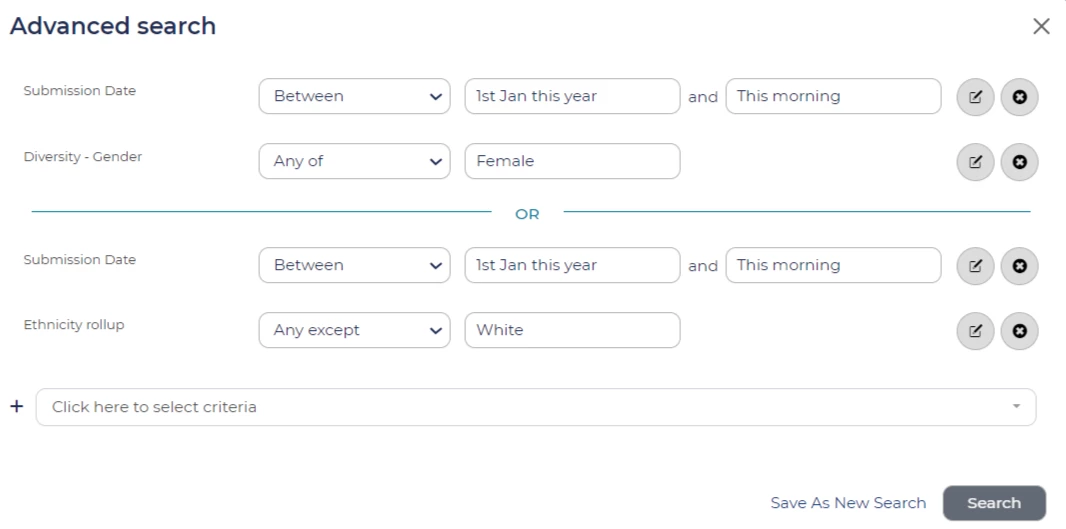
To create complex searches using an ‘OR’ expression, add your criteria to the search and select ‘OR criteria’ located at the bottom right of the window.
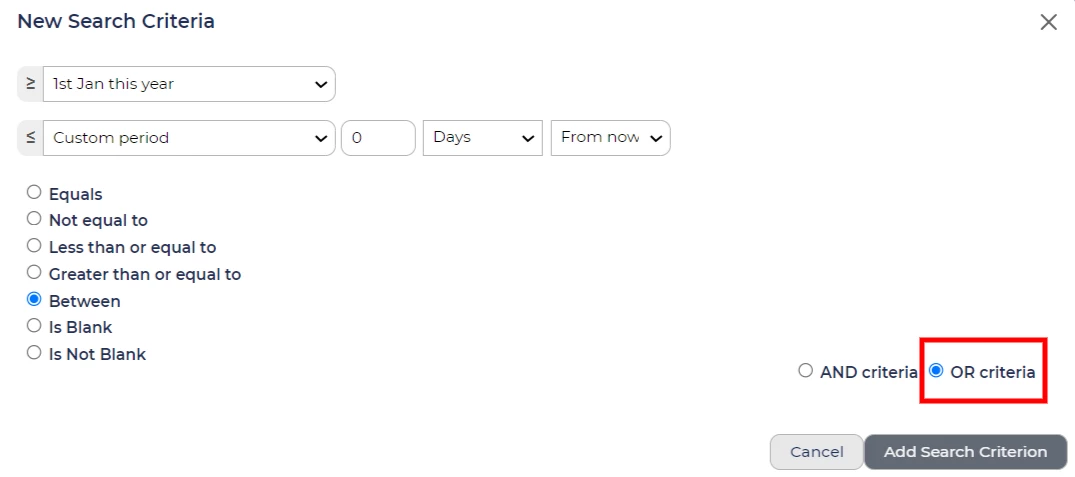
Please note: As per the example above (picture 1), submission date is added to each ‘OR’ element. Each ‘OR’ element is treated as a separate search. You can only add new qualifications to the bottom of the search so it is advised to write out in advance what you want to achieve. If you forget to add a search criteria, you might have to remove all and start again!
Dynamic searches
💡 Create dynamic searches to help keep on top of your pipeline, and take control of your database management.
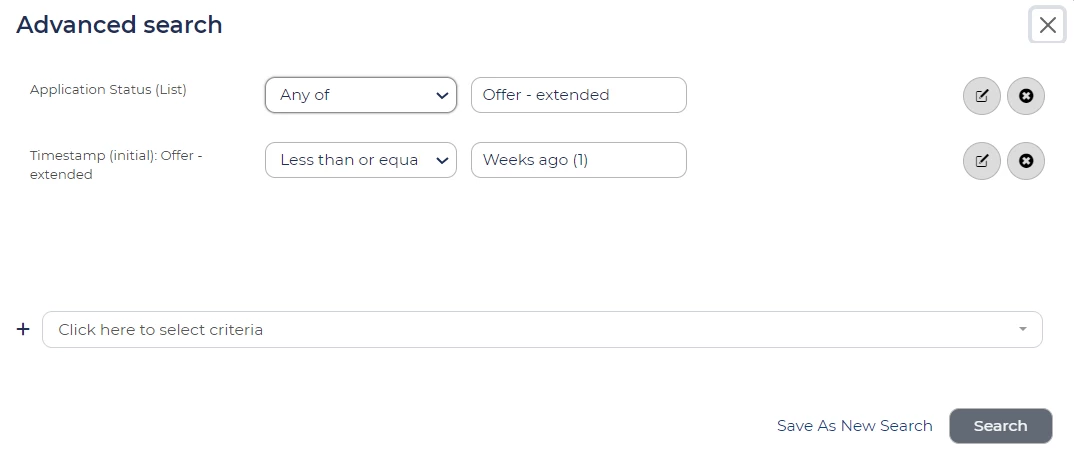
The above is a good example of a search that will continuously populate. This will return candidates who have taken over a week to respond to an offer extended to them - recruiters can use this search to flag those who require further action; perhaps a phone call, text or email to prompt a response. The system here is doing the hard work so you no longer have to remember to check in on your candidates at critical statuses.
Saving iterations of a search
💡 Creating multiple searches with the same core search criteria? Save time by creating the core search and save further iterations separately using the ‘Save as New Search’ option.
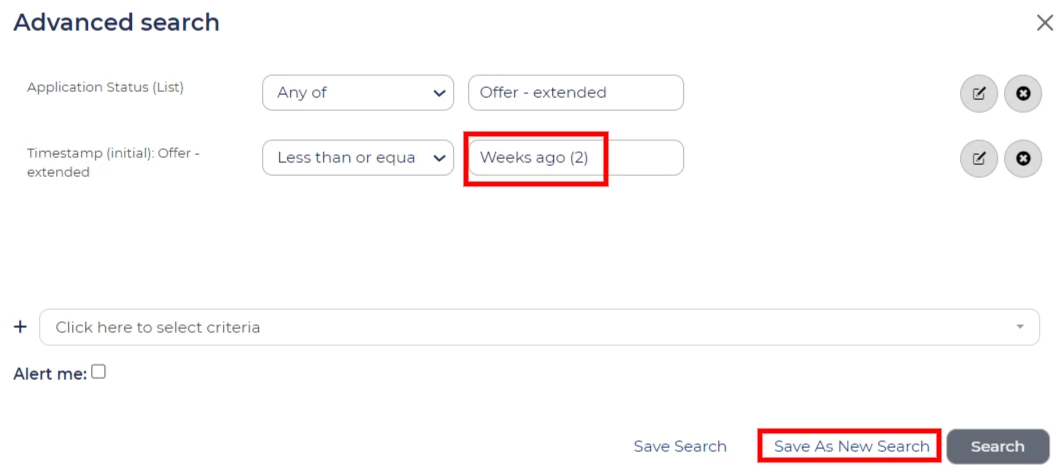
In this example, I have used my existing search, updated the report to return candidates who have not responded to my offer within two weeks (rather than one), and saved this as a new search. With a few clicks, I have created an additional, useful dynamic search.
Create an Alert
💡 Need candidate’s to be flagged to you urgently? Create a search and set an alert for when a candidate fulfils that criteria.
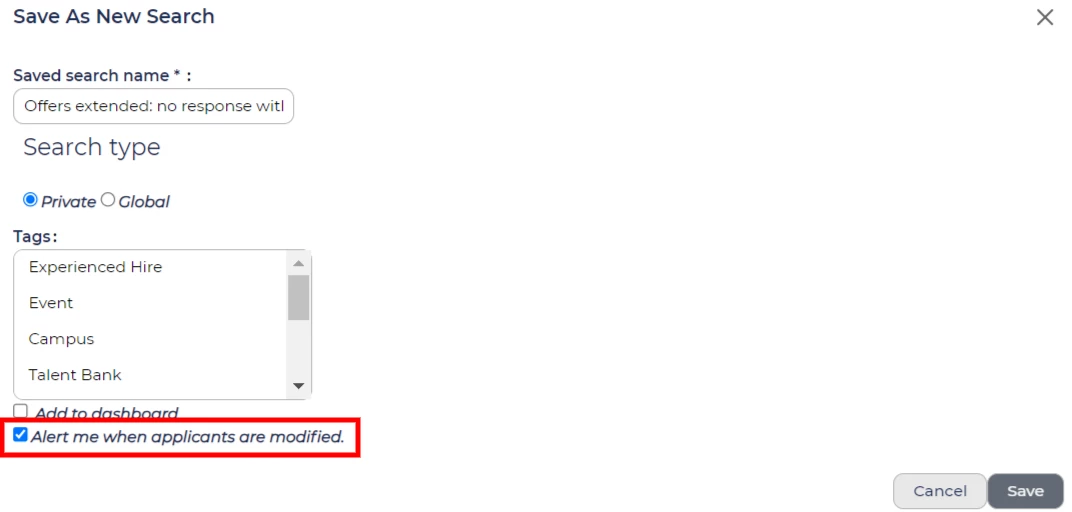
When saving a search, you have the option to have an email alert sent to you when someone newly matches with the search criteria. A maximum of one email is sent within an email period of 15 minutes. If, for example, three people match the search criteria, those candidates will all be included in the same email. If no new candidates match the search, no email is sent.
Assign a Table Layout
💡 Assign a table layout to your search so that the right data is returned, every time.
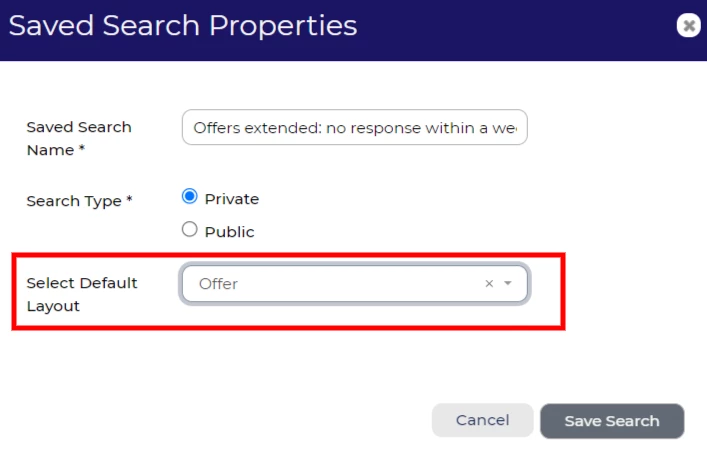
Navigate to My Tasks > View Saved Searches. Highlight the search you wish to apply a table layout to and select ‘Edit Properties.’ The above window will open, where you can now assign your table layout.
Search access privileges
💡 Are your colleagues jealous of your private search? Easily make a private search public, or vice versa.
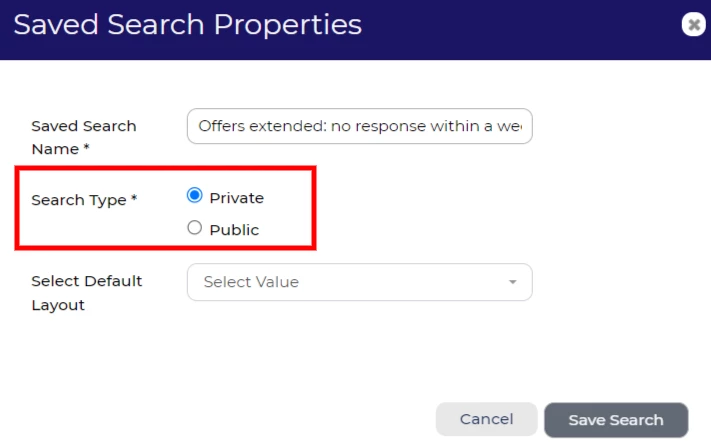
Navigate to My Tasks > View Saved Searches. Highlight the search you wish to change the settings for and select ‘Edit Properties.’ The above window will open, where you can now change the access privileges.
😊 Does anyone else have any hints and tips when searching? Or have you created a search that you find particularly useful? Comment below!
BENEFITS
- Save time.
- Improve visibility of your candidate journey.
- Improve efficiencies; allowing you to get on with your day job.
- Improve the candidate experience by keeping on top of key contact points.
- Improve your database management.
COSTS
This feature is part of the standard product offering.
NEXT STEPS
Speak to your Customer Success Manager if you would like to learn more.

