




User Guide
Manually adding a candidate to your opportunity/vacancy
You can manually add a candidate to an opportunity by using the Add Candidate button in the opportunity's toolbar.
You can use this option if you have a candidate who cannot apply online.
STEPS TO ADD A CANDIDATE TO AN OPPORTUNITY
- Navigate to the opportunity:
- If you know the opportunity's name or ID you can use the search box at the top of the left-hand menu.
- Alternatively, go to 'Opportunities' > 'Search' in the left-hand menu.
- Check the opportunity is 'Active':
- You can only add applications to opportunities that are marked as 'Active.'
- To verify if an opportunity is 'Active,' go to its 'Details' tab and check the 'Active' field.
- Learn how to activate an opportunity with this guide: Guide to activating an opportunity.
- If the opportunity is 'Active,' you can still add candidates even if the Live Date is in the future or the Closing Date is in the past.
- Click the 'Add Candidate' button:
- This button is found in the toolbar in the top-right corner of the page.
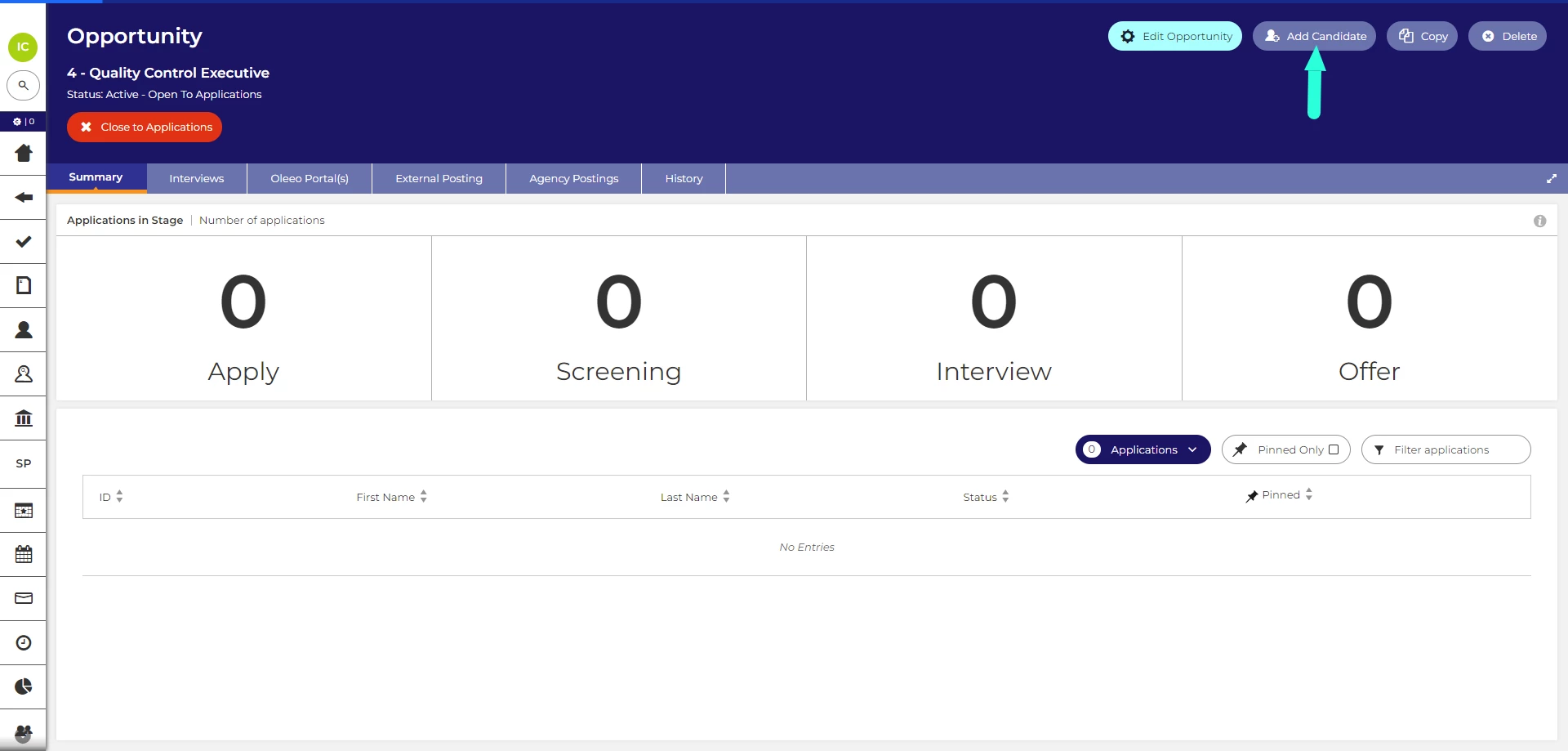
‘Add Candidate’ button
- This button is found in the toolbar in the top-right corner of the page.
- Complete the Add Candidate pop-up:
- First Name, Last Name and Email are mandatory.
- If your system has multiple Application Centres, like 'External' and 'Internal', you can select where the application will be available to the candidate. Candidates will need to login to the chosen Application Centre to see their application.
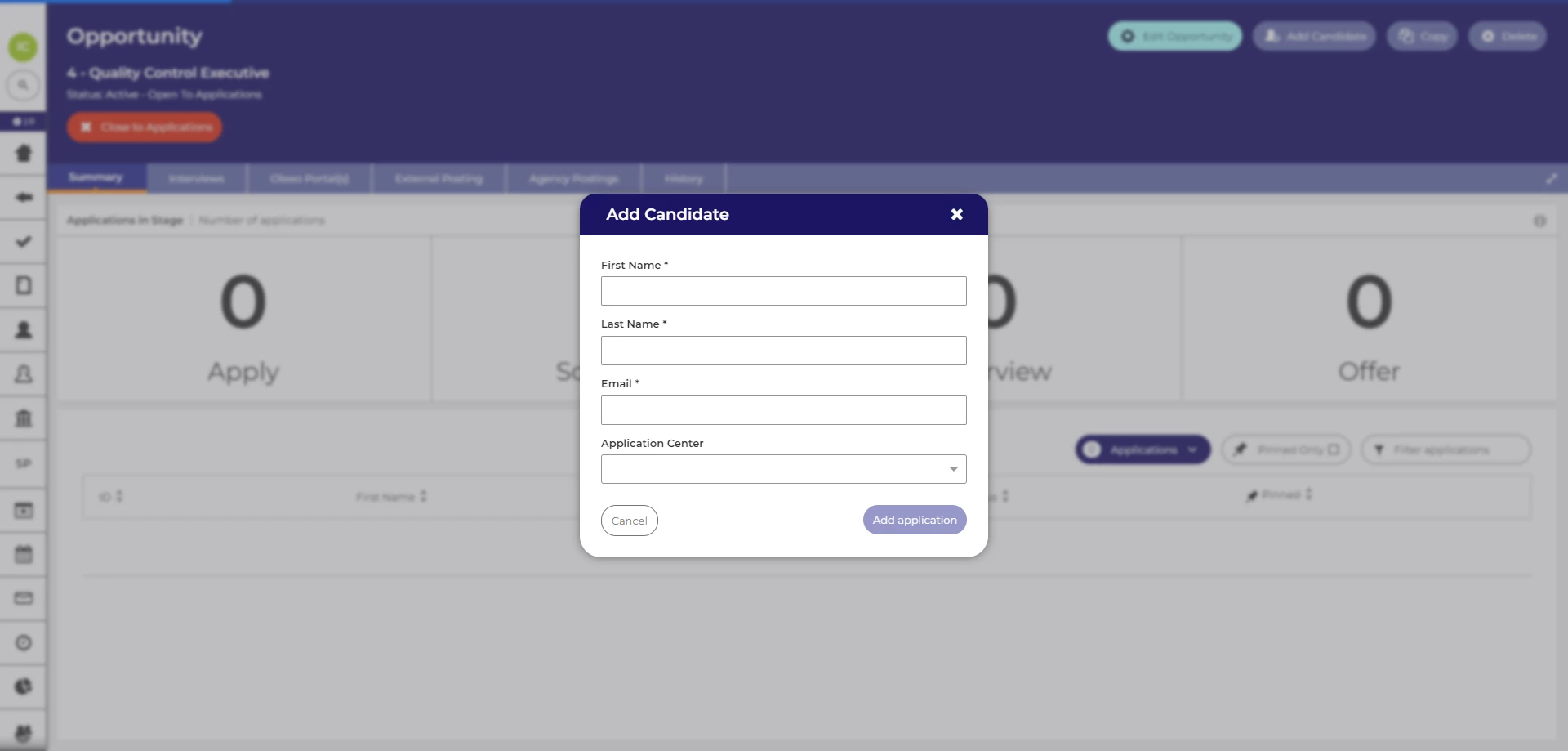
Add Candidate pop-up form.
- Submit the candidate:
- Once you have completed the field, click Submit.
- If no candidate with the entered email address is found in the system, you'll be directed to the Application Summary page for your newly created candidate.
Duplicate email:
- If a candidate already exists on the system with the same email address, you will receive a 'Duplicate email' warning message.
- You can click the 'View Applications' button to view their other applications.
- We recommend using the 'Copy Application' tool to copy their previous application into this opportunity rather than proceeding to manually add the candidate. That way, you will not have to re-enter all of the candidate's information. Learn how to copy an application with this guide Moving or copying applications to another opportunity.
- Alternatively, you can click Add application to add a new application for this opportunity to the existing account.
GETTING THE APPLICATION READY FOR SCREENING
After completing the above steps, you will be redirected to the Application Summary page for your newly created candidate. The options available will be very much dependent on the setup of your system.
On the Oleeo Best Practice Template System, you can do the following:
- Click the green 'Add Candidate Form' button to open the Add Candidate Short Form.

- Fill out the Add Candidate Short Form and click 'Submit' at the bottom.
- The application status changes to 'Manually Added, Application Part Complete,' and an email is sent to the candidate, inviting them to complete the full application form.

Please note, if the opportunity's closing date has passed, the candidate won't be able to complete the full application form.

