




Viewing and editing the forms attached to an application
Within the 'Forms' tab on a candidate's Application Summary page, you can access all submitted forms — both by the candidate (e.g. initial application, offer acceptance) and recruiters (e.g. screening, interview feedback).
ONCE YOU HAVE OPENED A FORM YOU CAN…
- Review the answers:
- Review the answers submitted to the form. If access restrictions apply to a field (e.g. diversity data), "RESTRICTED DATA" will be displayed.
- Edit the form:
- Modify answers submitted to the form, allowing updates if needed. For instance, a candidate might wish to change an answer in the initial application form.
- Print the forms:
- Download the form as a PDF document, facilitating easy printing.
- View forms or CV side-by-side:
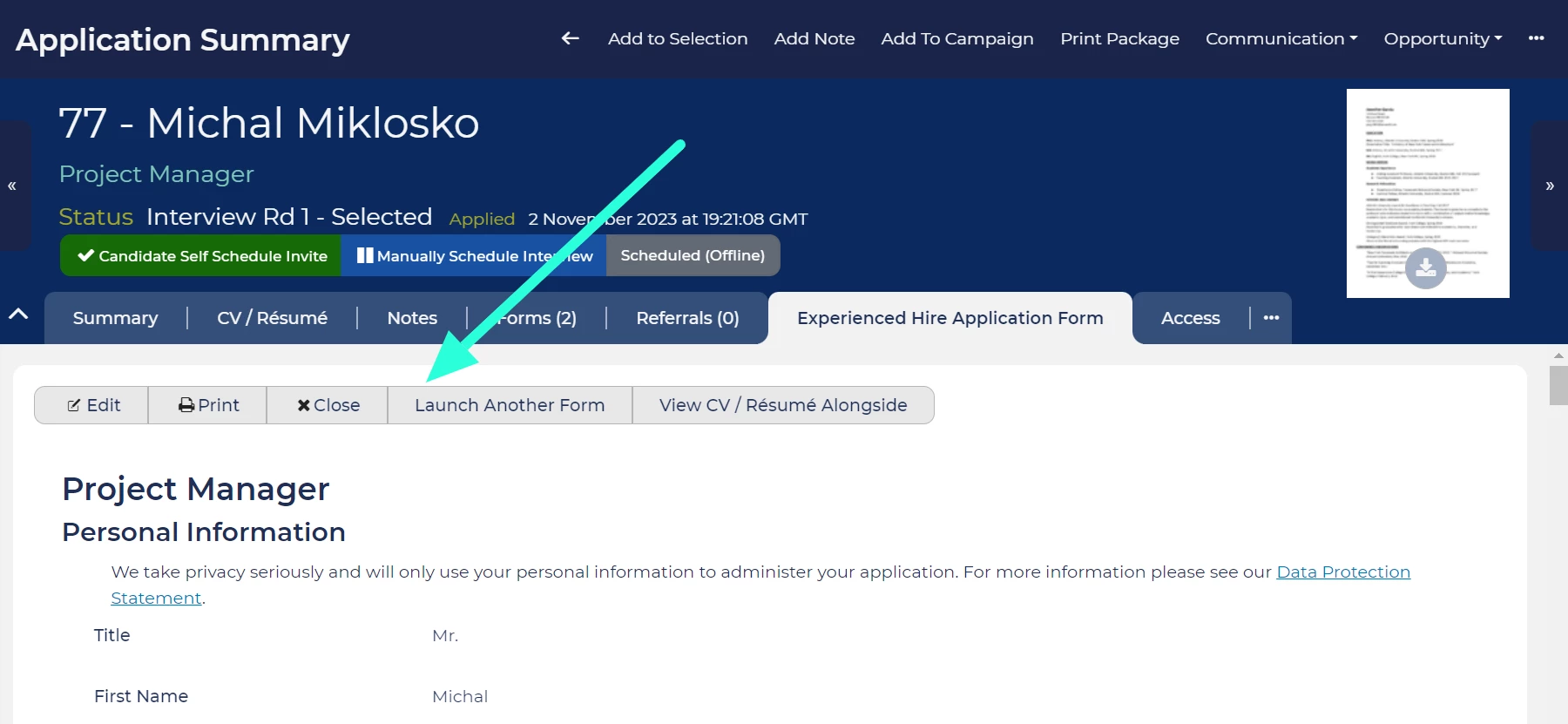
- Use the 'Launch Another Form' tool to display another form alongside the form you are viewing. For example, when entering feedback, have the candidate's submitted application displayed alongside the shortlisting form.
- Alternatively, you use the 'View CV / Resume Alongside' button to view the candidate's CV alongside the form you are viewing.
VIEWING A FORM
- Navigate to the Application Summary for the candidate who's form you want to view.
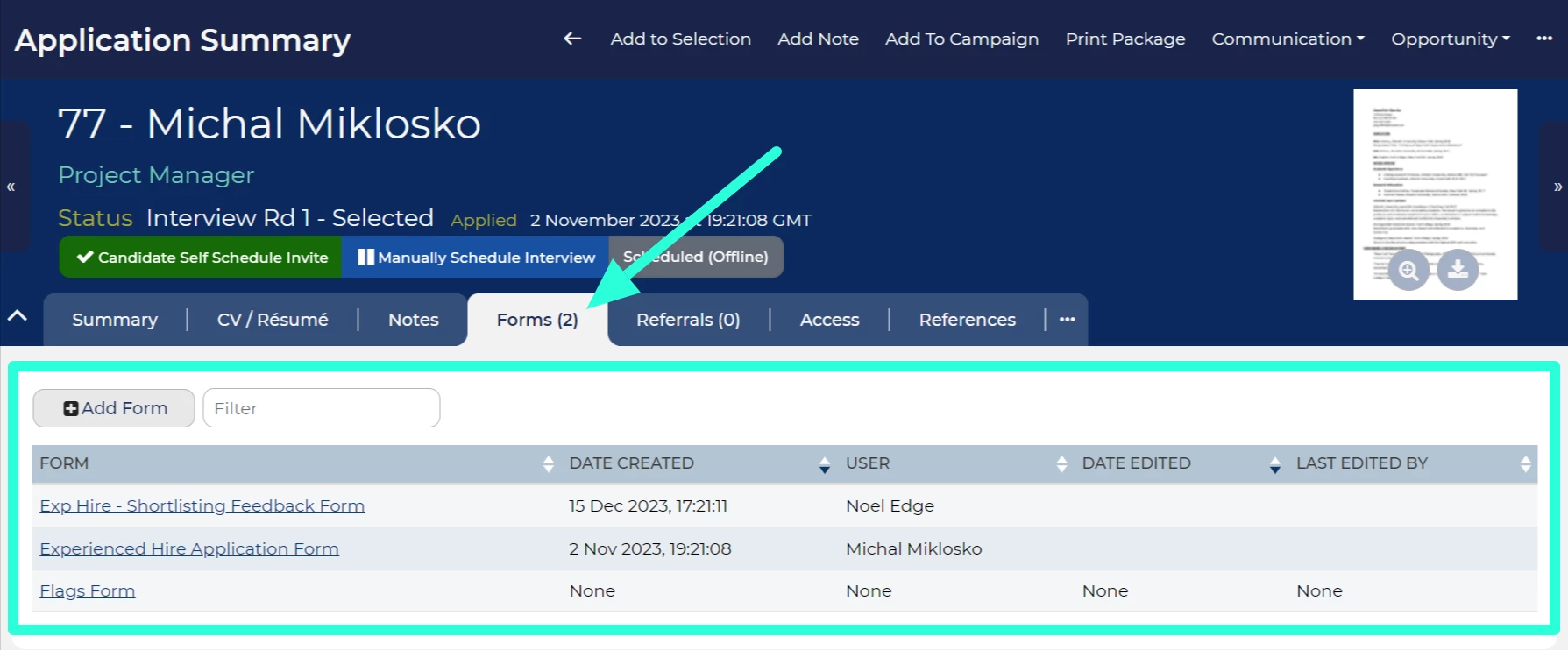
- On the tray of tabs underneath the application's details, open the Forms tab.
- All the forms attached to the application will be displayed in the tab.
- Click on the form that you wish to view.
-
If you are not sure which form is which:
- Use the 'User' column to see who submitted the form. This will allow you to identify if the form was submitted by a recruiter or the candidate.
- Click on the 'Date Created' column heading to arrange forms chronologically. This allows you to discern the order of form submissions and aids in distinguishing between different forms.
-
- A new tab will open containing the form you clicked on.
- In the top-left corner of the form's tab you will see the 'Edit', 'Print', 'Launch Another Form' buttons and, if they have provided one, the 'View CV / Resume Alongside' button.
EDITING THE ANSWERS SUBMITTED TO A FORM
Once a form has been submitted, you may still need to make updates. For example, a candidate may ask you to correct their email address they provided in their application form, or you might need to amend comments an assessor has added to an interview feedback form.
To make changes:
- Follow the steps above to load a form.
- Click on the Edit button, found in the top left-hand corner of the tab.
- If the form has multiple pages, a 'Progress Tracker' will appear on the left of the tab. Use this to navigate to the page that contains the field that you want to change.
- Make the necessary changes.
- If the form has multiple pages, use the 'Progress Tracker' to navigate to the final page. This step is not required if the form only has one page.
- Click the Submit button at the bottom of the page to submit your your changes.
The changes will not be saved if you do not submit the form:
- The changes will only be saved if you click the 'Submit' button at the bottom of the form.
- For multiple-page forms, this button is found on the final page.
Changing the CV/Resume attached to an application
CVs are uploaded as part of a form. To replace the CV/Resume attached to an application, open the form the candidate submitted (as described above) and select the new CV/Resume.

