




TIP TUESDAY! Reporting using a Saved Search

WHAT IS THE TIP?
💡 Did you know that you can use your public and private Saved Searches in reports? You can save countless minutes by creating a report using a saved search that has already been built.
It can also work in reverse, you can create a Saved Search from a report’s population!
CREATE A REPORT USING A SAVED SEARCH
💡 You can quickly fill in reporting populations using pre-existing Saved Searches
Scenario
I have been given the task of reporting on the numbers of active applications from our EMEA region that have been using the Indeed tracking token.
In this system the data dictionary item is known as “Ad Hoc Referrer” and the values used may be different on your system.
When building my report, I clicked add search criteria from Saved Search to bring up my options
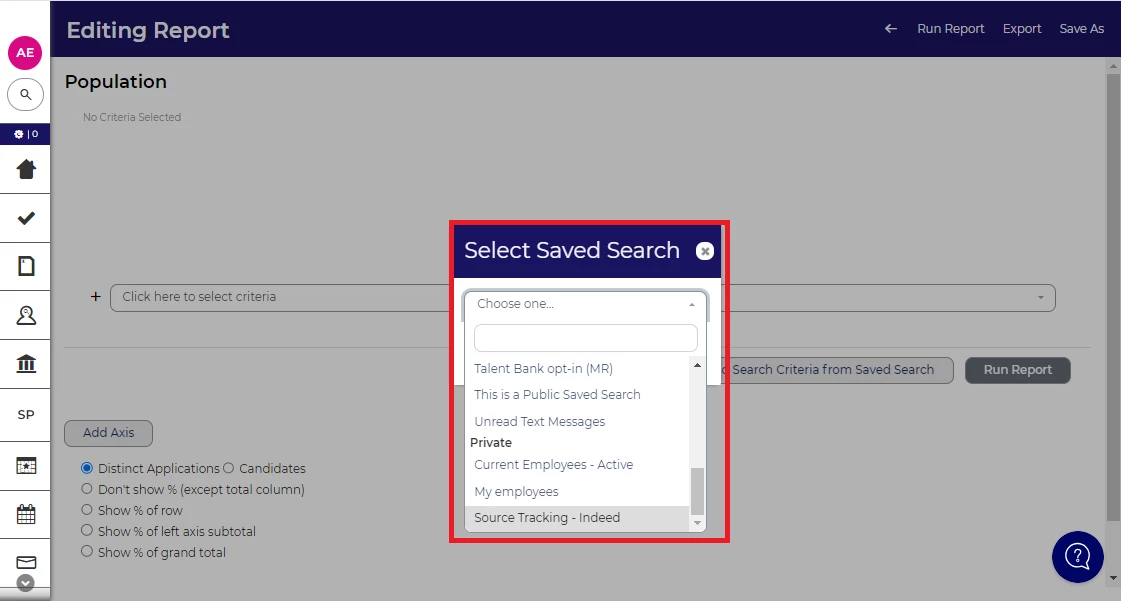
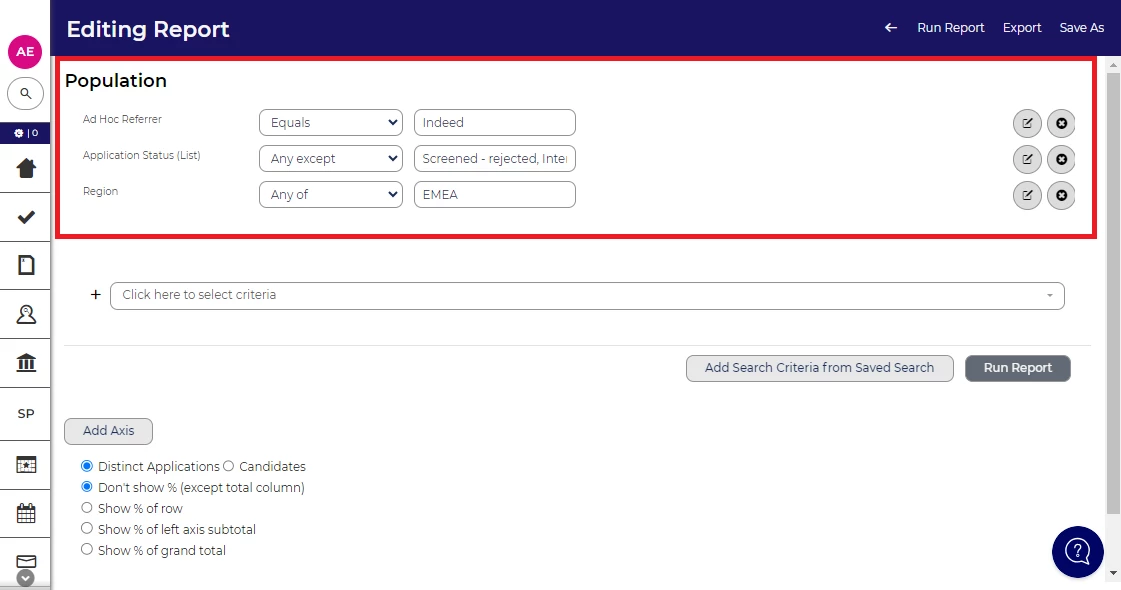
In this example, I have added my private Saved Search Source Tracking - Indeed in the reports population. All of my search criteria has been already populated for me
By adding an axis of Application Status (List) I can see the results of my report, I have 5 applications in total from Indeed that match my Saved Search.
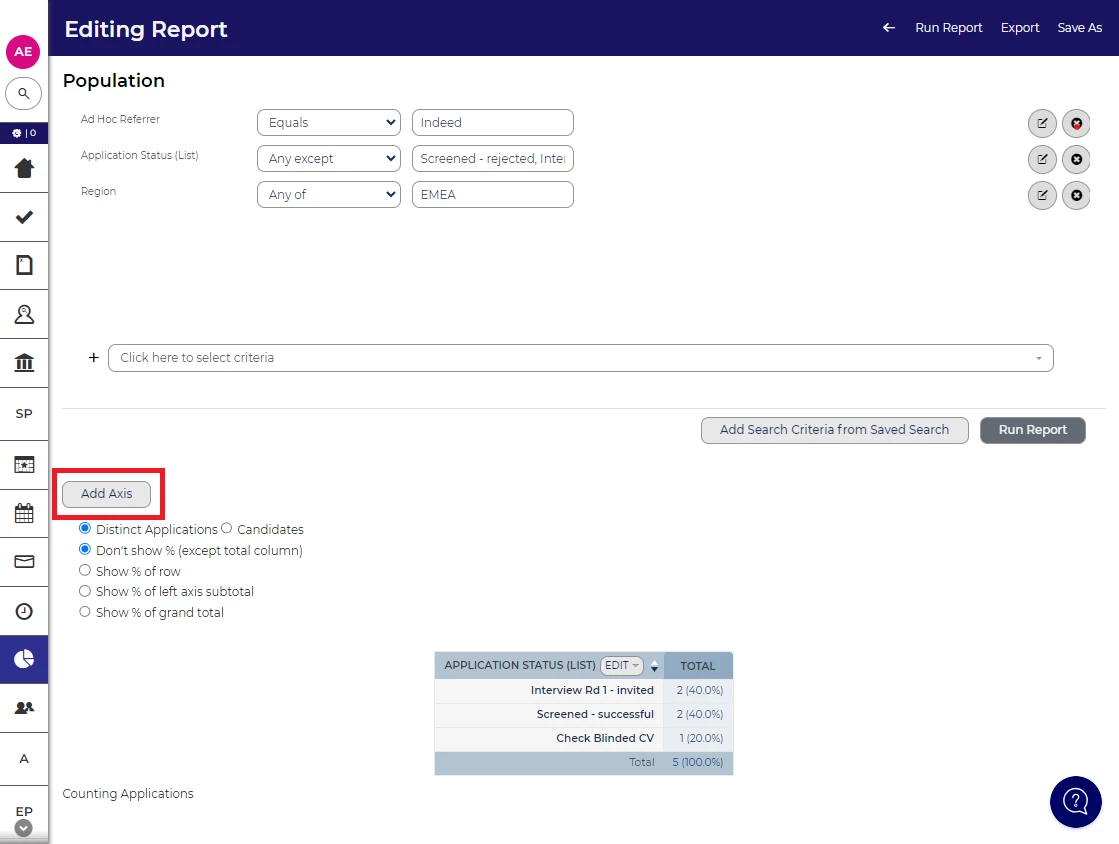
Now that the axis has been added I have created a report for Indeed which I can now save.
CREATE A SAVED SEARCH USING A REPORT
💡 You can quickly replicate your reporting populations into a public or private Saved Search
Scenario
I need to create a similar report to the Source Tracking - Indeed report but for Source Tracking - Jobalert instead and save it as a new Saved Search for the future.
Rather than completely recreate a similar report from scratch, while I am here I’ll use the existing report criteria and update the field from Indeed to Jobalert.
When I press Run Report it shows 1 application that matches my new criteria.
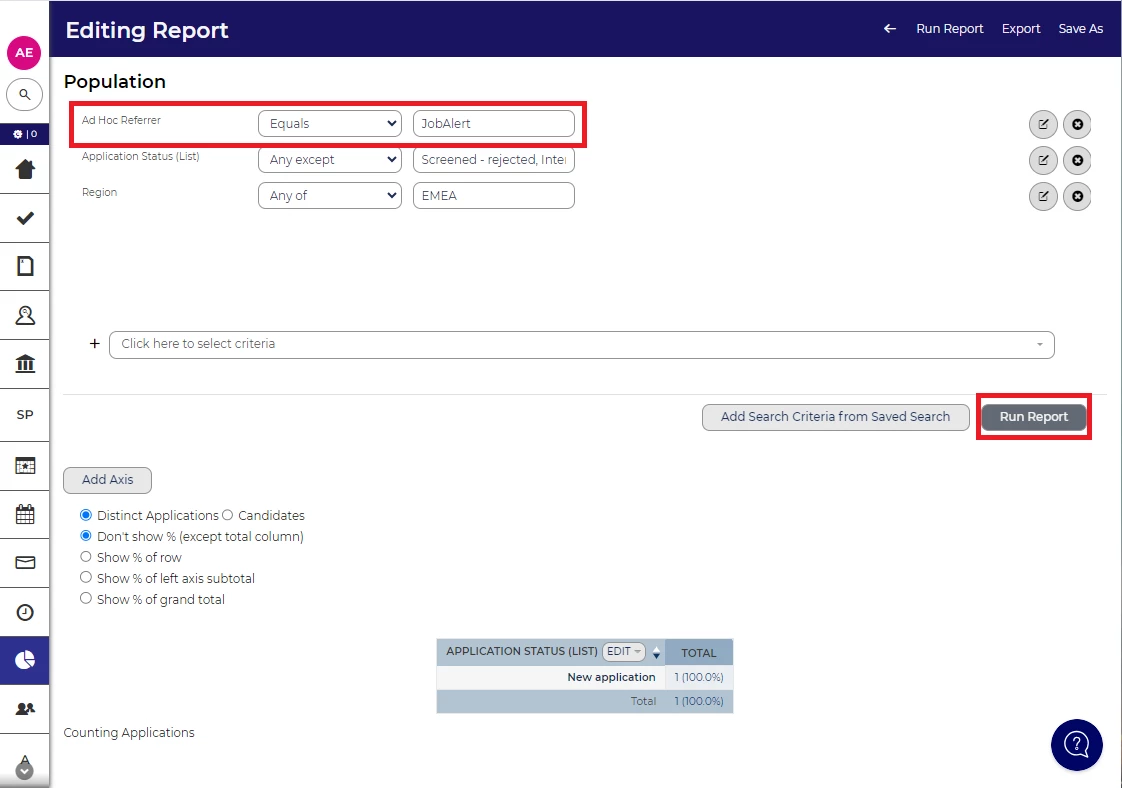
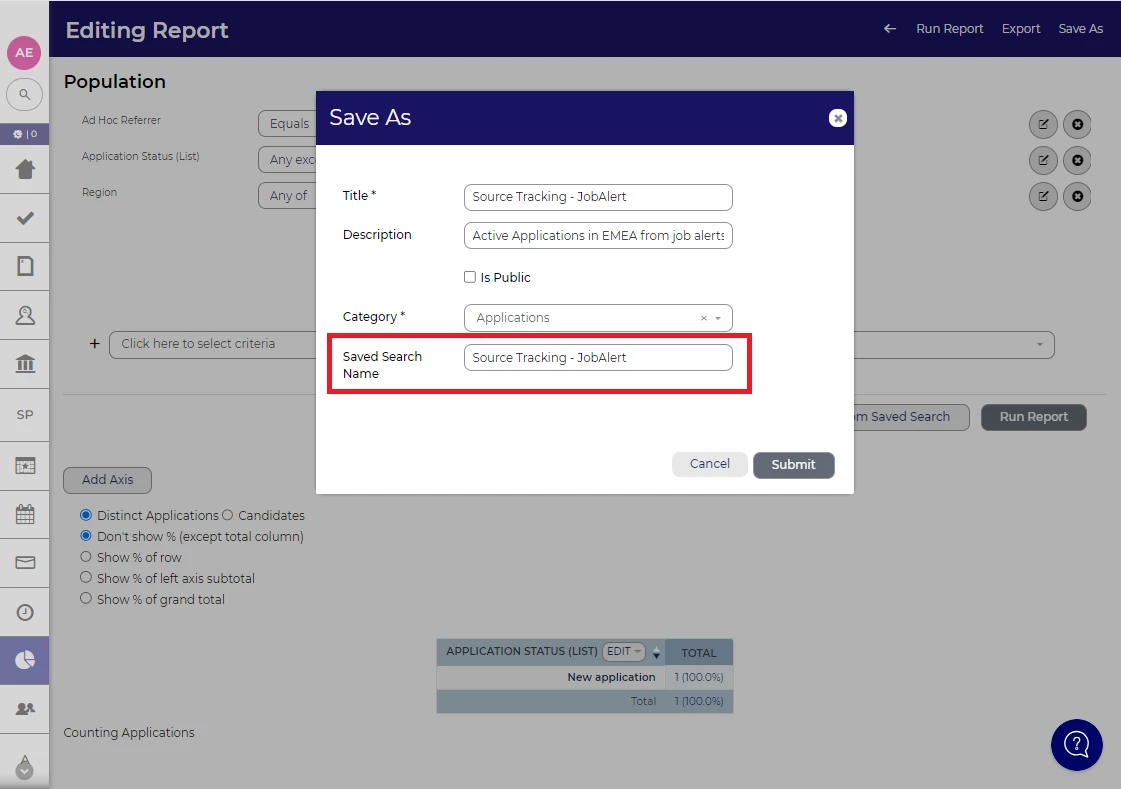
Now I can save my Source Tracking - Jobalert report as a new Saved Search.
In the Saved Search Name I have added the title Source Tracking - JobAlert to create my Saved Search.
I would like to keep this report and Saved Search private, so I have left the Is Public tick box blank. If I wanted this report and Saved Search to be public, I would tick this box.
I can find my new Saved Search by going to the View Saved Searches under My Tasks
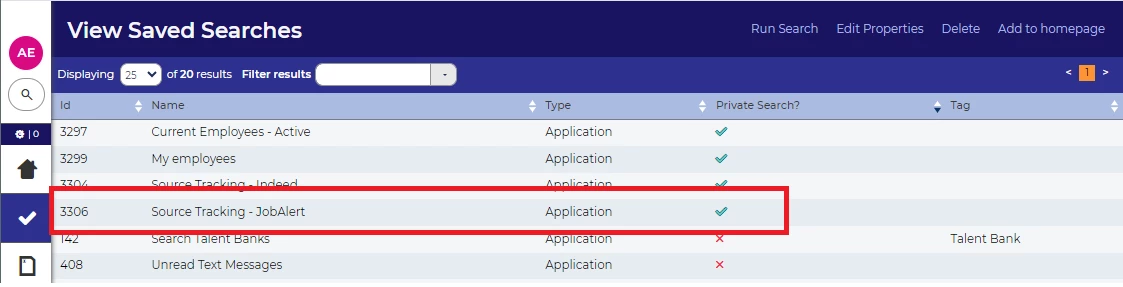
I can then use my new Saved Search in other areas of the system too (for example but not limited to: report hub widgets, dashboards, application searching).
Having problems creating a public report/saved search?
This may be a permission related issue. Please contact your Oleeo supported user or the Oleeo support team in order to resolve this.
BENEFITS
Time saving: Building complex searches can be time consuming, using Saved Searches reduces the amount of time taken to create reports.
This can be particularly useful when creating multiple iterations of similar reports to save them all being built from scratch.
CONSIDERATIONS
If you already have fields in the population of your report when adding a Saved Search it will overwrite them.
Good practise is to add the Saved Search first then add in extra fields.
COSTS
This feature is part of the standard product offering.
ADDITIONAL INFORMATION

