




User Guide
Viewing applications from the Applications tab
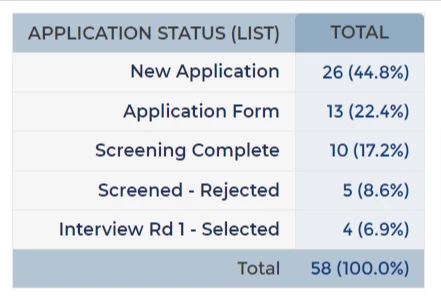
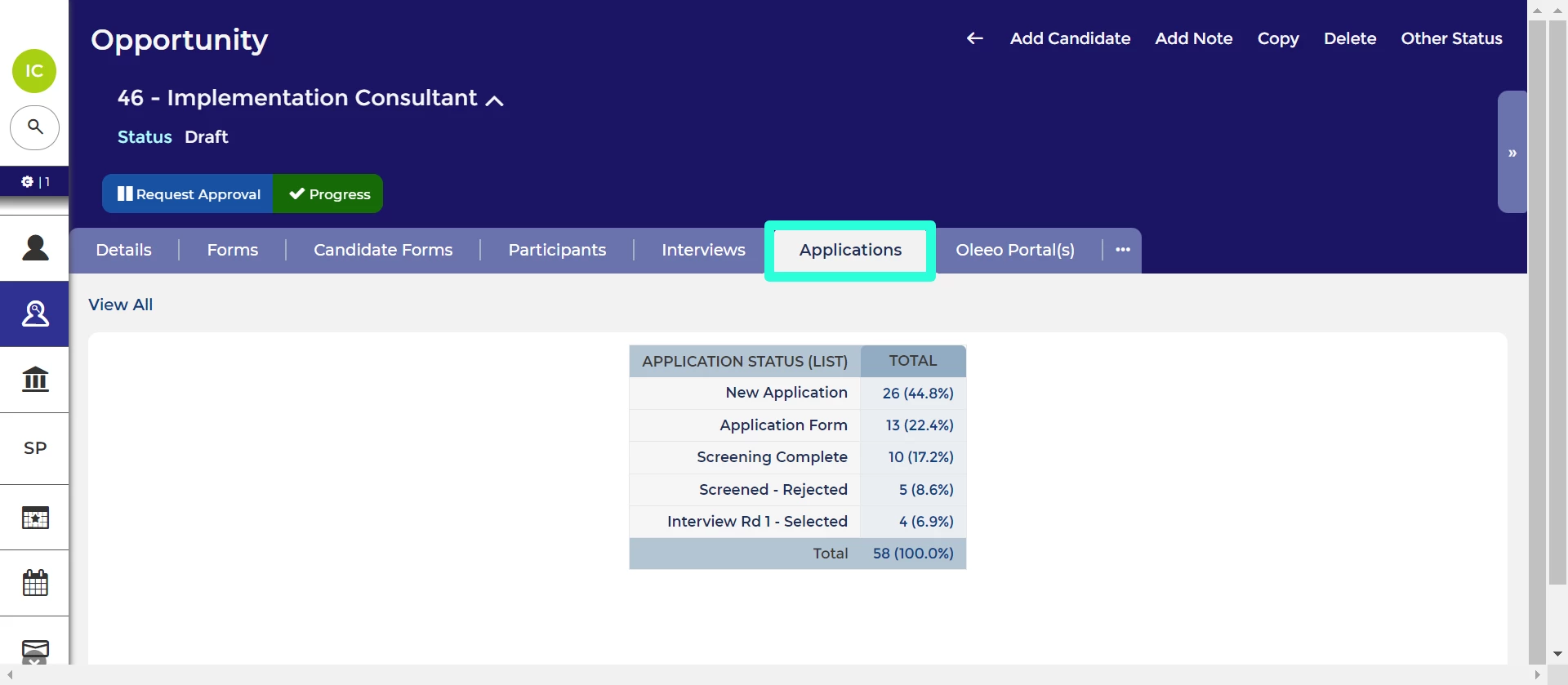
The ‘Applications’ tab for an opportunity contains a table displaying the number of applications in each status. Click on a number to load the applications in that status.
APPLICATIONS TAB OVERVIEW
In the 'Applications' tab you can see a summary of the status of applications made to the opportunity:
- When no candidates have submitted applications, you'll see a message stating "No Applications..." in this tab.
- As candidates begin to submit applications, this page transforms into a table offering a summary of applications for the opportunity.
- The table typically displays the number of applications in each status.
- Note that the table will only display the statuses accessible based on your profile, and some profiles only show statuses after an application has been submitted.
ACCESSING THE THE APPLICATIONS TAB
If your system does not yet use the new vacancy management interface, the 'Applications' tab will be displayed under the opportunity's ID, title, and action buttons.
Changes on the new vacancy management interface:
- In the new vacancy management interface, the tab is hidden by default.
- You can access it by clicking the 'Edit' button, which reveals all additional tabs.
- To make the tab visible permanently, adjust the settings in the 'Tab Visibility' section.
- Please see our guide: Accessing additional vacancy tabs
LOADING ALL APPLICATIONS TO THE OPPORTUNITY
From the 'Applications' tab you can load all of the applications to the opportunity:
- By clicking on "View All," you'll access a list of all applications for the opportunity.
- Once the list has loaded, you can apply column filters and input a status in the filter column to focus on a specific application status.
- Double-clicking an application provides a detailed Application Summary.
- To return to the Opportunity, simply click on the Opportunity's name under the candidate's name.
LOADING APPLICATIONS IN A SPECIFIC STATUS
- Alternatively, from the opportunity's 'Application' tab, you can swiftly navigate to a particular status by clicking on the corresponding number in the totals column.
- When viewing the list, you can efficiently switch to another status by clicking 'Edit Search' at the top-left of the list.
- In the pop-up box, select the statuses you wish to view.

