




User Guide
Searching for an individual application
You can quickly find an application to an opportunity, event or talent bank using the search box located at the top of the left-hand menu.
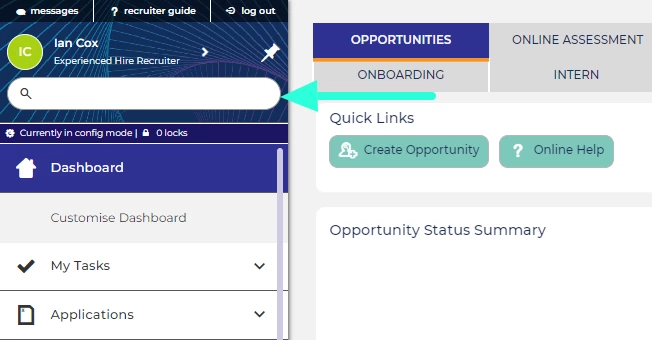
SEARCHING FOR AN APPLICATION
- Search using first name, last name, email address or application ID
- When looking for a candidate's application, you can search using their first name, last name, full name, email address or application ID.
- If the application you are searching for is anonymised, you will only be able to search using their application ID.
- Application searches default to 'begins with'
- Examples of application name searches:
- To find applications by a candidate named "Steve Burnett," you can:
- Enter the first name (e.g. "Steve").
- Enter the last name (e.g. "Burnett").
- Enter the full name (e.g. "Steve Burnett").
- Enter the first name and partial last name (e.g. "Steve B").
- Enter the full last name and partial first name separated by a comma (e.g. "Burnett, Ste").
- To find applications by a candidate named "Steve Burnett," you can:
- Viewing search results:
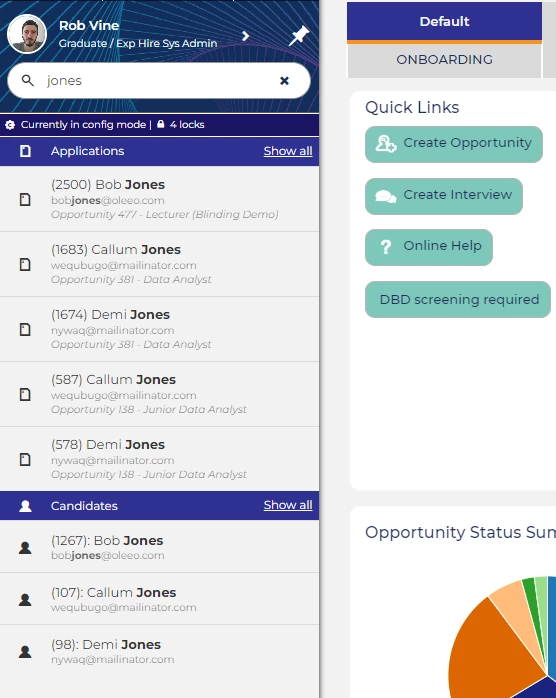
- Search results will display in the left-hand menu under the 'Applications' heading.
- Up to 5 matching applications will be shown.
- The candidate's email address and associated opportunity/event/talent bank are displayed below their name.
- Applications are sorted by descending ID number, displaying the most recent application first.
- Click an application to load their 'Application Summary' record.
- To view the full list of applications in the main body of the page, click 'Show all'.
Navigate directly to an application using the "a: [id number]" prefix
- When you type in an ID number or title into the search box, the system then displays the results in the left-hand menu and you can click on an item to load it.
- If you know the application's ID number, you can navigate straight to the application by using the prefix "a: [id number]" and then hitting enter.
- For example, if the application's ID number is "119" enter "a: 119" into the search box and hit enter.
SEARCHING FOR A CANDIDATE
If you have access to the 'Candidates' module, you can also find candidate records within the search results. You can navigate to a candidate’s record and view all their applications.
- Candidate search works the same as application search:
- The candidate search function operates the same way as the application search function.
- Search results for candidates are listed under the 'Candidates' heading.
- Candidate's record will show even if they have not made an application:
- If a candidate has created an account but has not yet started an application, they will still show in the candidates' results.

