




TIP TUESDAY! Using more than words to advertise your vacancy

WHAT IS THE TIP?
💡 Use the Embed Media field to add 3rd‑party videos (for example YouTube or Vimeo) and the File Library Sharing feature to insert high‑quality photos into your Talent Engagement adverts and job adverts. Visual storytelling instantly elevates your advert, helping candidates connect with your employer brand before they even apply.
Why use embedded video and library images
💡 Multimedia helps candidates form an immediate impression of your culture, role and workplace. Embedding a short YouTube or Vimeo video (a welcome from the hiring manager, a site tour, or a day‑in‑the‑life) paired with compelling photos from your File Library creates a richer advert that increases engagement and reduces drop‑off.
🔧 Use case: You're recruiting for a regulated, high‑volume intake (for example a graduate programme or frontline operation). A 60–90 second video showing the working environment plus close-up imagery of teams and key equipment reassures candidates and improves quality of applications.
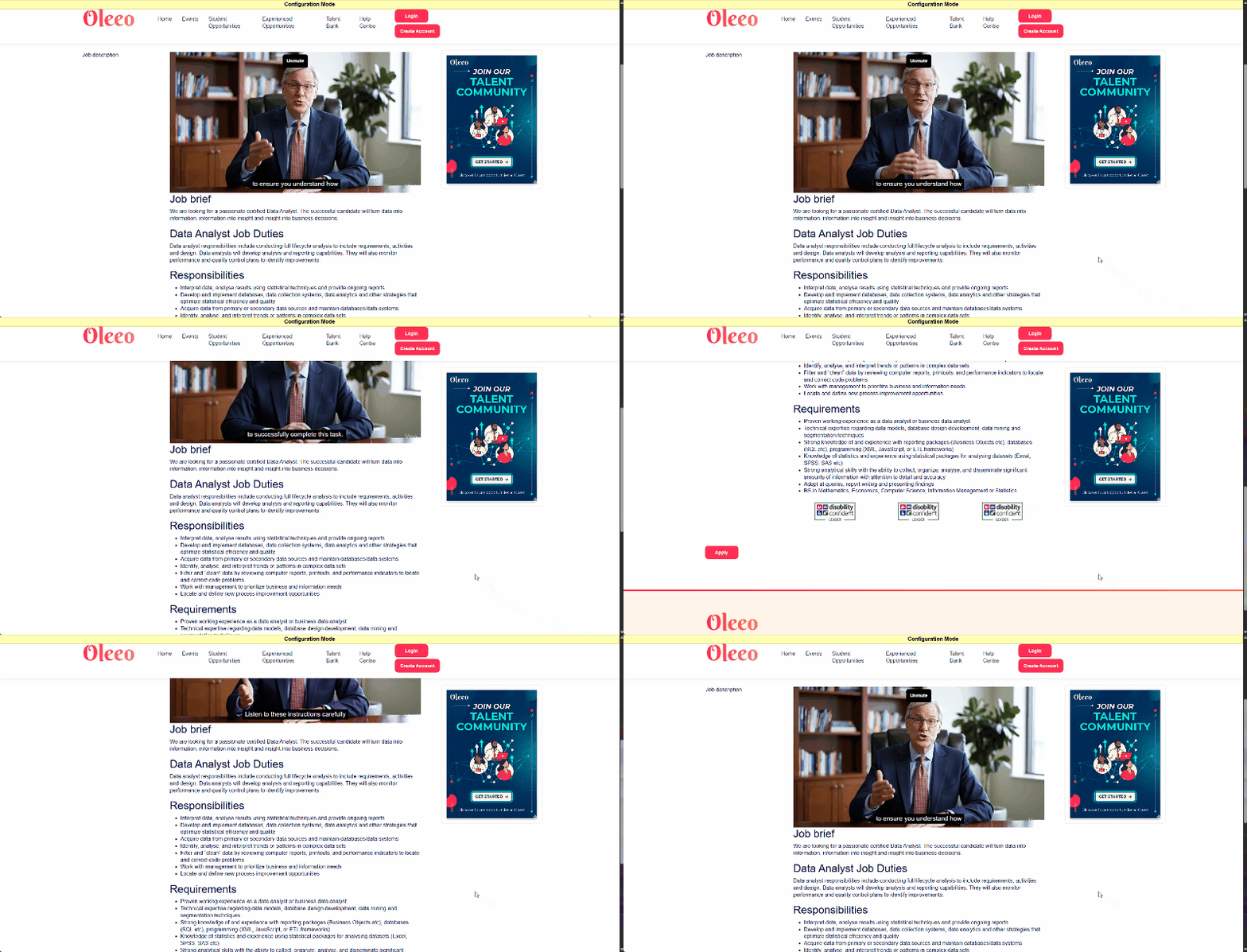
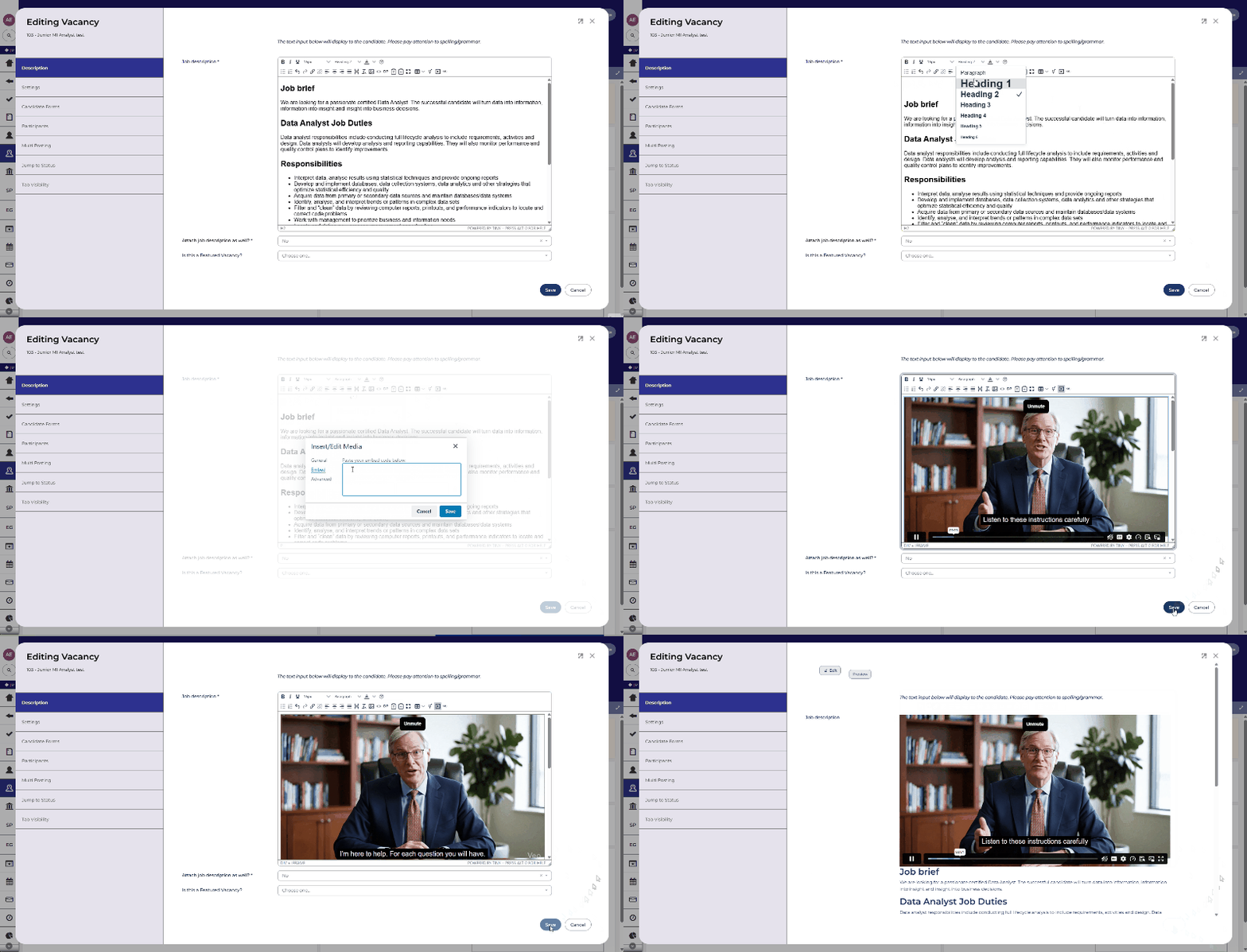
How to embed a video
- Open the YouTube or Vimeo video and click Share > Embed. Copy the the video URL or the iframe snippet.
- In your Talent Engagement or job advert editor, locate the Embed Media field.
- Paste the iframe snippet or video URL into the Embed Media field.
- Save and preview the advert to confirm the video displays and plays correctly on desktop and tablet.
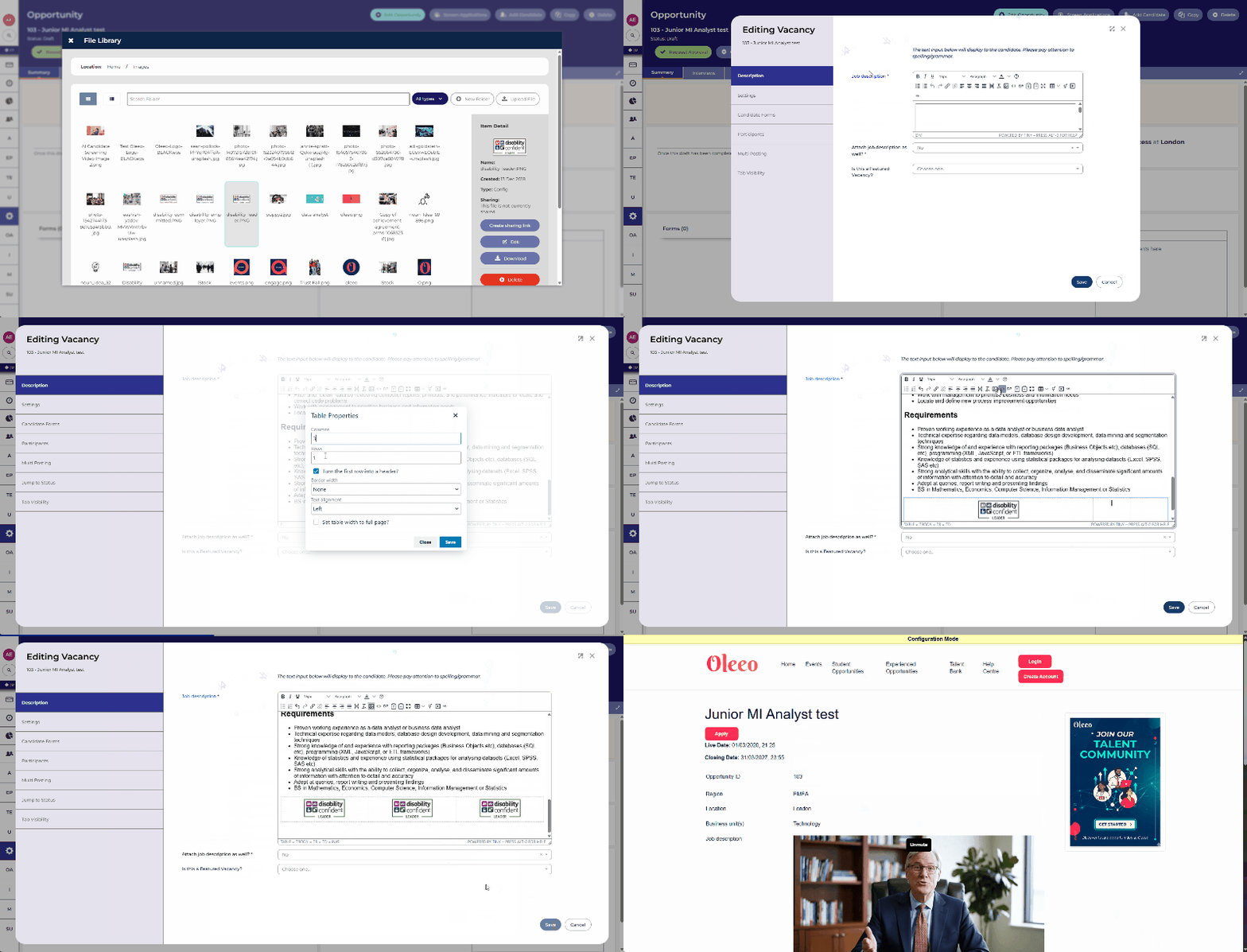
How to insert photos from the File Library
- Open the File Library and choose the approved image(s) you want to use (branding banners, team photos, site imagery).
- Use the File Library Sharing feature to copy the image link.
- In the job advert editor, locate the Insert Image field, paste in the image link. When inserting images, choose appropriate sizes and alt text for accessibility (brief descriptive text explaining the image).
- Preview on desktop and mobile to ensure images crop and align correctly with your advert layout.
📌PRO TIPS
- Keep videos short (60–120 seconds) and focused on one message: culture, role highlights, or a site tour.
- Use captions on videos or include a short descriptive caption beneath the embed to support accessibility and silent autoplay scenarios.
- Choose hero images with clear focal points (people, workplace) and ensure faces are visible at thumbnail sizes.
- Host videos on YouTube or Vimeo with privacy settings appropriate to your organisation (unlisted if you don’t want discoverability) but ensure playback is allowed on external embeds.
- Always add alt text to images and include a transcript or summary for videos to support inclusive hiring practices.
BENEFITS
- Higher engagement: Pages with video and strong imagery capture attention and increase time on advert.
- Stronger employer brand: Visual content communicates culture and role context in ways text alone cannot.
- Better candidate fit: Site tours and role snapshots help candidates self‑select, improving application quality for high‑volume hiring.
- Reduced drop‑off: Clear visual cues and messaging keep candidates progressing through the application journey.
- Audit & consistency: Using the File Library ensures images are approved and consistent across campaigns - important for regulated industries needing auditable assets.
CONSIDERATIONS
- Security & compliance: Use only approved photos and videos. Store master assets in the File Library for traceability and to maintain consent records where required.
- Accessibility: Provide alt text and captions/transcripts to meet accessibility and DEI expectations.
- Playback restrictions: Some corporate networks block YouTube or Vimeo - consider hosting alternatives if this is a concern for your candidate audience, or provide a downloadable transcript.
- Mobile performance: Ensure video embeds and images are responsive and don’t slow page load. Optimise images for web before uploading.
COSTS
Embedding YouTube or Vimeo videos and inserting images via the File Library are part of the standard platform features *(however, for File Library, usage is subject to a fair use policy). Costs are limited to content creation (video production or professional photography) and any optional external hosting choices you make.
NEXT STEPS
- Identify 1–2 adverts where a short video and a hero photo would add most value (e.g. high‑volume roles or new campaigns).
- Create or select an approved 60–120 second video and upload final images to the File Library.
- Embed the YouTube or Vimeo link in the Embed Media field and insert the chosen images from the File Library into your advert. Preview on desktop and mobile.
- Submit a support case to request any additional permissions for File Library access
- Speak to your Customer Success Manager to get help with recommended image sizes and video settings.
ADDITIONAL INFORMATION
Need help or want Oleeo to add a sticky video/graphic for you? Raise a Change Request with the Delivery Team or contact your Customer Success Manager.