




TIP TUESDAY! Uncover Your Hidden Talent

WHAT IS THE TIP?
💡 Sometimes finding applicants with the skills or qualifications to fill talent gaps is like looking for a needle in a haystack. Using the ‘Full Text Search’ feature can help you to proactively search your full applicant database to identify talent that may be right under your nose.
How to get started
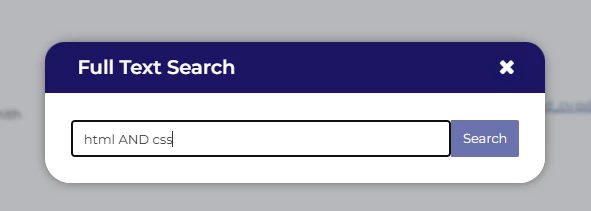
💡 The Full Text Search feature looks for key words or phrases that appear anywhere in the applicant’s record i.e. application form, CV or cover letter. Boolean search operators (“AND”, “OR” and “NOT”) can be applied to make the search even more precise.
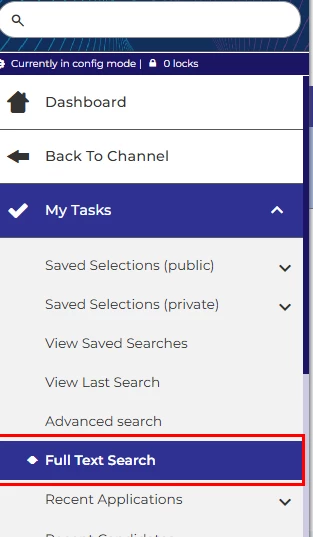
You can find the Full Text search feature two ways.
- In the Left Hand Menu within ‘My Tasks’ menu.
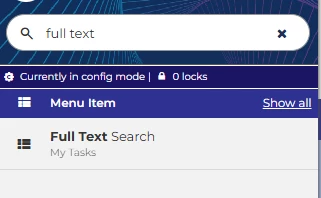
- In the Left Hand Menu search tool, start typing ‘Full Text Search’ and the link to the tool will be listed.
When you select the tool, a search box will pop-out. You can then search the applicant database for your search terms. Don’t forget to use Boolean search operators (“AND”, “OR” and “NOT”) to make the search more precise.
📌 Pro Tip: Here is a helpful article if you are not familiar with a Boolean search string.
🔧 Use case: If you require a candidate to hold a certain qualification, you can search for applications that mention the qualification within the applicant record.
Refine your results
💡 Once you have a list generated by your Full Text Search, you may want to refine the population. By clicking ‘Edit Search’ you will be able to filter your population using the ‘Advanced Search’ feature that you already know and love.
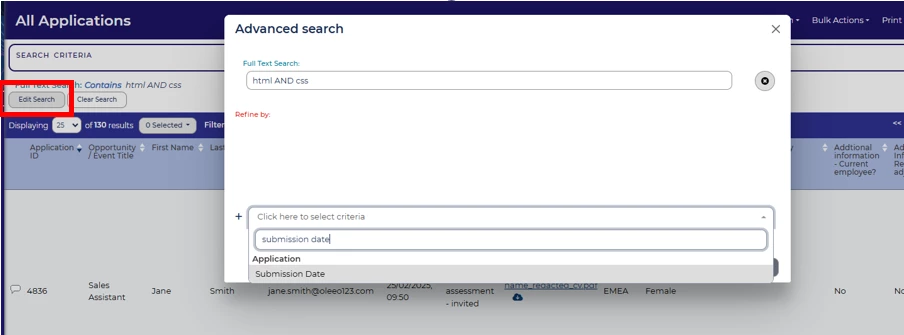
🔧 Use case: If you only want to review applicants who have applied in the last 6 months, you can add date parameters to the Submission Date criteria.
Add a snippet
💡 Once you are ready to start reviewing the applications on your list, you can add ‘Snippet’ to your applicant table layout. This will highlight a snippet of where the key words are found within the applicant record. This will help you to understand a bit of context of how the keyword(s) are being used in the applicant record. This helps to target where to start your review.
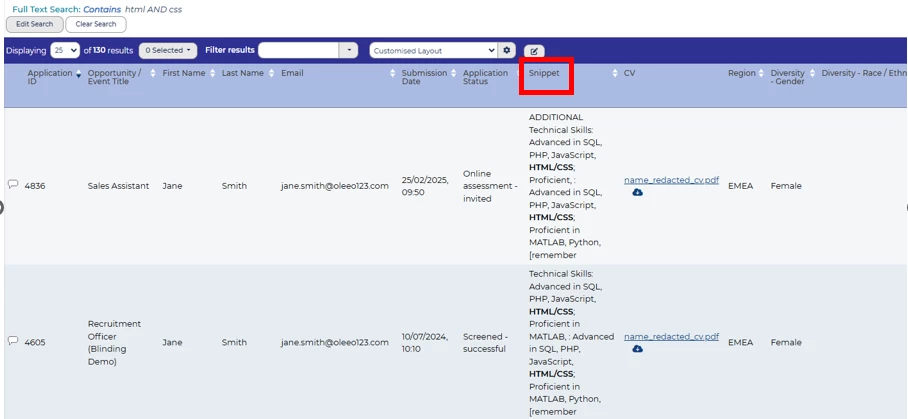
📌 Pro Tip: If Snippet is not available to add to a table layout, please reach out to your Customer Success Manager.
Snippet datapath to add to the Data Dictionary via self config.
application.fts_result.any:any.snippets
📌 Pro Tip: Add applicants to a saved selection to keep track of the uncovered talent to contact.
📌 Pro Tip: Invite your uncovered talent to join your Talent Pool and ensure they are included in engaging CRM campaigns.
🔧 Use case: Don’t waste time reviewing applications where the keyword(s) in the Snippet do not appear to be relevant to your search.
😊 This feature can be pivotal for proactively undercovering talent that is already engaged with your brand. Have you used the feature? Any twists on the use cases to mention?
BENEFITS
- Proactively search your already engaged database of applicants to fill hard to fill roles.
CONSIDERATIONS
- The Snippet field is not access controlled. The feature will display all relevant content regardless of user access permissions.
- The Snippet field may not be available in all systems and will need to be added to the Data Dictionary.
COSTS
This feature is part of the standard product offering.
NEXT STEPS
Speak to your Customer Success Manager for support with how to best use this feature.
Raise a case with Support if ‘Snippet’ is not available to add to a table layout.
ADDITIONAL INFORMATION:

