




TIP TUESDAY - Spring Clean your System & Keep Your Data Tidy

WHAT IS THE TIP?
💡Whether you are a new Oleeo customer or a customer who has been using the system a while, it is always wise to have a plan to keep your system data tidy! Not only will it make it easier for your users to find what they need, it can improve your system performance and make sure that you are compliant.
There are lots of different data management activities you can take against your vacancies and candidate applications within your Oleeo system - with this tip we aim to call out all the jargon, explain what each does and when/why to do it, with a bit of best practice thrown in there for good measure!
🔧 Use case: I am a recruiter responsible for multiple roles across several departments, I am under a lot of pressure to manage all these vacancies and I do not have the time to remember to do housekeeping tasks. I need some automation within the system to help close these off so that I have an accurate dashboard showing me all my active vacancies.
Automatically Deactivate Your Vacancies
💡Make sure your vacancies are deactivated after you have hired your chosen candidate(s) to keep your data tidy - often a forgotten task so why not automate this!
📖 Jargon Buster: Want a refresher on what activating and deactivating a vacancy means?
Activating a vacancy essentially marks the vacancy as ‘active’ ✔ in the system - a precursor to being able to then post it and then manage candidates against that vacancy.
You cannot post an inactive vacancy and so after creating a vacancy you will need to activate it before you post it. Deactivating a vacancy will remove the active status which typically means you have finished with that vacancy - you have made your hire and it is being prepared to be archived.
💡Automatically Activate: Recap on how you can activate your vacancies automatically as you post your vacancy by using your process flow in our previous article: TIP TUESDAY! One-Click Vacancy Posting!.
Don’t want to do this automatically at the same time as posting your vacancy? Don’t worry you can still do this separately:
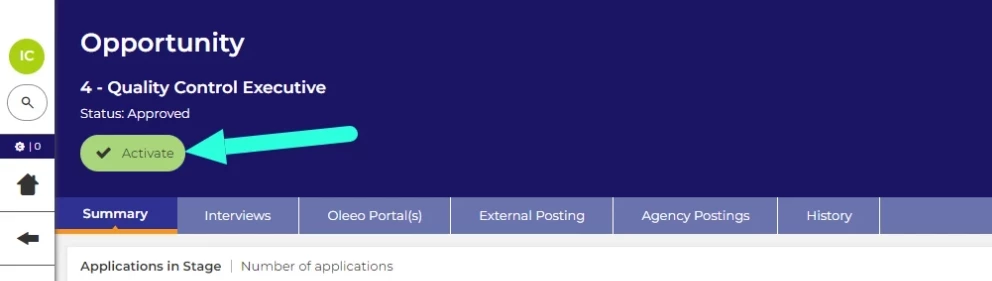
💡Automatically Deactivate: Did you know that you can also deactivate your vacancy automatically using your process flow - meaning you no longer need to remember to do it, it will save your recruiters time and it will help keep your data clean so that you can use the ‘Is Active?’ data path to filter on your active roles in your table layouts or your reporting.
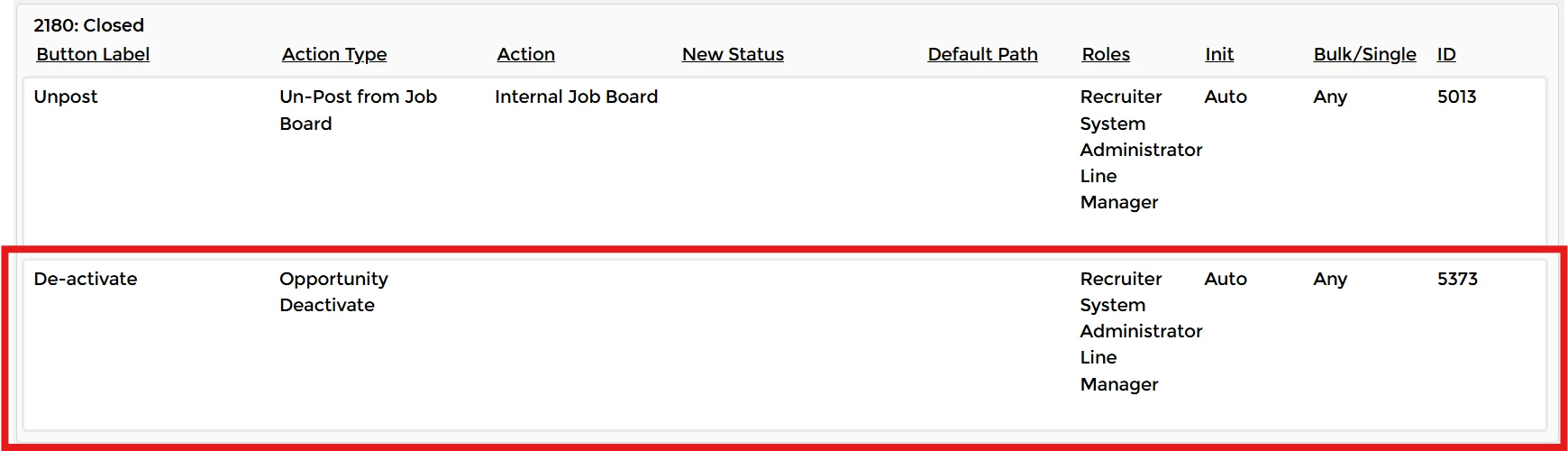
Move Your Vacancies to a Closed Status
💡 Move your vacancy status to a Closed (or other terminal) status once you have made your hire(s).
📖 Jargon Buster: Want a refresher on what a closed vacancy means? There are a couple of situations in which you might refer to a vacancy as “closed”.
Closed Status - your vacancy is in a closed status: You have made your hire and you have moved your vacancy to a closed status in the system, showing that you have completed your recruitment activities against this position and it is now closed down.
Closed to applications - no longer posted: The closing date in the vacancy form is reached, meaning that it is no longer posted as a job advert. Candidates can no longer apply to a closed vacancy - slightly different to the term we are referring to in this tip.
This will keep your data tidy, keep your reporting metrics such as time to hire accurate and you will have clean dashboards too.
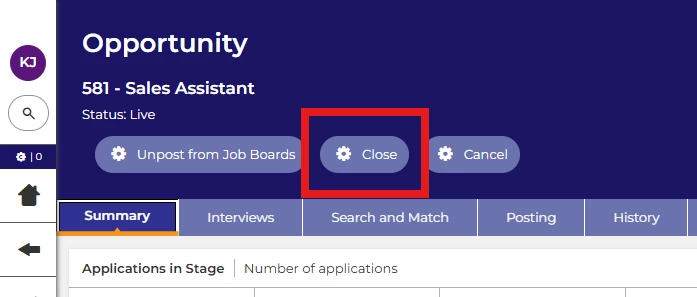
📌 Pro Tip: If you have an HRIS integration, this is often triggered when the vacancy is moved to a closed status - making it even more important that this step is taken.
Automatically Archive Your Vacancies
💡Automatically archive your vacancies to keep your system from slowing down and reduce the cognitive load for your users!
📖 Jargon Buster: Want a refresher on what archiving a vacancy means?
Archiving your vacancy will remove it from view, it will no longer appear in your searches, dashboards or lists etc. whilst still retaining the data - it is not deleted, merely hidden from view.
IMPORTANT: This is not a GDPR solution, you will still need to ensure you have the relevant measures in place to manage the retention of your candidate data.
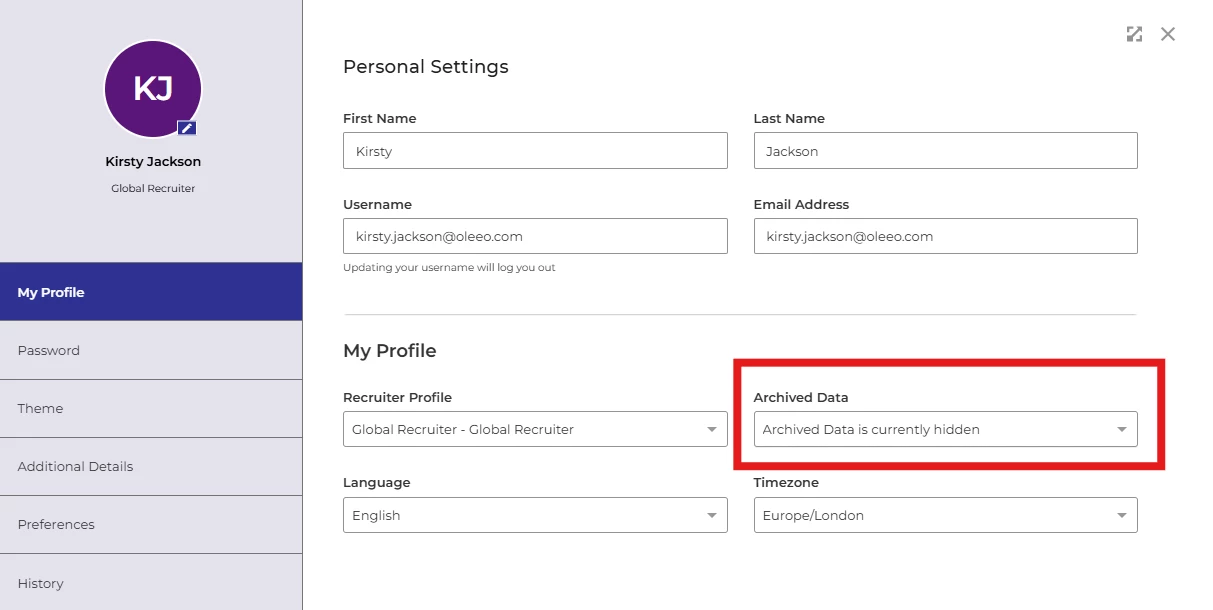
You have the option to in your account settings to see this archived data or not:
You can now automatically archive your vacancies using the process flow so you don’t need to remember to do it! When your vacancy moves to a closed status, you can set a scheduled process action to determine how long after that status you would like the vacancy to be archived:

You can recap on our TIP TUESDAY! Declutter Your Data: Archive With Ease article for how to do this manually.
📌 Pro Tip: Always make sure that your report user has archived data turned on in their settings so they can see the data for those archived vacancies.
Automatically Delete Your Vacancies X Years After Anonymisation
💡Automatically delete old records X years after they have been anonymised to keep your system clean and performing at its best!
📖 Jargon Buster: Want a refresher on what Auto Anonymisation and Auto Deletion are?
Auto Anonymisation - Anonymise a candidates personally identifiable information based on a particular trigger in the system using the process flow. This retains the record for reporting purposes but ensures you are GDPR compliant. This is our recommended best practice mechanism for GDPR data retention.
Auto Deletion - Delete candidate records based on a particular trigger in the system using the process flow. This removes all traces of that candidate in your system.
IMPORTANT: Data is not retrievable once anonymised or deleted
You can recap on our data retention offerings in this Webinar on GDPR Compliance: 6 Years On - How Are You Managing Your Data Retention Responsibilities?
If you have been with Oleeo a while and/or if you manage high volume recruitment, you may have large volumes of data in your system. Even if you religiously archive your data, you may start to see an impact on your system speeds.
Consider how long you need access to that data for. Even if you automatically anonymise your data, it could be worth considering deleting your data that is for example 5+ years old (or whatever works for your organisation) to keep your system performing well.
Use Automation To Trigger All 4 Together!
💡With the latest releases allowing for automation, you could now have one button on your vacancy to close it off - This can move it to a closed status and at the same time automatically deactivate the vacancy, trigger the vacancy to archive at your chosen timepoint, trigger your auto anonymisation and then subsequent deletion rules too!
📌 Pro Tip: You can build dashboards to help manage your housekeeping and keep track of your vacancies that may need some administration to manage them.
😊 Are you leveraging all the latest automation in your process flows? How often do you do a system review to make sure you are keeping up to date with your housekeeping? Let us know what you have found useful from these tips and what you are going to implement in your system!
BENEFITS
- Keep your system tidy, only see the information you need to see
- Prevent system slowness, having data loading when you don’t need to see it can slow your system down
- Ensure accurate reporting, good housekeeping will ensure your reports are more accurate
CONSIDERATIONS
Many of of these changes will require level 3 configuration training to deploy.
COSTS
This feature is part of the standard product offering. If you need Oleeo to implement anything we will provide you a quote based on your requirements.
NEXT STEPS
Speak to our Support Team for configuration guidance or your Customer Success Manager for more information. If you would like Oleeo to implement this for you, please raise a case to our delivery team.
ADDITIONAL INFORMATION:
Referenced Articles:

