




TIP TUESDAY! Set a better table layout that works for you!

WHAT IS THE TIP?
💡 Have you ever wanted to see more information in your table, combine a list of applications with a list of their other submitted applications, freeze the first X columns for easy horizontal scrolling or include hyperlinked items?
Continue reading to find out how to improve your table to work for you, with our 4 tips on how to set a better table!
Freezing columns
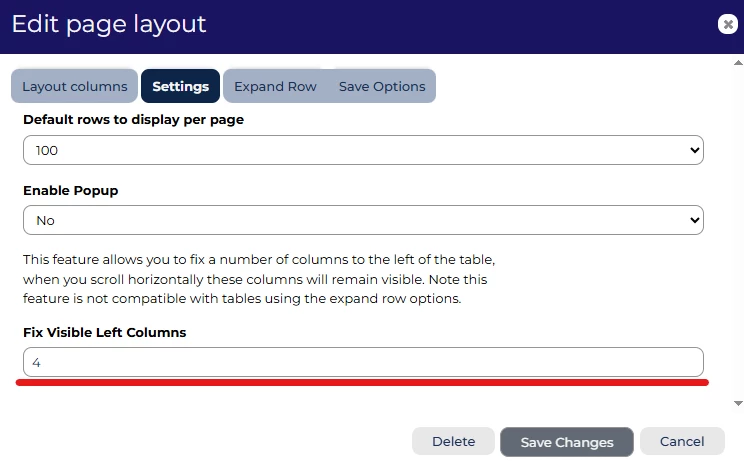
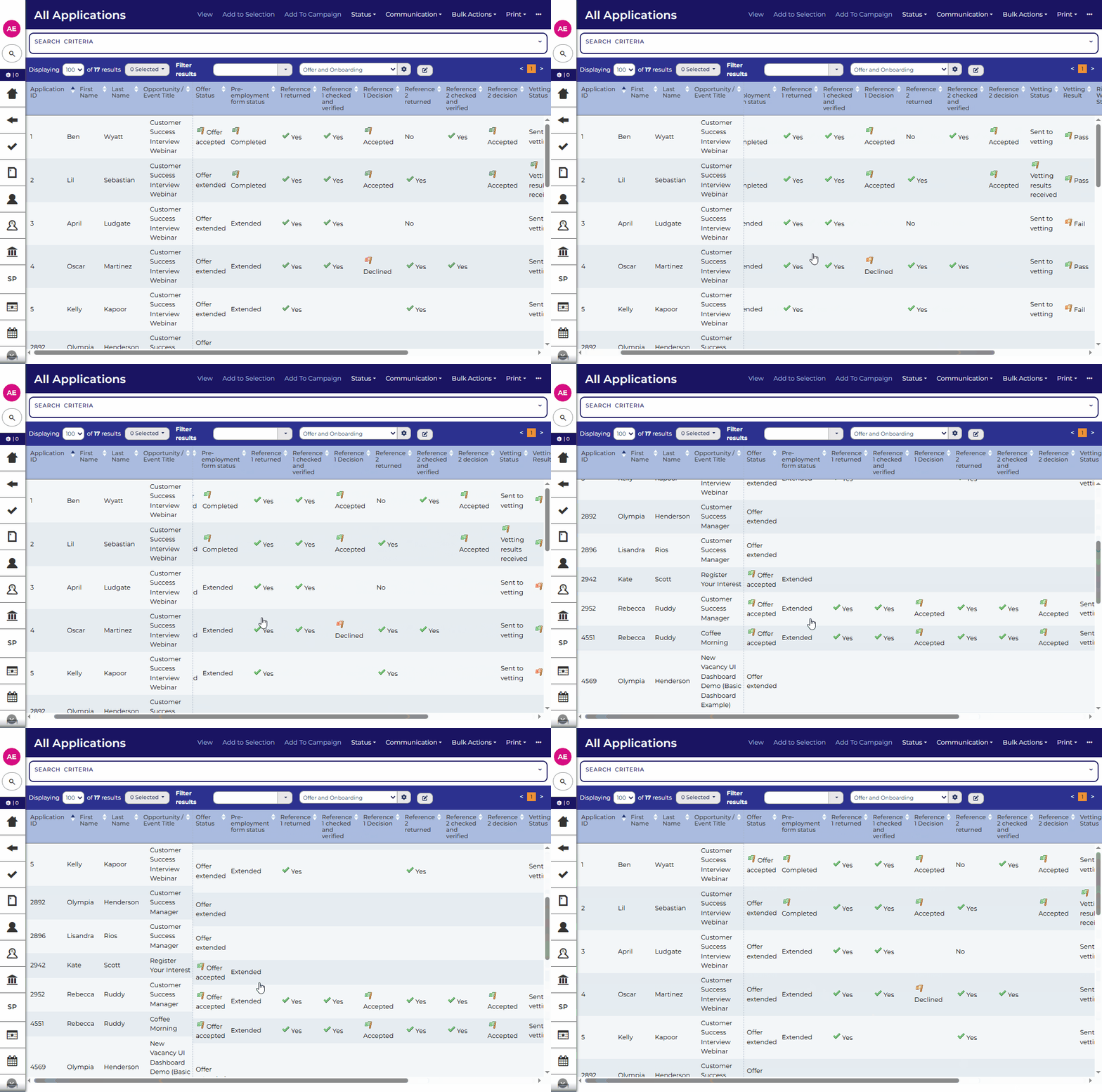
💡 Tired of scrolling back and forth in a table to find the information you are looking for? Fixing the number of columns you need with “Fix Visible Left Columns” will allow you to keep key information fixed to the left of the table.
📌 Pro Tip: Combine with icons for lookup values to make the data standout when scrolling
🔧 Use case: Using a large table of data or users working on small screens
Adding hyperlinks to a table layout
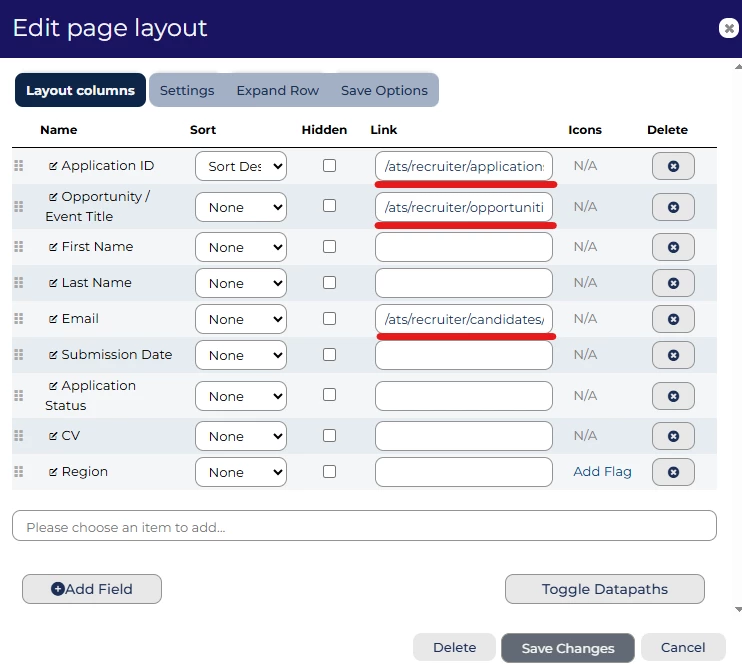
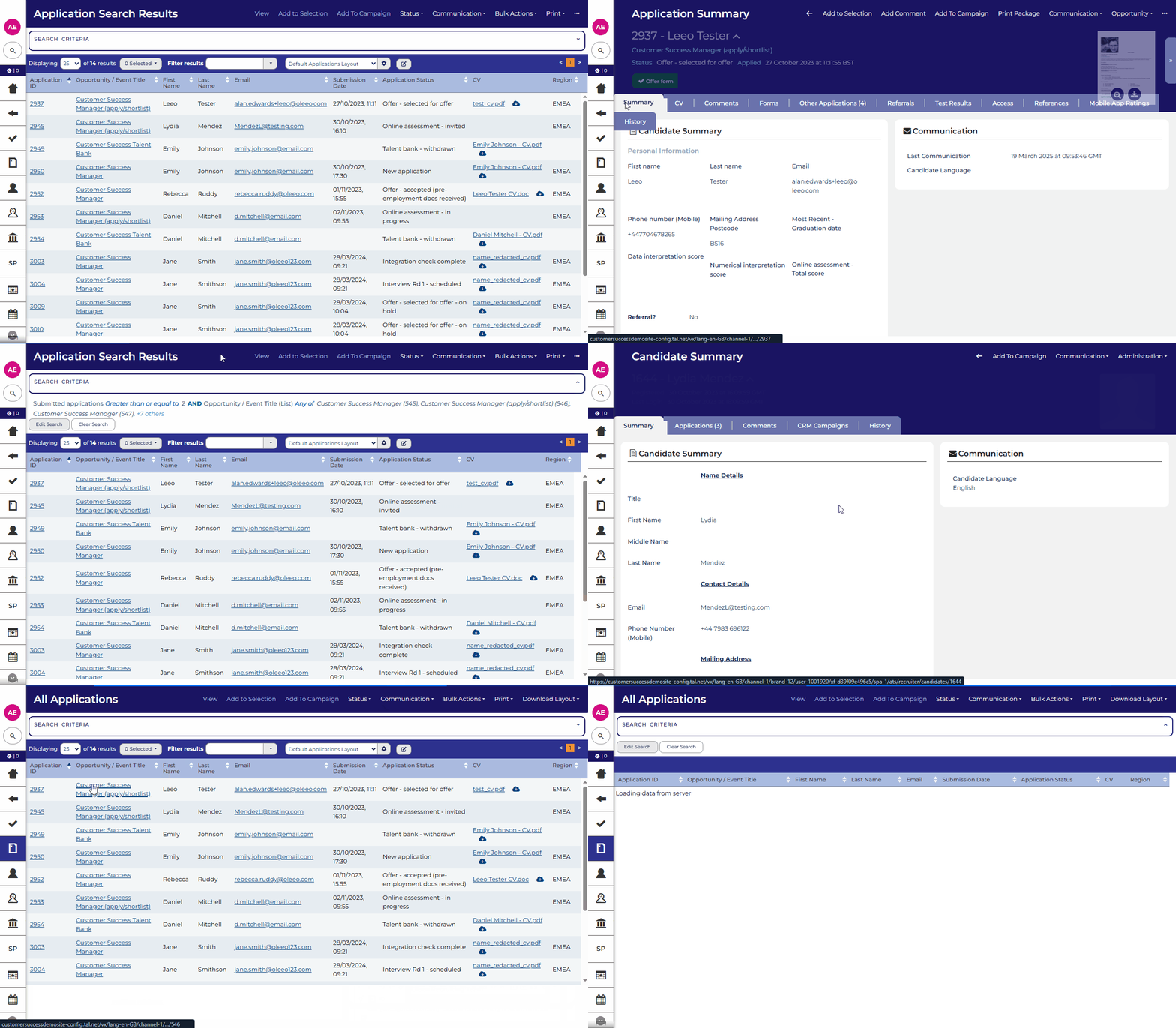
💡 Tired of all that clicking around, to get to the vacancy the applicant applied for or directly to the applicant’s candidate record? Reduce the number of clicks to get where you what to be by making the item a hyperlink.
Tables can be used in different scenarios as homepage widgets or as a list of records, using the links below within the layout columns “Link” field
Self Configuration Level 2 is required or a small change support case to update the requested table.
Candidate: /ats/recruiter/candidates/~~~application.user.id~~~
Application: /ats/recruiter/applications/~~~application.id~~~
Vacancy: /ats/recruiter/opportunities/vacancy/~~~application.opportunity.id~~~
🔧 Use case: You need 1-click direct access to the application / candidate / vacancy from a list of applications.
Expandable tables with child objects
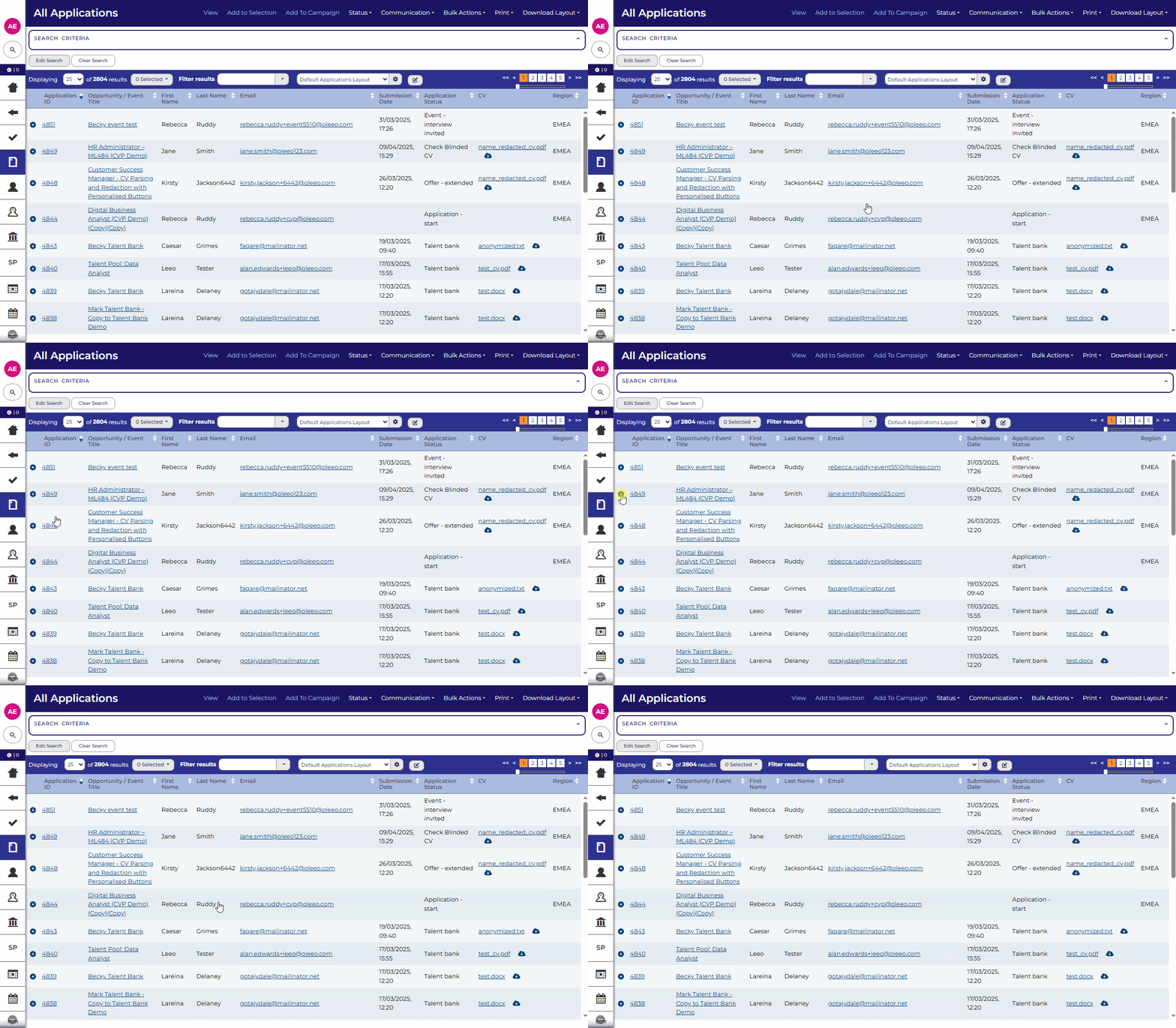
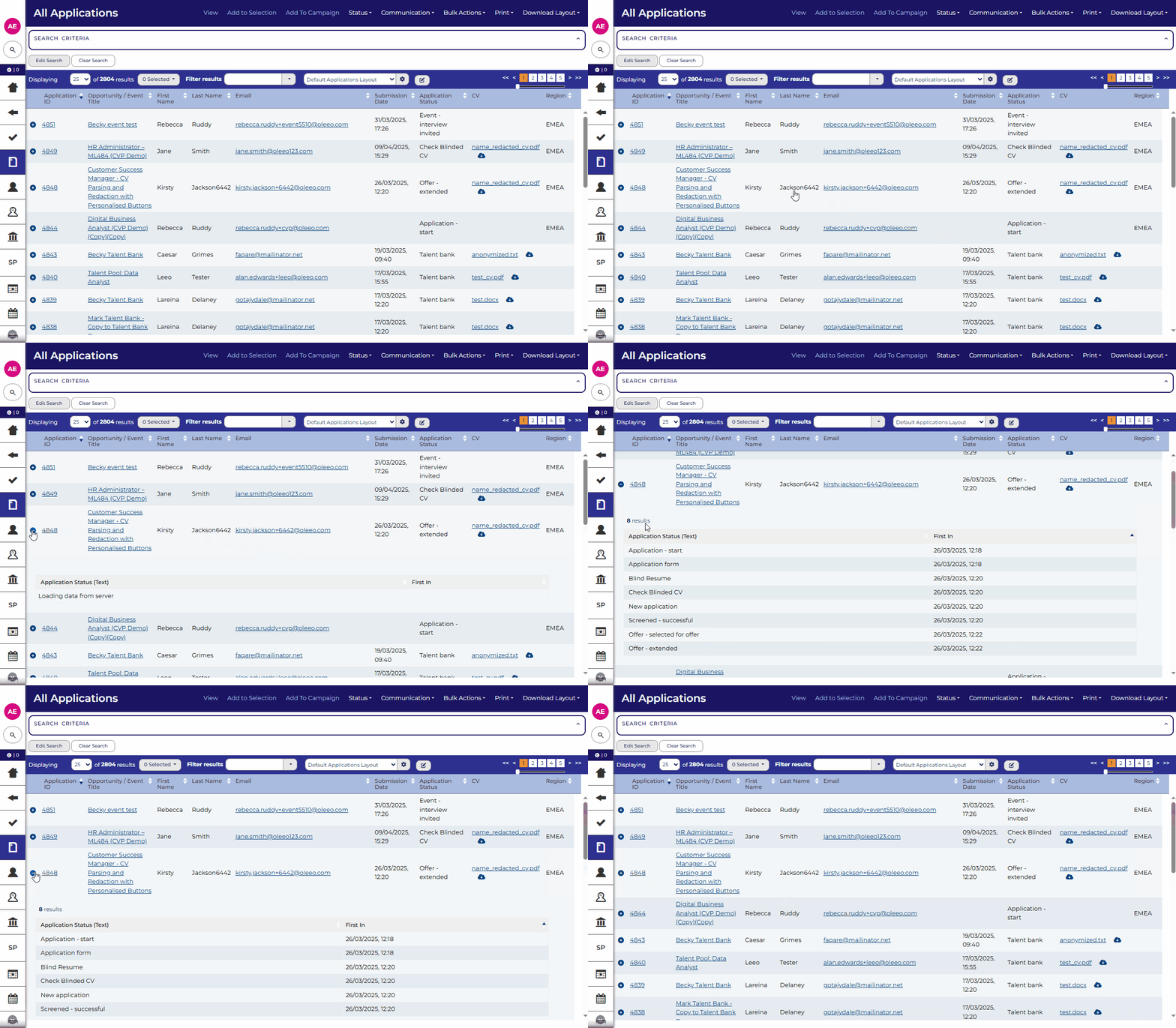
💡 Need to know the last comment made on an application or a timeline of when it went through a process status? Have extra information at the click of a button, with “Expand Row “ and a child object.
📌 Pro Tip: Use expand row on tables in homepages so the users doesn't need to leave the page if only reviewing their work.
🔧 Use case: Seeing the last comment on an application
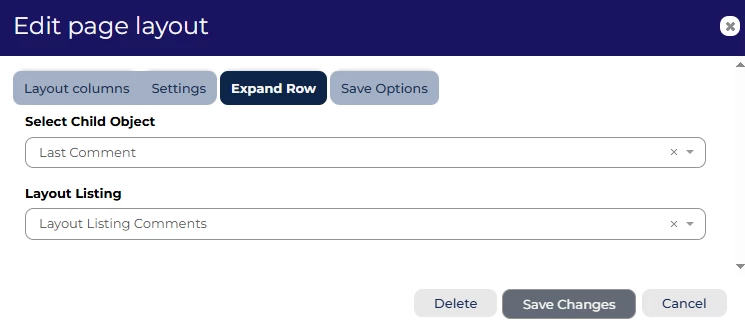
Using the expand row tab, include “Last Comment” from the child object drop down, there will be only 1 associated layout listing, select it, then save your changes.
🔧 Use case: Timeline of an application
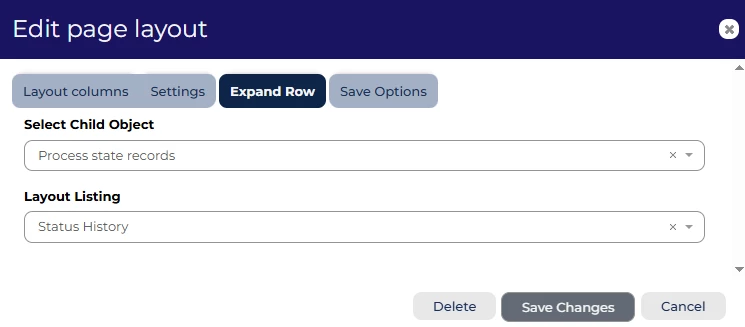
Using the expand row tab, include “Process state records” from the child object drop down, there will be only 1 associated layout listing, select it, then save your changes.
Please Note: Freeze columns and expand row will not work together, design your table appropriately.
Read only
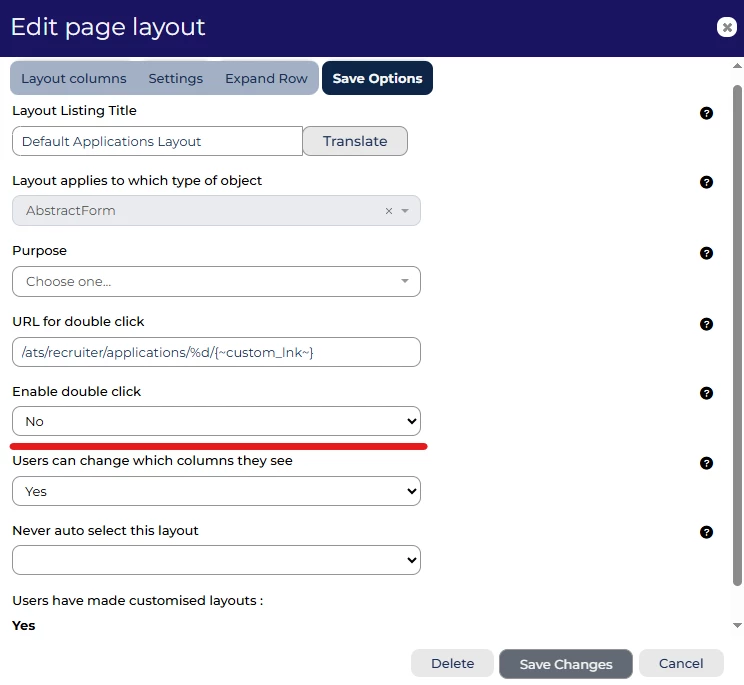
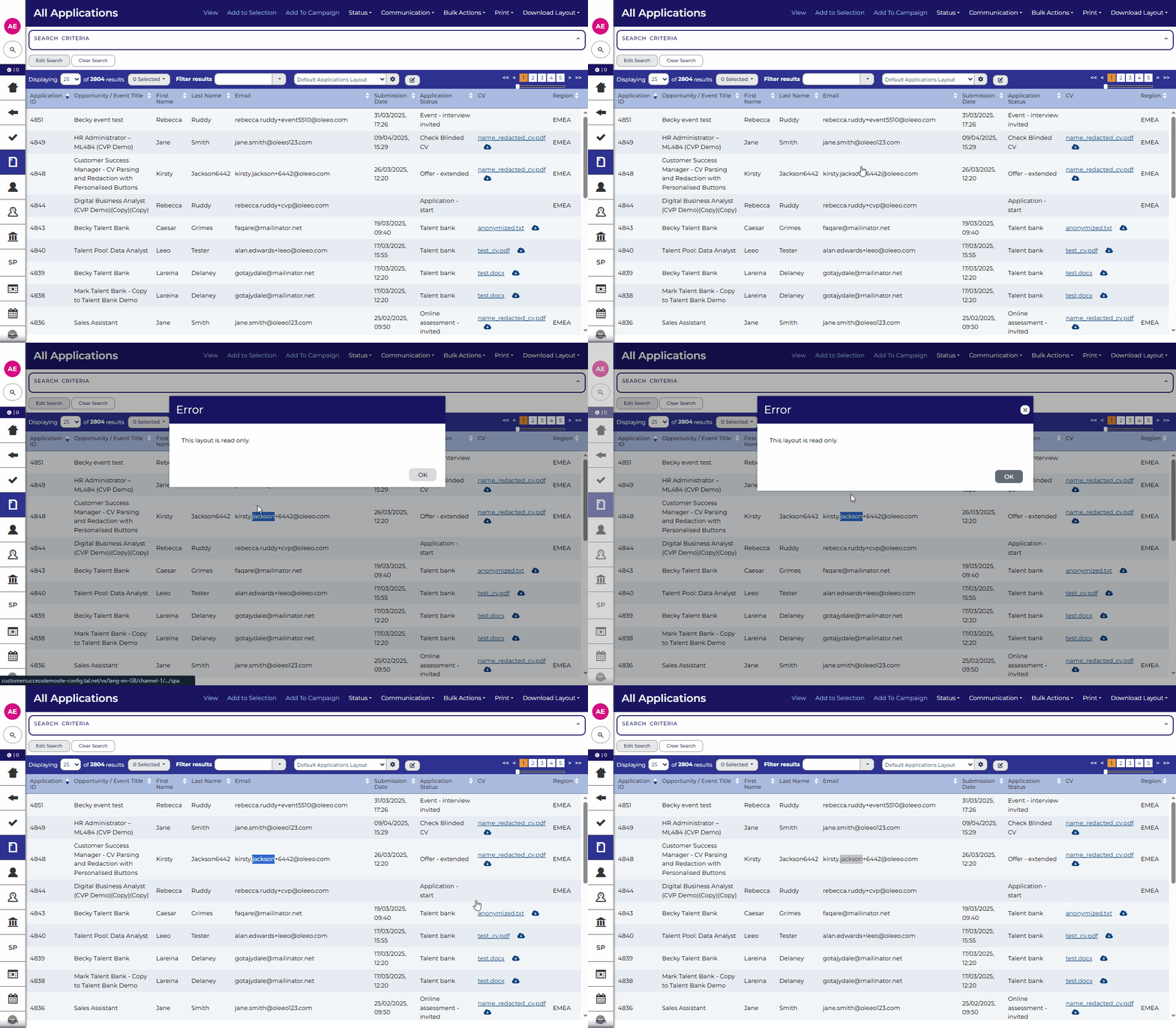
💡 Too much information can be harmful, creating tables with the data you want the users to see, then removing the ability to double click through to the record can add that extra layer of information security to the system.
🔧 Use case: Provide a user with a list of applications without them clicking through the main details
Using the Save Options tab, change Enable double click to “No”, then save your changes.
😊 Have you used the table layouts to help your process? Please share your stories in the comments below.
BENEFITS
Time savings - reducing the number of clicks for a user, saving them valuable seconds, which mount up during the day.
Reduction in cognitive load - keeping key data visible to the user will remove the need for them to keep a mental note.
CONSIDERATIONS
- To make changes to your global table layouts yourself, you will need to have self-configuration level 2. Otherwise, a small change can be requested by our support team to complete the update.
- Freeze columns and expand row will not work together, design your table appropriately.
- If using as part of access control and information management, ensure the appropriate user profile restrictions are also in place.
COSTS
This feature is part of the standard product offering.
ADDITIONAL INFORMATION:

