




TIP TUESDAY! Roll Up Your Candidate Job Alert Emails

WHAT IS THE TIP?
💡Job alert emails have got better! Instead of candidates receiving an email each time a vacancy matches their job alert criteria, you can now roll all these up into a daily soundbite email to the candidate.
Create a Daily Job Alert Notification For Your Candidate!
💡A new config key and data paths have been released! This means that you can now set up one daily round up email for each job alert instead of having an individual email for each position.
The email can contain information showing:
- The number of new positions that have been made available that match the candidate’s search criteria
- The name of their job alert
- A filtered link, taking them to a list of ALL available positions that match their specific job alert criteria
Not only will this reduce the noise in a candidates email box, they will also have access to view all positions of interest in one place.
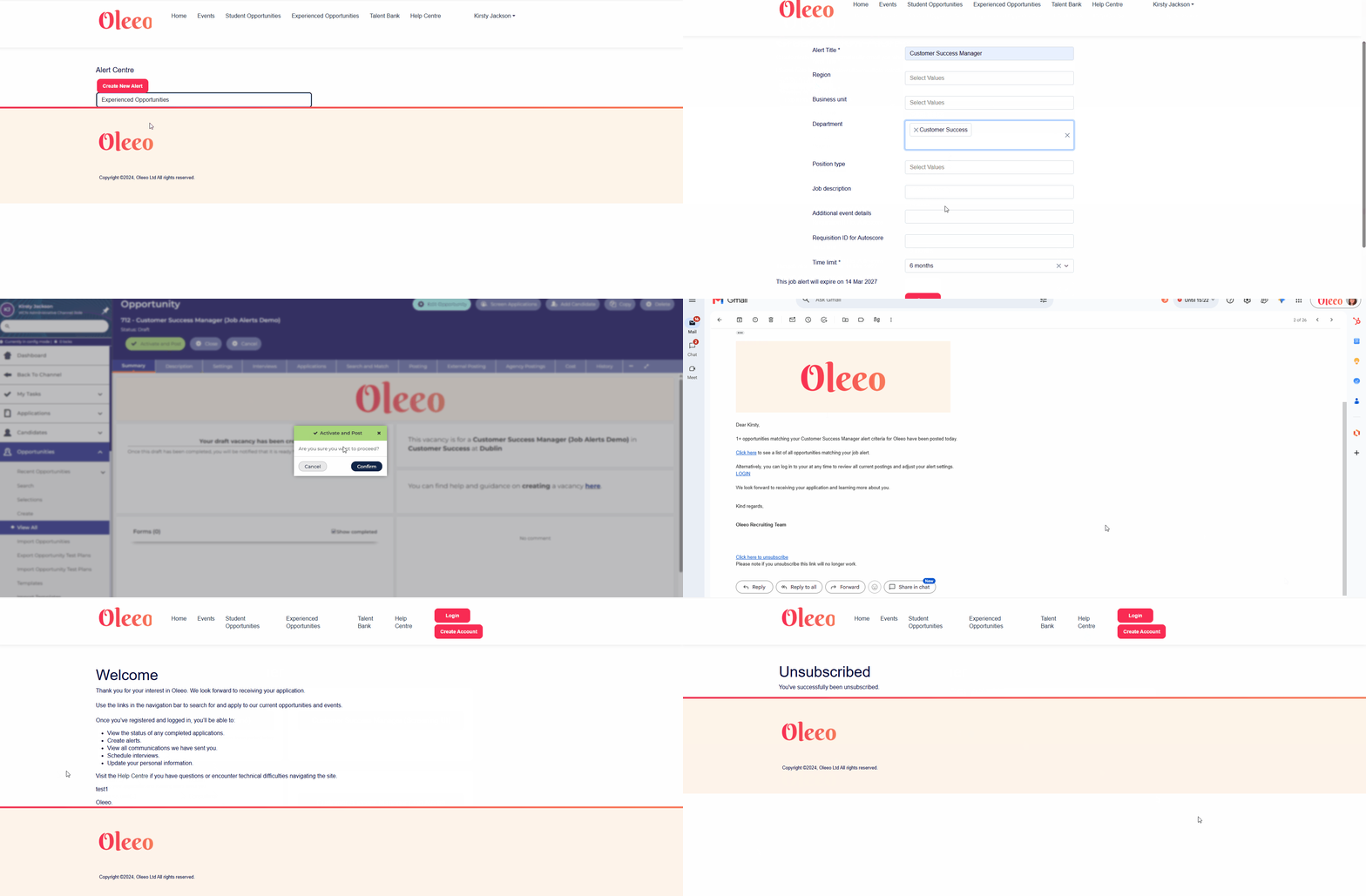
🔧 Use case: I'm a recruiter who regularly advertises a high volume of roles, which means candidates with broader job alerts can match with several new opportunities in a single day. I don't want to bombard them with emails, so instead Oleeo automatically sends one daily round-up showing how many new roles match their alert, with one place to view them all. This saves me time, helps our organisation keep candidates engaged and keeps them informed without filling their inbox.
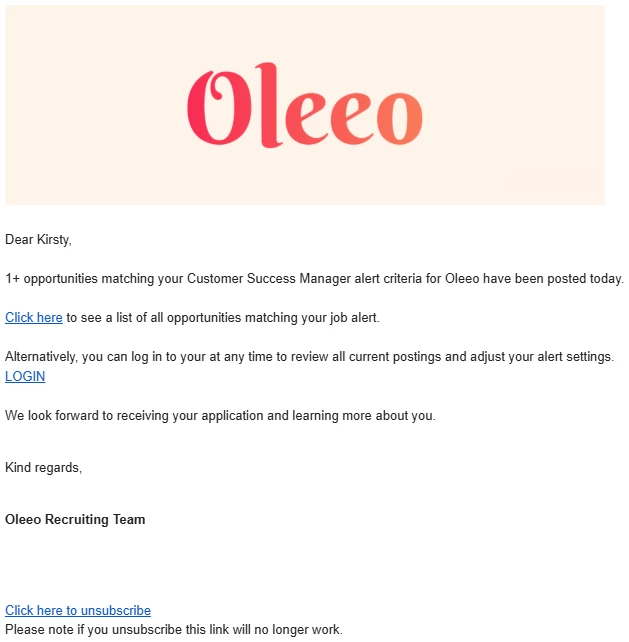
🛠️ Build Along! Click below to see our example email template, including all the datapaths that you would need to create your new job alert email:
You will need to ask Oleeo to add the below config key to your system to enable the daily rollup email:
candidate.job_alert_agent.delivery_mode

You can also ask Oleeo to set the below config key on your system to default the candidate table layout as required. We chose Exp Hire Search Results for this example:
candidate.opp.default_layout_listing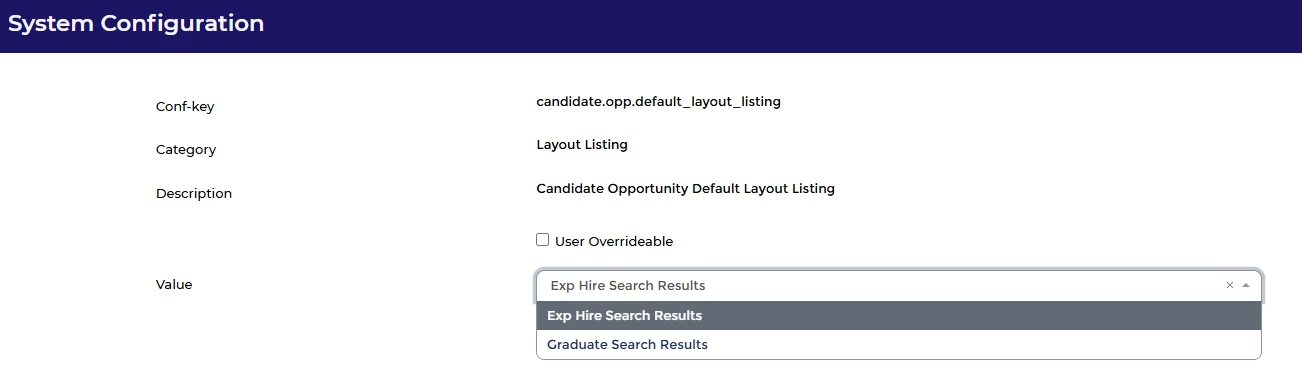
To update your job alert email, in your configuration system navigate to Configuration > Correspondence > Email Templates and find your job alert email (usually called Job Alert).
Take a copy (we often put it in a notepad) of your existing email text, in case you want to revert your changes. This is best practice when making any email changes.
Update your email content with the new datapaths that are available, here are some example templates that you can use:
For Simple Emails:
Click on the source icon
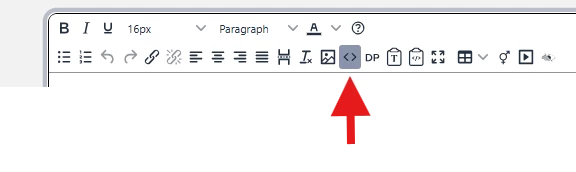
Copy and paste the below code into there and save:
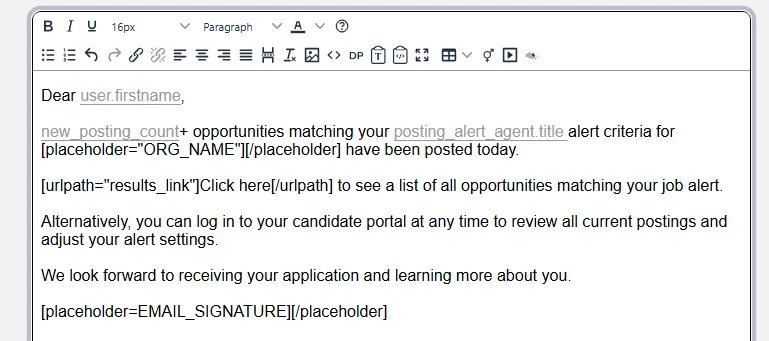
<p>Dear <span class="mceDataPath">user.firstname</span>,<br /><br /><span class="mceDataPath">new_posting_count</span>+ opportunities matching your <span class="mceDataPath">posting_alert_agent.title </span> alert criteria for [placeholder="ORG_NAME"][/placeholder] have been posted today.<br /><br />[urlpath="results_link"]Click here[/urlpath] to see a list of all opportunities matching your job alert.<br /><br />Alternatively, you can log in to your candidate portal at any time to review all current postings and adjust your alert settings.<br /><br />We look forward to receiving your application and learning more about you.<br /><br />[placeholder=EMAIL_SIGNATURE][/placeholder]</p>
<p>Please note if you unsubscribe this link will no longer work.</p>
This is what you will see:
For Advanced Emails:
Copy and paste the below text into the body of the email
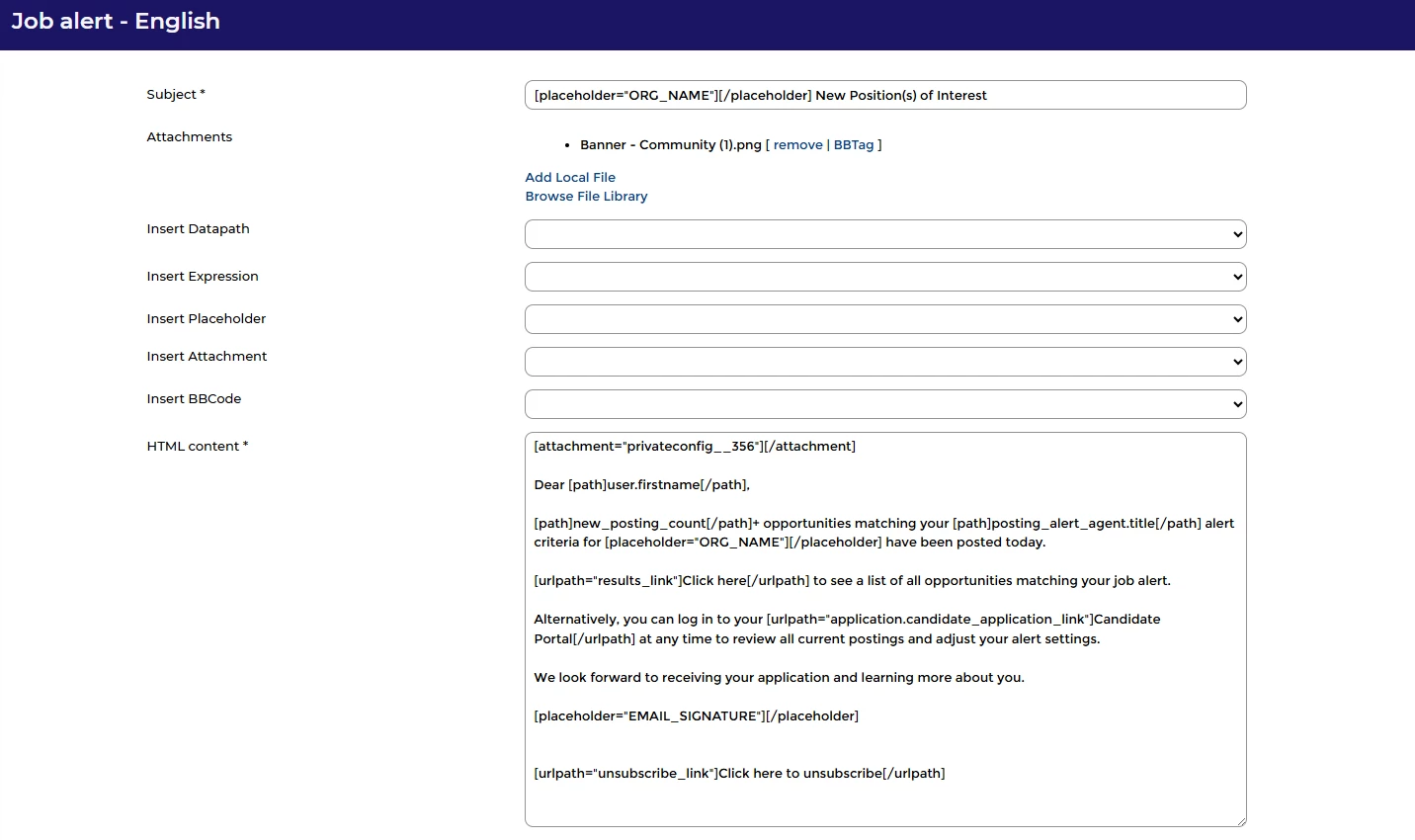
Dear [path]user.firstname[/path],

[path]new_posting_count[/path]+ opportunities matching your [path]posting_alert_agent.title[/path] alert criteria for [placeholder="ORG_NAME"][/placeholder] have been posted today.

[urlpath="results_link"]Click here[/urlpath] to see a list of all opportunities matching your job alert.

Alternatively, you can log in to your candidate portal at any time to review all current postings and adjust your alert settings.

We look forward to receiving your application and learning more about you.

[placeholder="EMAIL_SIGNATURE"][/placeholder]


[urlpath="unsubscribe_link"]Click here to unsubscribe[/urlpath]
Please note if you unsubscribe this link will no longer work.
This is what you will see:
Save the email and then make sure you test it by setting up a candidate, creating a job alert, post a vacancy/several vacancies to match the criteria and check that the email has come through the following day.
You will then need to request a push to live.
Be aware that in order to sort your job adverts on your filtered list, the field that you are sorting with needs to be visible (displaying on the tile or in the list)
📌 Pro Tip: Consider how you would like your job pages to be filtered as default. Having the newest showing at the top can complement this new functionality nicely by presenting the candidates with the last posted roles first.
📌 Pro Pro Tip: You may also wish to take the opportunity to review your correspondence templates and add custom branding to make these stand out in your candidate mailboxes.
😊 Do you think you will implement this tip? Will it improve your candidate experience? Let us know how you get on in the comments!
BENEFITS
- Reduces the impression of spam in the candidates mailbox
- Provides the candidate with clear insight into how many new positions are available, as well as a comprehensive list of ALL positions available under their defined search criteria
- Directing the candidate to your job pages allows you to target that candidate with additional information if used in conjunction with our Talent Engagement functionality
- The candidate can easily navigate through all other positions outside of their defined list once they are on your jobs pages
CONSIDERATIONS
- You will need self configuration level 2 to update your email templates on your system
- Oleeo will need to apply the config key for you and so a supported user will need to raise a request
- Are there any additional branding changes you would like to make at the same time?
COSTS
This feature is part of the standard product offering. We can apply the configuration key free of charge as part of our small change process, however if you would like Oleeo to update the email configuration for you then an estimate can be provided.
NEXT STEPS
Design the email that you want to send to candidates
Please ask your System Admin to support with the configuration or submit a Change Request to our delivery team.
Speak to your Customer Success or Commercial Director for any additional information.
ADDITIONAL INFORMATION