




TIP Tuesday! QR codes for when you are on the go

WHAT IS THE TIP?
💡 Utilise our many QR code functions when having a laptop open is way too much hassle. There are a number of QR code tools on the system that can help recruiters, interviewers and candidates to perform certain actions via a mobile device quickly and simply. These include:
- To advertise your vacancies/opportunities to candidates
- To confirm event attendees as attended for face to face events
- To access a candidate’s full application that appeared in your CV/Resume Print Book
- To confirm applicant attendance at face to face interview, testing or uniform fitting.
Advertise your Vacancy/Opportunity with a QR code
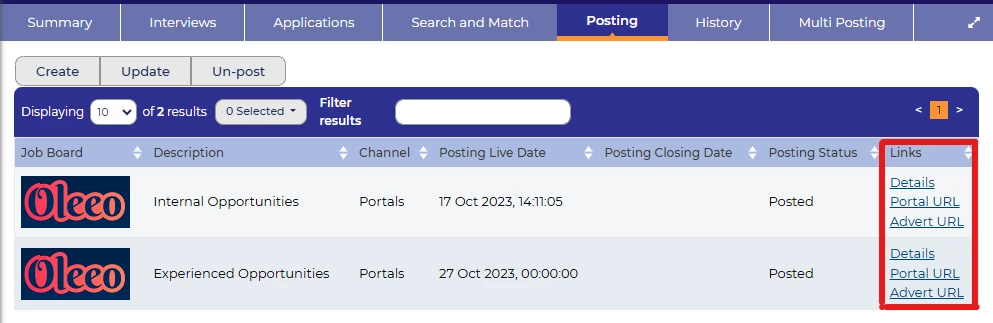
💡 Retrieving an advertisement or direct apply QR code for an opportunity is super easy. In the posting tab of an Event or Vacancy/Opportunity (Requisition), once posted you can access the Details link in the Links column.
You will be taken to a page with 2 QR Codes and matching links, simply Download (or snip) the QR code you wish to use (the first QR Code is for the advert page for the opportunity, the 2nd QR Code is for the direct login page for the specific opportunity), and add this to your physical media or wherever you want to add it.
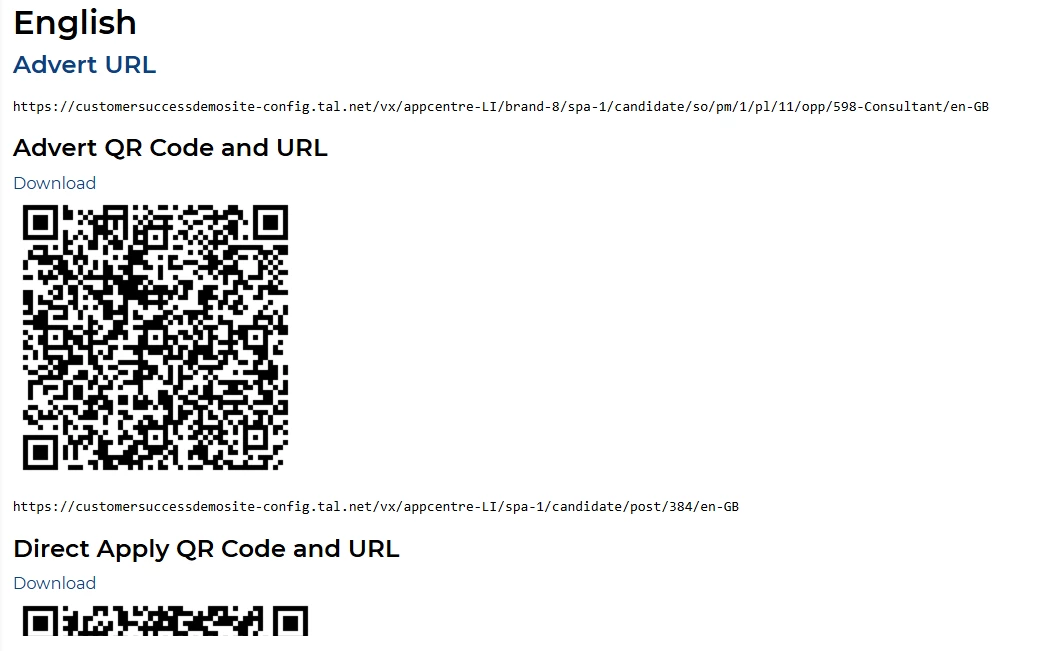
associated links should also be included in your media.
📌 Pro Tip: It is best practise that wherever you add a QR code to also display the full link associated with it as well, just in case someone’s mobile device camera is not operative and for general accessibility.
🔧 Use case: If you are posting your Event or Vacancy/Opportunity (Requisition) to physical media like newspapers, posters in public places or to the job centre, it would be a great idea to include a QR code, so anyone viewing the advert can quickly scan the QR code via their mobile device to access your Oleeo candidate site and submit an application there and then (this will reduce drop outs).
Delegates setting themselves as attended at face to face events
💡 The system can be set up so that anyone registering for your face to face event can be sent a QR code automatically upon confirmation of their registration to the event.
Our Oleeo Mobile App has a feature that will allow candidates to scan this QR code (or use their email address if they have can not access it on the day for whatever reason), to sign themselves once they arrive at the event. This will also automatically change their status to attended and send out any automatic emails that are set to be sent at that status.

📌 Pro Tip: Having a number of tablets / mobile devices available for delegates can greatly reduce any queueing that may occur otherwise and can free up team members to concentrate on more productive conversations with attendees.
🔧 Use case: Cut the queues at your event by allowing the delegates to sign themselves via pin locked mobile devices / tablets with a personalised QR Code sent to them in their event confirmation email.
CV/Resume Print Book QR Codes for a deeper dive
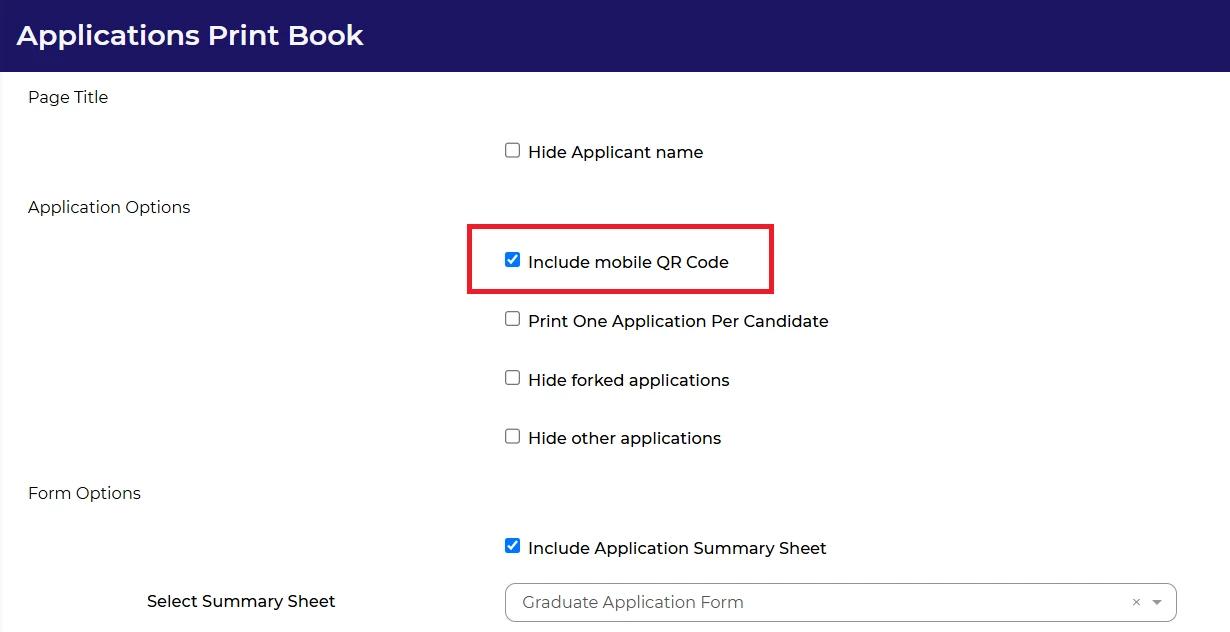
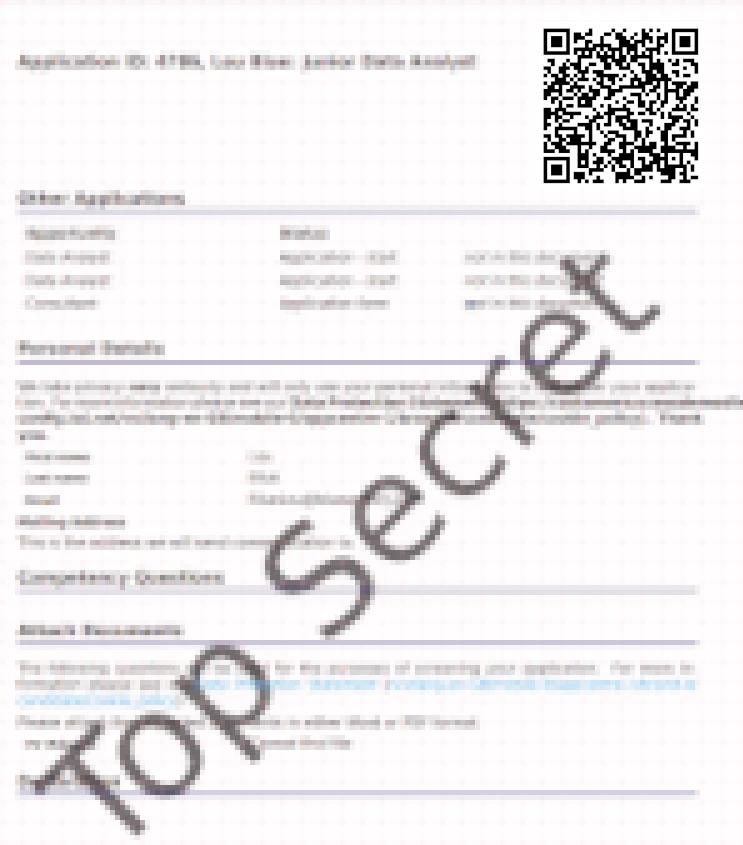
💡 A unique QR code can be added to each candidate’s header that you have included in a CV/Resume Print Book. Scan from your mobile device to be taken to the Application Summary page for that application (you will need to login with your credentials).
🔧 Use case: This can be super helpful if you are on the move or don’t have your laptop with you and you want to find out a little more about the applicant being screened. Scan the QR code on your CV/Resume book to access all the data against the application on your mobile device.
Instant Status QR Codes
💡 You can generate QR codes that will, when scanned via a mobile device, change the applications status to any status of your choosing. To do this select the applications you wish to generate the QR codes for in bulk then go to the Print > Instant Status QR Codes option.
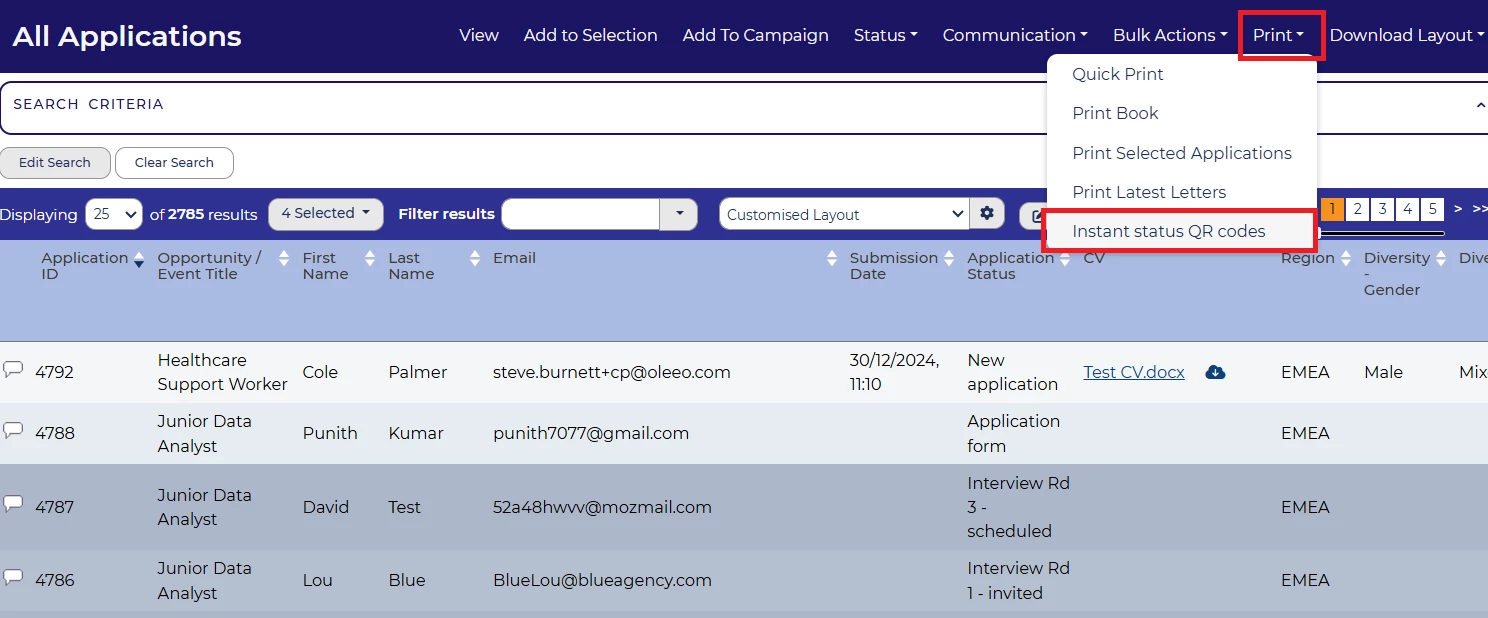
This will generate a unique QR code per application that when scanned will move that application to the status you chose when you created the Instant status QR Code. This works in a similar way to the Event mobile app feature but can be used with any mobile device.
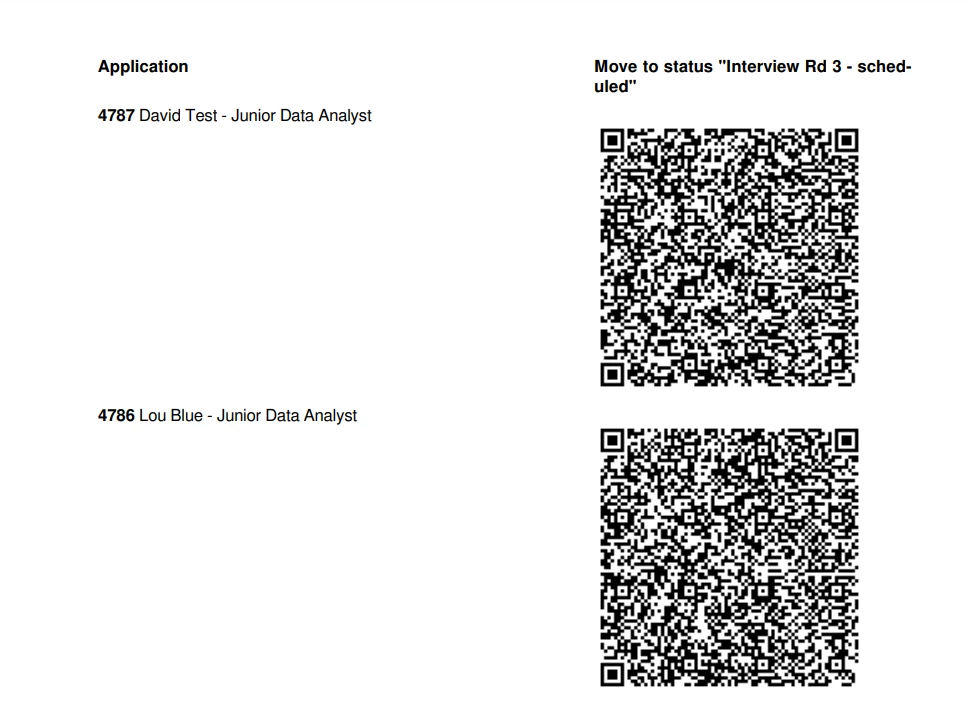
🔧 Use case: This can be really useful for setting candidates to attended for things like interviews, medicals or uniform fitting appointments etc. especially where the person managing the appointment does not have access to Oleeo. You would simply hand them a sheet of QR codes and they can scan the appropriate QR code for each candidate when they arrive, which will update the system accordingly and send out any associated emails.
😊 Over to you! Have you used any of these QR codes feature on Oleeo? Please share your experience - we’d love to hear how this feature has worked for you!
BENEFITS
- Flexibility - Access information and perform specific actions anywhere without having to get your laptop out of your bag!
- Speed - Just grab your mobile device and you’re ready to make use of these tools
- Professional - Making use of modern tools that will ensure candidates have the best opinion of you from the get go.
COSTS
Most of these features are part of the standard product offering.
Some of these features may incur extra costs
NEXT STEPS
Speak to your Customer Success Manager
ADDITIONAL INFORMATION:

