




TIP TUESDAY! Private Interview Calendar Invites

WHAT IS THE TIP?
💡 Protect candidate information from prying eyes by making your system generated iCals private.
Default your iCals to private meetings
💡 You can set up the system so that any iCal that is sent automatically to recruiters, interviewers or co-ordinators is set as a private meeting by default.
This means that when a candidate books onto a slot and the calendar invite updates with their name, and potentially their CV, their details are only shared with those who need to see that information.
🔧 Use case: Have you shared your calendar with a colleague? Do you want to protect an applicant’s details from other colleagues? Are you interviewing internal candidate(s) and want to protect their application(s)? If the answer to any of these are yes then this feature may help you.
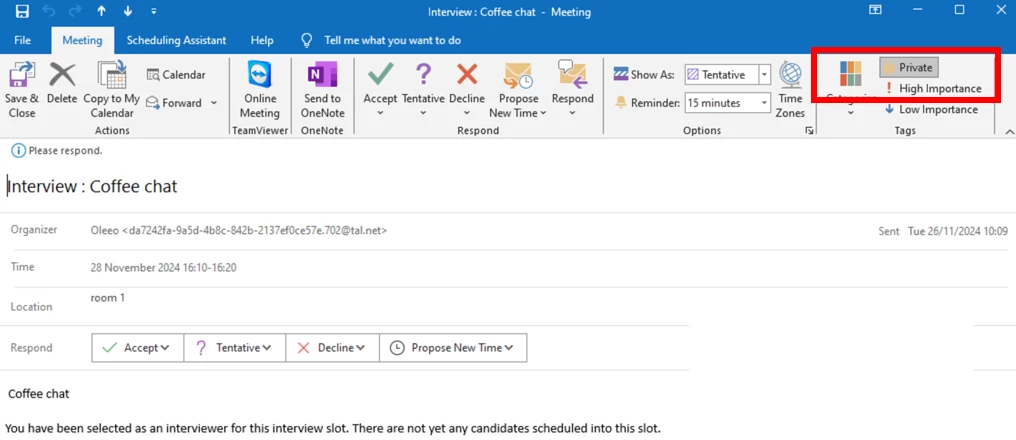
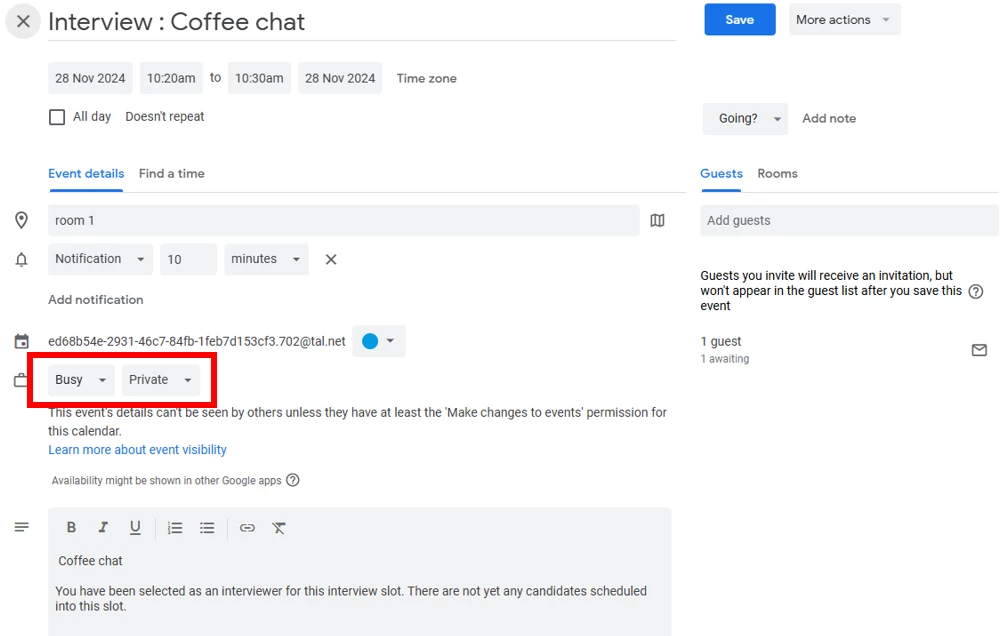
All we will need to do to make this happen is to add a configuration key to your system which will default all your iCals to a private iCal

😊 Have you got private iCals set up on your system? Do they work for you? Let us know your experience!
BENEFITS
Ensuring need to know access to an applicants’ progress
CONSIDERATIONS
- Once set, this will apply to all calendar invites and so as default all system generates invites will be sent as a private invite. The calendar owner can of course update this within their calendar invite settings.
- If you add other users into your calendar invite, you may need to check that it remains as a private meeting.
COSTS
This feature is part of the standard product offering.
NEXT STEPS
Reach out to your Oleeo Supported User who can raise a support case with our Support Team to enable the relevant configuration key (ical.private) in your system.
ADDITIONAL INFORMATION:
A reminder on how to send an iCal when creating an interview in the system can be found in the following guidance:

