




TIP TUESDAY! Power Users - Become a Search Master!

WHAT IS THE TIP?
💡 Searching is now easier! Use shortcuts for quick, numeric searches. Need to find a specific skill across an entire candidate application? Try our full-text search shortcut.
But First… Some Information…
We’ve improved how the quick search processes certain searches. From now on, if you type in a number then the quick search will ONLY search IDs which makes the search run significantly faster. This will work for an exact or partial match of say an Application ID or Vacancy ID. It will no longer search for numerical values as a wider search in a field such as a vacancy title for example.
This will help our larger customers with their speeds as the system is now no longer having to return several results.
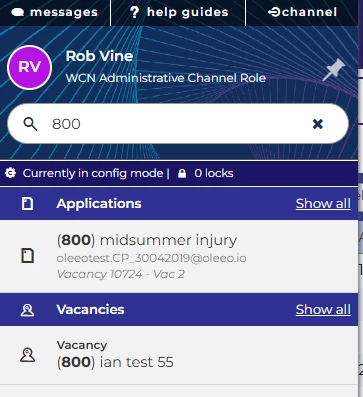
Numerical Wildcard Searching
💡 Wildcard your search using the ‘~’ symbol for a wider generic numerical search.
🔧 Use case: Perhaps you have a specific vacancy numbering system in the title of a vacancy and would like to be able to return a result from the vacancy title field instead of searching for an ID number.
Well now you can leverage our searching shortcut in the quick search box to do just that.
For those who have a need to use a generic numerical search, you can now return any search results that contain the numbers that you enter by prefixing your search with the ‘~’ symbol. You are essentially telling the system "I would like to do a more generic search for this in fields like Vacancy Title".
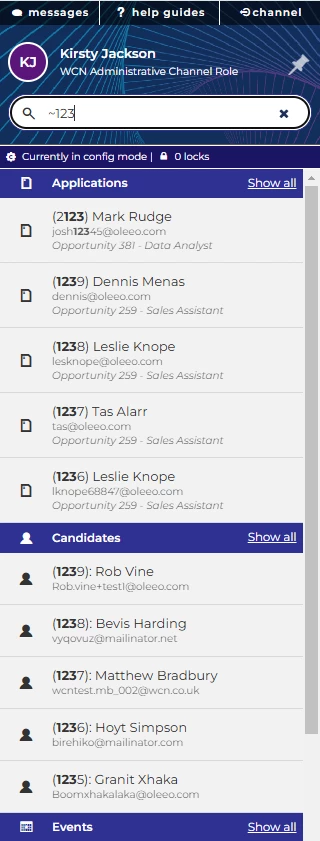
Navigate Directly to an Application
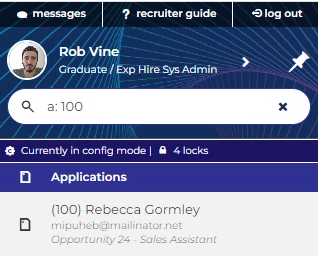
💡 Navigate directly to an application using the "a: [id number]" or "A: [id number]" prefix. If no results show, you know instantly that there is no match.
(The search is no longer case sensitive and will work irrespective of a space after the colon)
Navigate Directly to a Vacancy
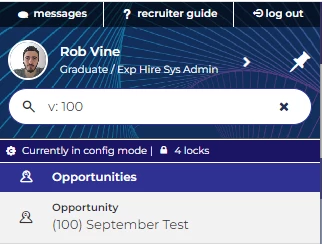
💡 Navigate directly to a vacancy using the "v: [id number]" or "V: [id number]"prefix. If no results show, you know instantly that there is no match.
(The search is no longer case sensitive and will work irrespective of a space after the colon)
Full Text Searching
💡 You can run a full text search that will search any free text field on a candidate's applications or attachments such as CV/Resume or cover letter. This is useful if you want to search for specific skills across one or multiple applications.
- Type ‘Full Text Search’ into the search box.
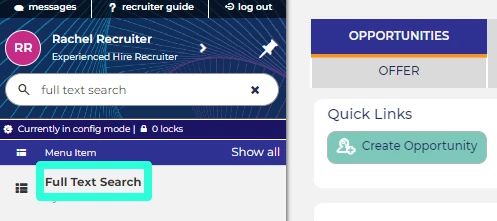
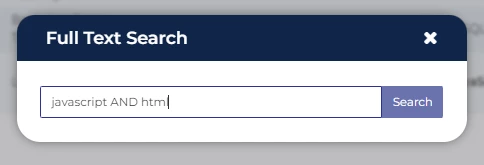
- Click on the resulting link to bring up the full text search box, enter your search criteria and click Search. You can use boolean operators such as AND, OR & NOT to help filter your results.
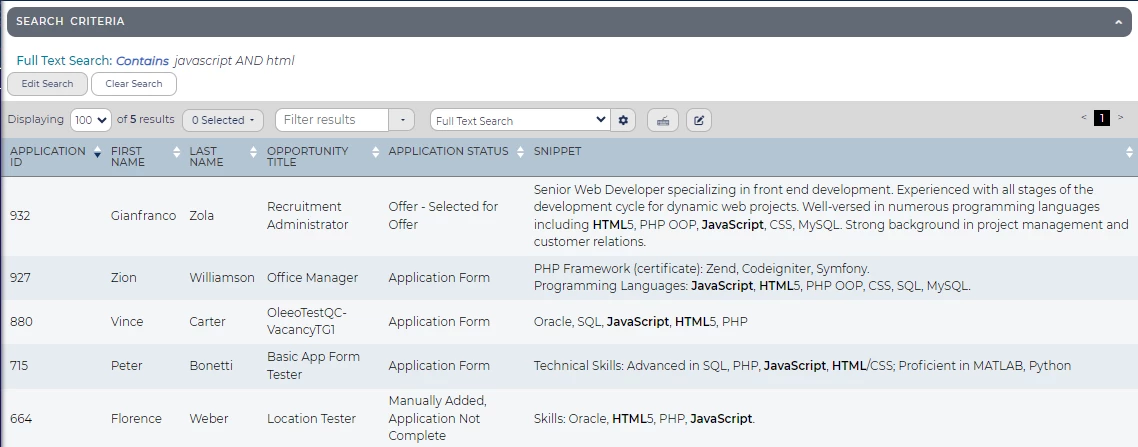
- When viewing a table of results, edit the layout and add ‘Snippet.’ This will add a column to the table to show where the search results have been found.
😊 Do you have any searching tips that you would like to share?
BENEFITS
- Faster searching for common vacancies and applications
- Easy to see when no results are returned
- Facilitate shortlisting by easily seeing specific skills required for the role
CONSIDERATIONS
If you are unable to add the ‘snippet’ column into a table layout, you may need to add this into your data dictionary and request that the relevant config keys are turned on.
COSTS
This feature is part of the standard product offering.
NEXT STEPS
Reach out to your supported user who, if needs be, can request that the config keys and data dictionary are updated via a Sugar support case into our Support Team.
ADDITIONAL INFORMATION:
For additional searching guidance, check out our user guide:
Supported users: Search for ‘Full Text Search’ in the config guide for more information

