




TIP TUESDAY! Oleeo Community Searching - Search Smarter, Not Harder

WHAT IS THE TIP?
💡Want to find answers in the Oleeo Community faster? The platform is packed with a wealth of information; from ATS navigation guides to self-configuration tips and the latest feature updates. You can quickly pinpoint what you need using exact phrase matching, category filters, and tags. Or better yet, skip the search entirely and ask the Oleeo AI Assistant for instant, step-by-step guidance right within your system.
Exact Phrase Matching (" ")
💡Searching for multiple words without quotes often retrieves posts where those terms appear anywhere on the page, not necessarily together.
-
Go to the search bar at the top of the Community.
-
Enclose multi-word terms, exact feature or product names, in double quotes (e.g.,
"Data Dictionary","Vacancy Templates", or"Interview Notes"). -
Hit Enter to display only threads containing that exact phrase.
Instead of making you click through multiple search results, the AI summary reads across our guides and community content to give you an immediate, plain-English answer right at the top of the page.
Category & Status Filters
💡Narrow your search results so you only look in relevant spaces.
-
Run your search, then check the sidebar filter options on the results page.
-
Filters include: Topic Type, Knowledge Base Category and Product Area
-
Filter by specific areas to eliminate unrelated content.
-
Select tags: Tick tags that might relate to the topic to refine and filter the results.
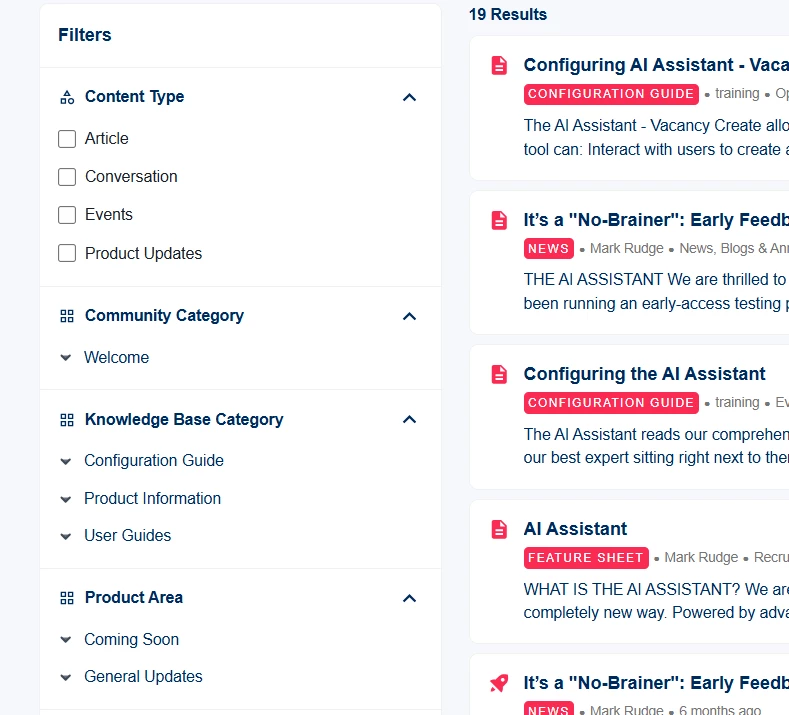
🔧 Use case: A new recruiter starts on Monday, and you need to set up their platform permissions quickly. Instead of wading through general setup articles, you filter the search results by Knowledge Base Category → System Admin Guide. The exact step-by-step guidance document appears at the top of the list, getting your new hire access in minutes.
Topic Tags & Wildcards (*)
💡Bypass typos, word variants, and vocabulary differences.
-
Use Wildcards (
*): Add an asterisk at the root of a word (e.g.,configur*) to pull every variation; configure, configured, configuring, or configuration, in a single search. -
Click Tags: Scroll to the bottom of any helpful post and click an associated module tag (e.g.,
#Screening,#Automation,#Reporting) to see every post, guide, and update filed under that exact topic.
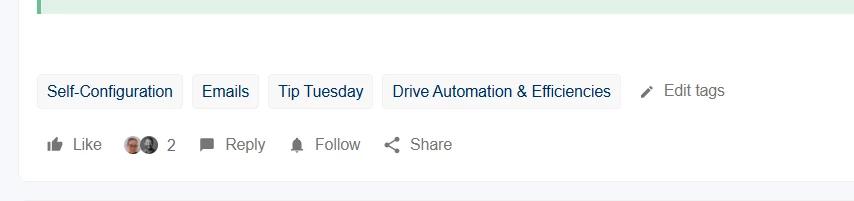
🔧 Use case: You're looking to cut down on manual interview scheduling and status updates across your team. At the bottom of a Feature Sheet you're reading, you click the #Automation & Efficiencies tag. Rather than starting a new search from scratch, you instantly unlock a curated list of configuration guides, product and feature options and time-saving tips and tricks directly applicable to your workflow.
AI Assistant (Inside the ATS)
💡If you're actively working in the ATS, skip the manual search altogether and let the AI Assistant fetch the answer for you.
-
In the ATS, locate the AI Assistant icon in the left-hand navigation menu where online help guides sit.
-
Click to open the assistant panel alongside your current screen; no tab switching required.
-
Ask your question in natural language (e.g. "How do I bulk update candidate stages?" or "What are the steps to add an interview panel?").
-
Review the concise, step-by-step answer synthesised directly from Recruiter Guides and Community documentation.
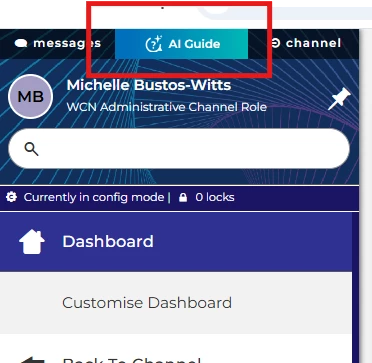
🔧 Use case: You're a hiring manager who only logs into Oleeo occasionally, and you need to review a fresh batch of applicants right away. Instead of waiting for a recruiter to reply or hunting through user guides in another tab, you click the AI Assistant in the ATS navigation. In seconds, you get clear, step-by-step instructions on where to go and how to score candidates without leaving your screen.
😊 What tips help you with searching the most? Has your team used the AI Assistant yet?
BENEFITS
-
Zero workflow disruption: The in-app AI Assistant gives instant answers right inside the ATS without requiring tab switches or separate logins.
-
Faster problem-solving: Quotes and filters take you straight to verified, accepted solutions instead of pages of unresolved discussions.
-
High accuracy: Pulls from tested system documentation, official guides, and accepted community content.
-
Reduced ticket volume: Enables teams to self-serve routine questions and troubleshooting steps independently.
CONSIDERATIONS
-
General AI Terms: Your organisation must have agreed to the General AI Terms to enable the AI Assistant in your ATS instance.
-
Custom internal SOPs: The AI Assistant and Community reference standard product configuration; if your team uses bespoke internal hiring stages or custom workflows, refer to your organisation's internal documentation.
-
Bespoke AI Assistant Content: To upload bespoke content to the AI assistant, you will need to purchase the AI Assistant+ tool which will carry both configuration and licence fee costs.
COSTS
Both Community searching/filtering and the ATS AI Assistant are standard platform features available at no extra charge under your existing subscription.
There is a monthly fee and set up cost for the AI Assistant+ (your bespoke content), please speak to your Commercial Director for more information.
NEXT STEPS
If you would like to enable the AI assistant, please raise a change request case to the service delivery team and/or reach out to your Customer Success Manager.
ADDITIONAL INFORMATION