




TIP TUESDAY! Map It Out with Config Reports: Your System at a Glance

WHAT IS THE TIP?
💡 Pulling a Configuration Report from your Config environment is like creating a detailed map of your system’s setup. Whether you’re managing forms, processes, table layouts, or decision actions, these reports give you a clear, exportable view of your current configuration. It’s a must-have for keeping track of where things are, what’s happening, and what needs changing.
How to Pull a Configuration Report
💡 Ready to get started? Here’s how to pull a Configuration Report to keep your system specifications at your fingertips.
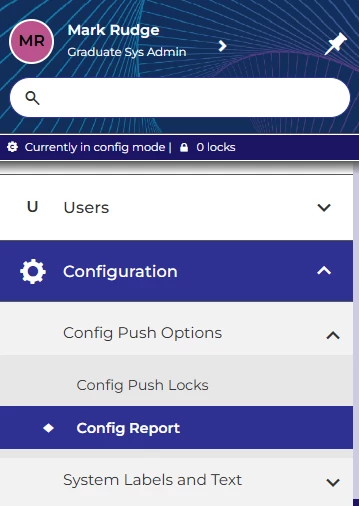
- Navigate to Configuration > Config Push Options > Config Reports in the left-hand menu.
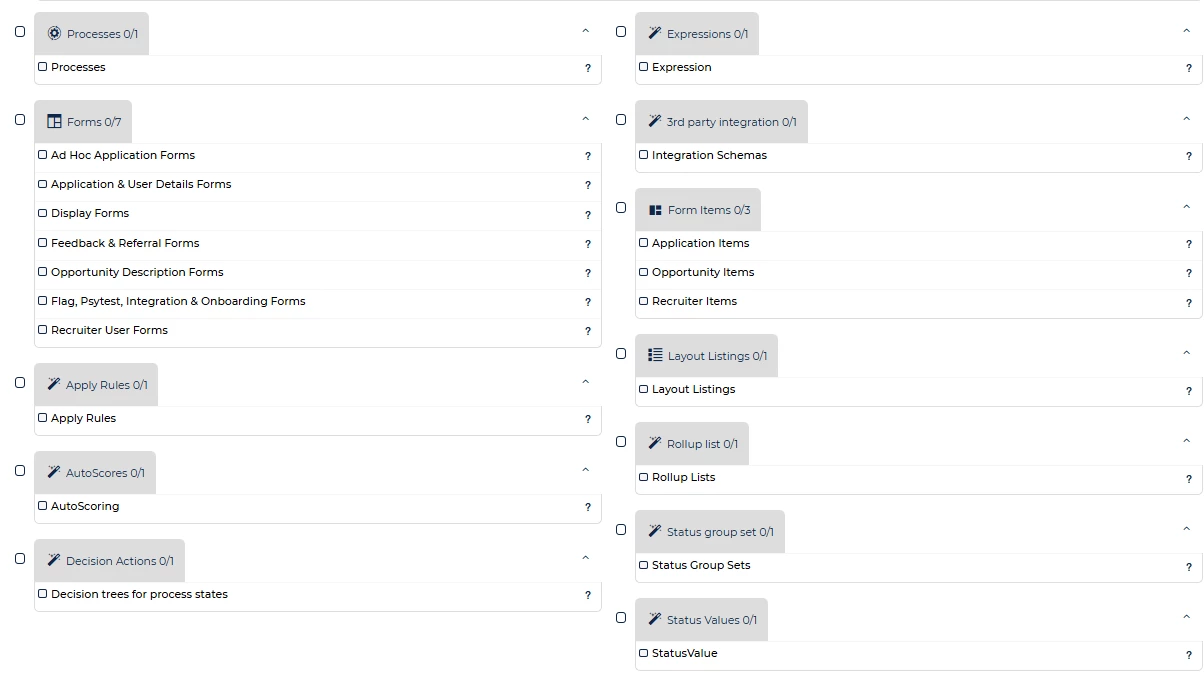
- Tick the areas you want to export, for example: Forms, Processes, Table Layouts, Autoscores or Decision Actions.
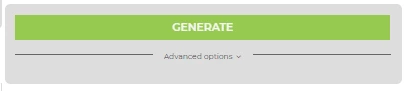
- Click Generate (green button on the right)
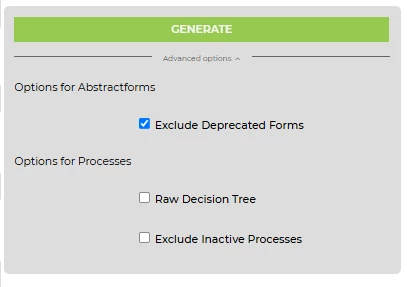
- Optional: Expand Advanced Options (under the Generate button) and choose to exclude deprecated forms. This will help shorten the time taken for the report to generate.
Forms: Know What’s Happening
💡 If you’ve ever wondered what items are on which forms, or under what conditions they appear, the Forms Specification report is your answer.
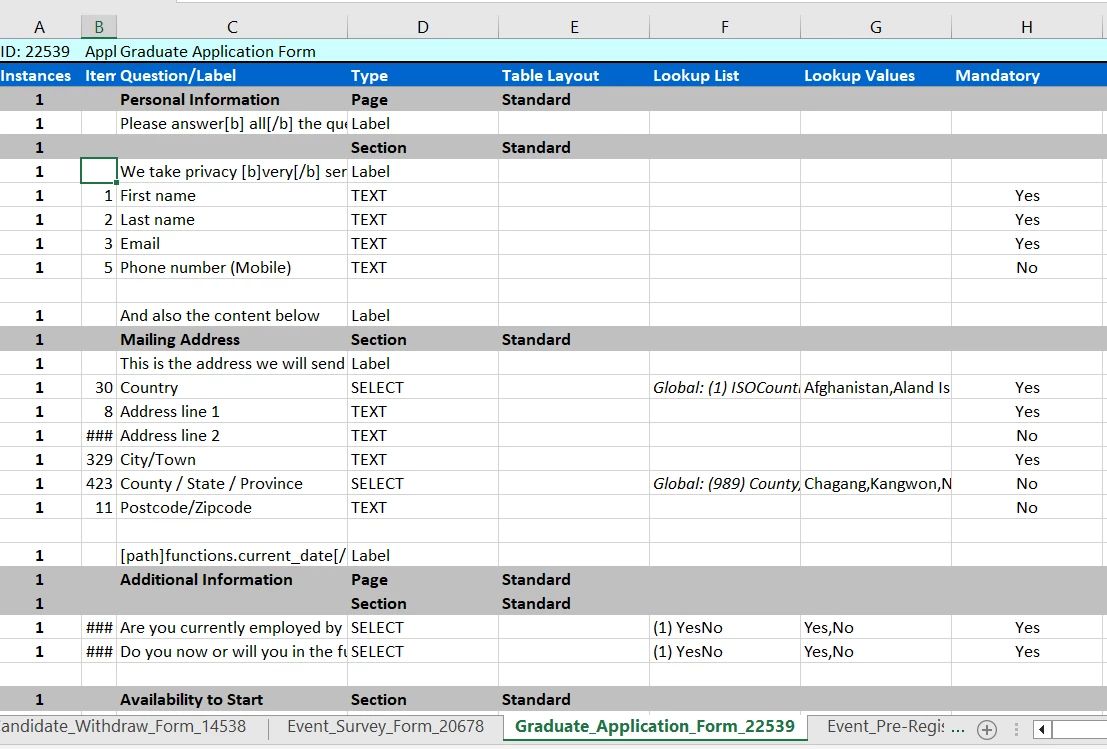
How It Works: Each form is presented as a tab in an Excel sheet. Columns show key attributes like Item ID, Item Name, Type, Lookup Values, Data Sensitivity, Visibility Conditions and so forth.
🔧 Use case: Need to replace an old form item with a new one? Simply search the report to see where it’s used. There’s no need to dig through each form manually!
📌 Pro Tip 1: Sometimes multiple items can have similar names, which can make it tricky to identify the right one when building reports. Use the generated Config Report to pinpoint exactly which item is being used where, saving you time and reducing errors later.
📌 Pro Tip 2: Use this report to check conditional logic - see which items are visible, without filling out the form in order to test the settings. Please note: config reports should never be used as a replacement for testing new changes!
Processes: Follow the Flow
💡 The Process Specification export gives you a clear breakdown of your system workflows, showing what happens at each stage.
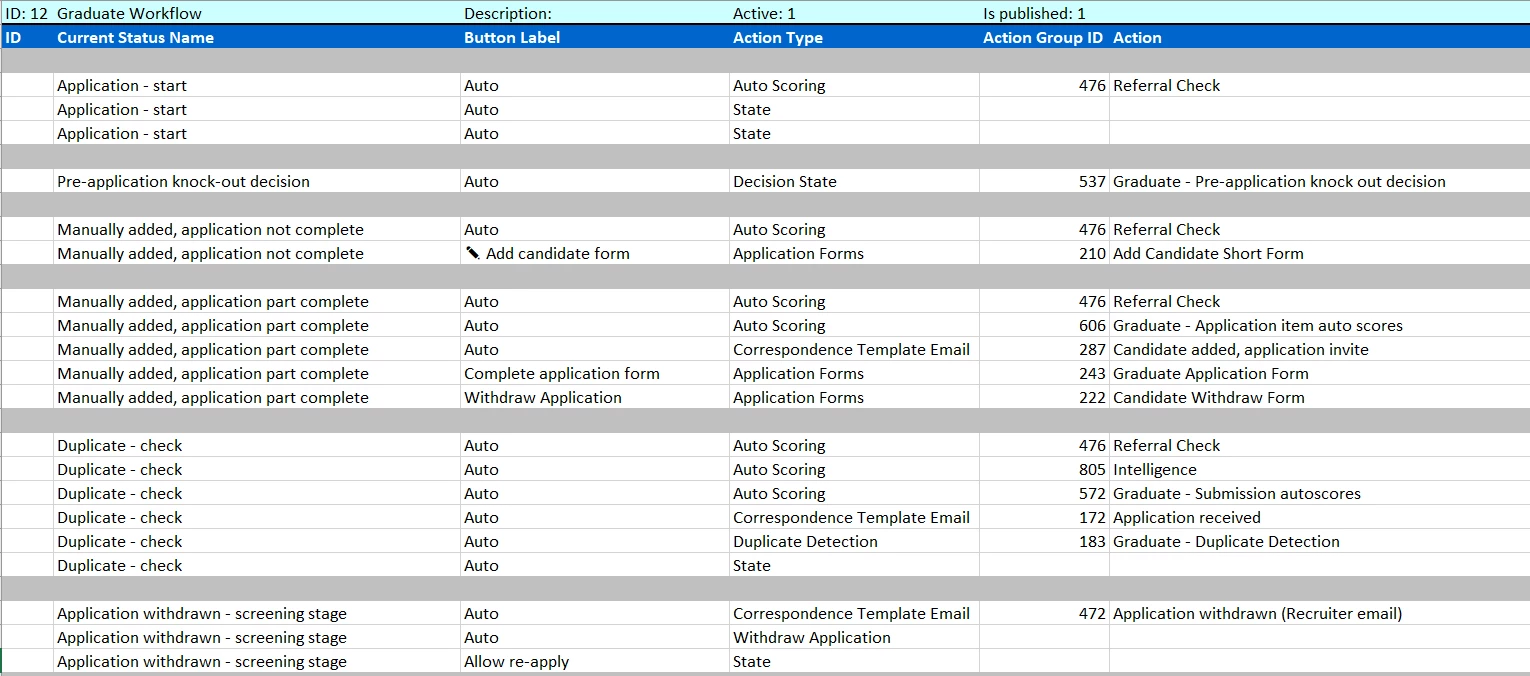
How It Works: Each process appears on its own tab, listing key details like attached emails, process visibility, button names, Roles, Trigger Types and line-by-line actions.
🔧 Use case: Troubleshooting? Use the report to follow visibility rules and confirm what should be happening at every step of your process.
📌 Pro Tip: Many customers export all processes (and forms) after a Push to Live, especially following significant changes. This acts as an audit log - if something breaks, you can quickly compare reports to identify when the issue occurred and hopefully, how to resolve it.
Table Layouts, Autoscores & Decision Actions: Stay in Control
💡 Exporting Table Layouts, Autoscores and Decision Actions helps you pinpoint which items are being used across the system.
🔧 Use case: Planning changes to your item configuration? These reports help you identify where specific items are being used across the system, ensuring nothing gets overlooked. For example, if you’re retiring an old item and replacing it with a newer version, exporting the Table Layout, Autoscore, and Decision Action reports allows you to quickly pinpoint where the item appears, so you can swap it out seamlessly.
😊 Have you used Config Reports to solve a tricky issue or streamline your setup? We’d love to hear your success stories!
BENEFITS
- Saves time by providing a single, searchable view of your system setup.
- Reduces manual effort - no need to test settings or dig through forms/processes.
- Creates a reliable reference point for troubleshooting, auditing, and future changes.
- Supports accountability with clear snapshots of system configuration post-push.
- Simplifies report building by helping identify the correct form items, especially when similar names exist.
CONSIDERATIONS
- Ensure your Super User has the correct permissions to pull the reports.
- Always pull the report after a Push to Live to keep your specs up to date.
- For high levels of change, consider exporting all processes for better audit tracking.
- Be mindful of similar item names - use the report to cross-check and avoid confusion.
- Heads up! Some reports may take a little longer to export due to the depth of data being processed. Why not duplicate your tab to carry on with other activities and check back shortly? Your report will be ready when you are!
COSTS
This feature is part of the standard product offering.
NEXT STEPS
Ready to map out your system? Pull a Configuration Report today and streamline your configuration management. For help or guidance, reach out to your Oleeo Customer Success Manager.
ADDITIONAL INFORMATION

