




TIP TUESDAY! Make screening seamless with the 'View CV Alongside' feature

WHAT IS THE TIP?
💡 Oleeo’s Printbook feature is as well loved as your favourite comfy pair of slippers! But do you ever wish you could screen and compare candidate applications, forms and CV’s (resumes), directly in the system from the same screen - without having to open extra documents or pop-ups? Well, you easily can with ‘View CV Alongside’!
Screening applications using View CV Alongside
💡 This tool makes screening applications quick and simple by giving users access to all the information they need on the same screen.
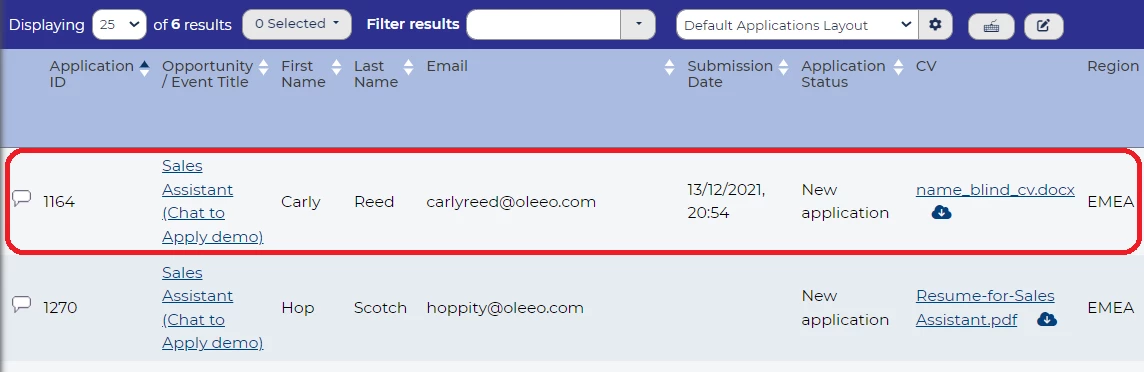
To access this feature, you need to navigate to the list of applications you wish to screen, then double click on the first application, to take you to that application’s Application Summary page:
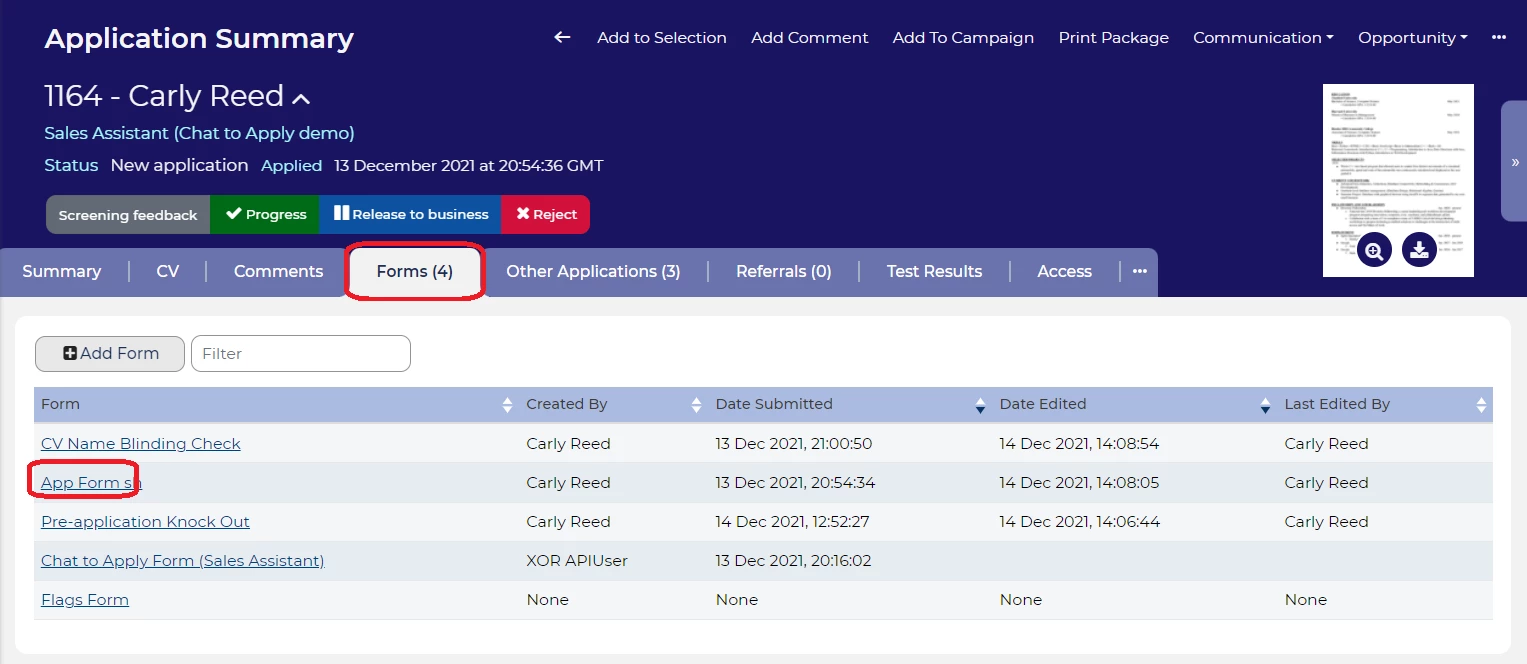
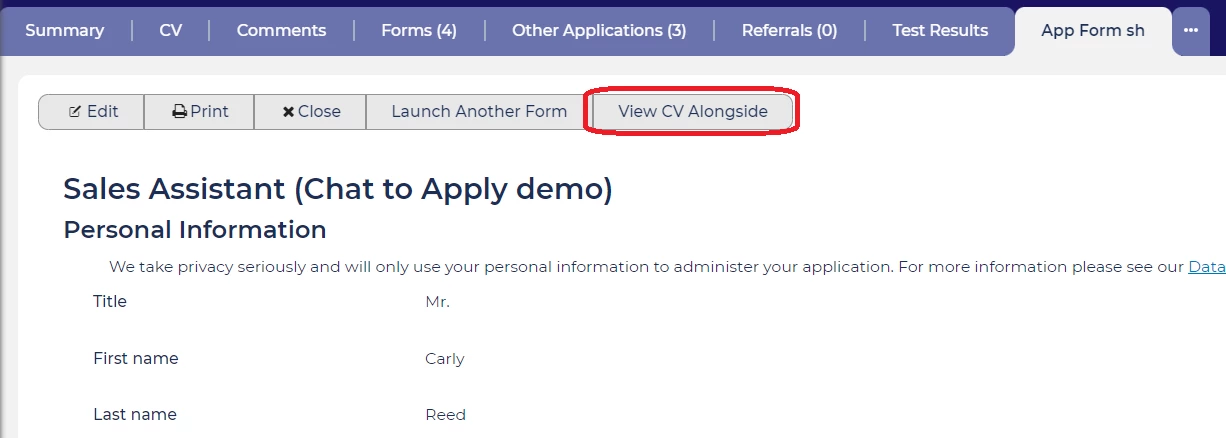
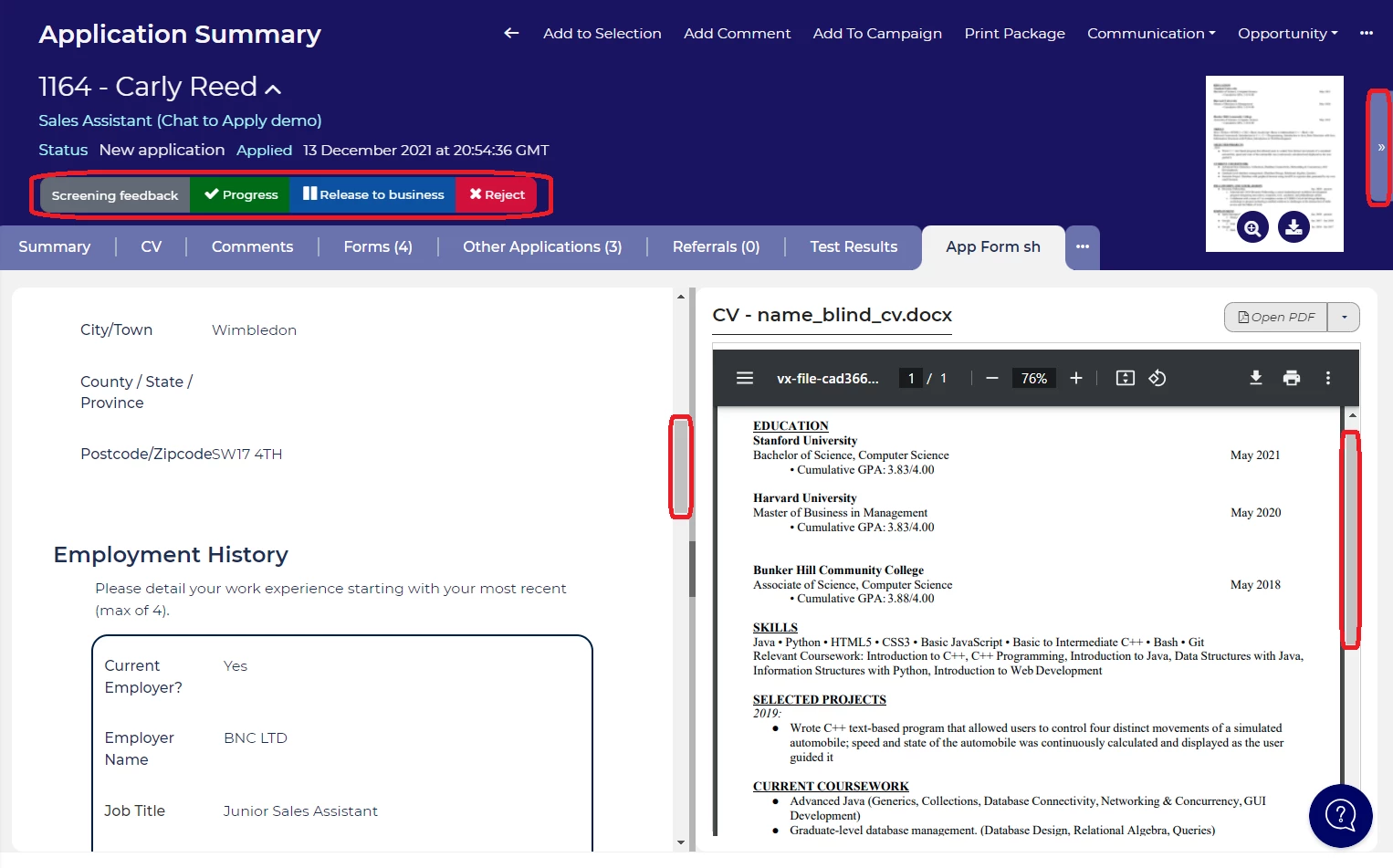
Use the scroll bars, to scroll up and down, to quickly locate all the information you need from the application form and CV (Resume).
Once you have made your decision, add this to the system via the Screening Feedback form *(where applicable), then change the application status as appropriate all without leaving the page!
📌 Pro Tip: Use the right navigation arrow, at the far right side of the information panel, to navigate to the next application, so you don’t have to waste time navigating back to the original list. Allowing you to screen all your applications one-by-one seamlessly!
🔧 Use case: This tool is particularly useful if you are screening via your laptop, and don’t have the assistance of a second screen, as it will show you all the info you need on one screen, without the need to toggle to other docs or tabs.
😊 What’s your preferred method of screening your applicants? Let us know in the comments.
BENEFITS
- Screen your candidates methodically, without the possibility of missing anyone by mistake.
- No need to leave the screen or tab.
- Reduces the number of page loads - great if your internet is sub optimal during screening.
COSTS
This feature is part of the standard product offering.
NEXT STEPS
For more personalised advice, reach out to your Oleeo Customer Success Manager or explore our online configuration guide. Want to learn more tricks? Stay tuned for next week’s Tip Tuesday!

