




Tip Tuesday: Keep Everyone in the Loop with Automated Emails

WHAT IS THE TIP?
💡Take the manual work out of keeping everyone informed! Oleeo can automatically send emails to hiring managers, internal teams and other stakeholders as candidates progress through recruitment or vacancies move through different stages.
By building these notifications into your recruitment workflows, you can help ensure the right people receive the right information at the right time, without having to send individual updates.
Why Automate an Email?
💡Automated emails can be configured within both application and vacancy process flows, triggered when a particular stage is reached or an action takes place.
Think about how many people might need to be kept informed throughout a recruitment process. From hiring managers and interviewers to IT, Payroll and other internal departments, a single change can mean multiple emails and follow-ups.
Rather than relying on recruiters to coordinate these communications manually, Oleeo can automatically send relevant updates as part of the process. This helps reduce administration, maintain consistency and ensure important information isn't overlooked during busy recruitment periods.
🔧 Use case: I've just received confirmation that my candidate has accepted their offer, and now it's time to get everything ready for their first day! I need to let the hiring manager know their start date, arrange for IT to prepare their equipment, notify Payroll and make sure Reception and Security are expecting them. Rather than contacting each team individually, I've configured Oleeo to send the relevant information automatically when I move my candidate to the appropriate stage.
But what if my candidate withdraws before their start date? I've also configured a notification for this scenario, so the relevant teams know to stop their preparations, without me having to personally update everyone.
🛠️ Build Along! Click below and we can show you how to build one of these automated emails:
Step 1: Before you begin to create your email, you will need to set up an Action Category to add this to your process flow.
Here is a reminder on how to do this: Creating an Action Category
Step 2: Create your email, here is a more detailed reminder on how to do this: Creating an Email Template
Choose the email category Application Template.

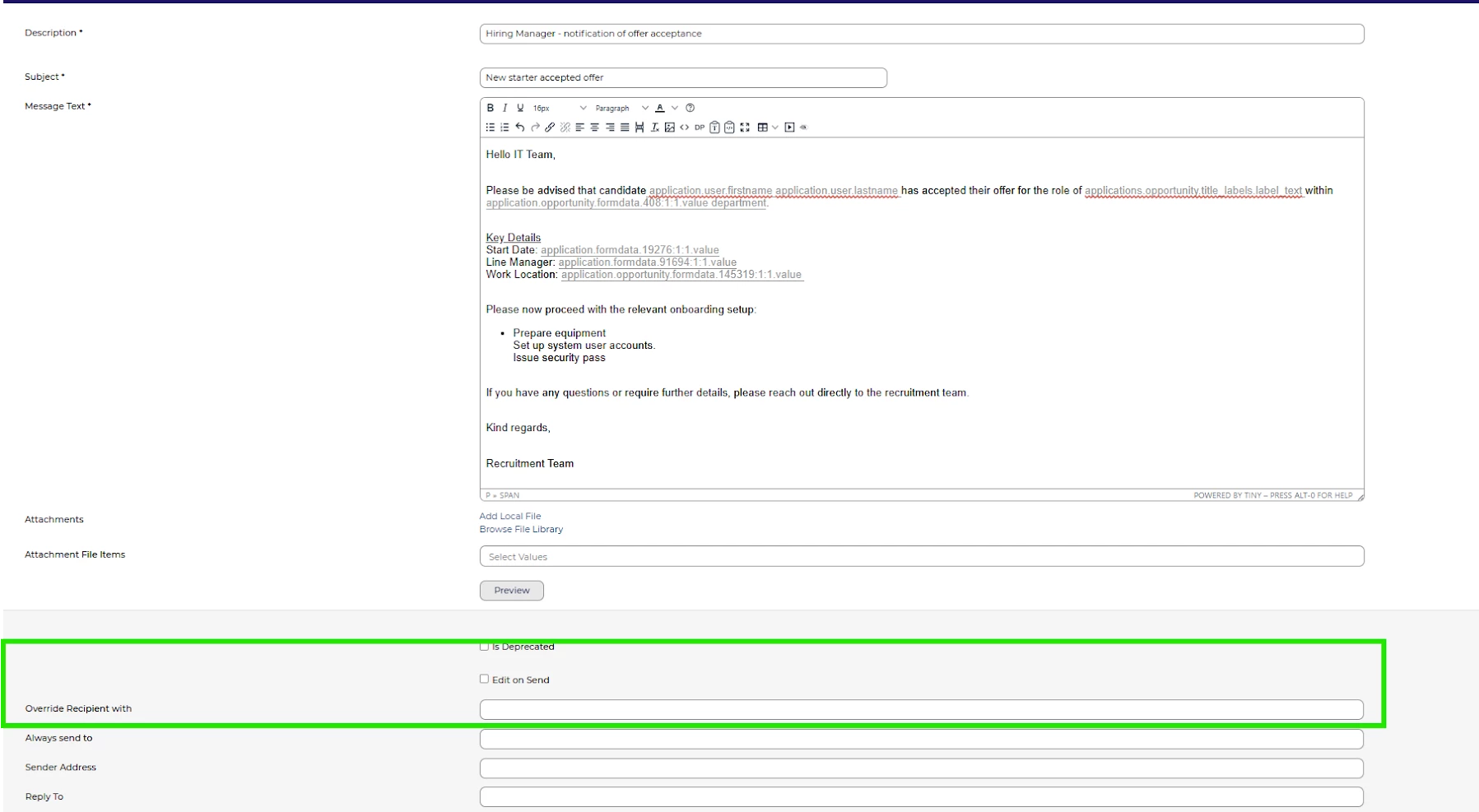
Add the required content to your email, include all relevant information with the associated Datapath(s) and detail for the recipient.
Open the options box, add your recipient's email into the ‘Override Recipient with’ field. This can be a specific email address or you can use the Datapath for a user/contact associated with the job. If you would like to send this this to multiple contacts then you separate them out with a comma.
Make sure that the Edit on Send box is unticked.
Below is an example of some email text you may choose to send to your IT team when a new starter is confirmed for example:
Now add the Action Category you made earlier.
Step 3: You can now add this email to this email to your application flow, follow the steps in the configuration guide in the section Open The Process Flow In Edit Mode
Step 4: Test your email by creating a candidate in your config environment and moving them to the correct status to trigger the email.
📌 Pro Tip: Think Beyond the Obvious!
We've explored how automated emails can help with new starter preparations, vacancy updates and candidate withdrawals, but there are plenty of other opportunities to build automation into your recruitment processes!
Think about the points in your recruitment journey where you're currently sending manual emails or chasing colleagues for updates. For example:
-
Interview coordination: Notify hiring managers when a candidate is ready for interview scheduling.
-
Approval processes: Alert relevant stakeholders when a vacancy or recruitment decision requires their approval.
-
Assessment stages: Let assessment teams know when candidates have progressed to a stage requiring their involvement.
-
Background checks: Notify your screening or compliance team when a candidate is ready for pre-employment checks.
Where else could a simple automated notification save your team time and keep things moving?
😊 Have you already introduced automated emails into your recruitment processes, or can you think of other areas where they could make a difference? We'd love to hear your ideas and examples, so why not share them in the comments below!
BENEFITS
-
Save time and reduce administration: Automatically trigger communications at the relevant stage of the recruitment process, reducing the need for manual emails and follow-ups.
-
Improve communication: Keep hiring managers, internal teams and other stakeholders informed of important updates, helping everyone stay aligned.
-
Ensure consistency: Standardised email templates help ensure the right information is communicated consistently, reducing the risk of important details being missed.
- Maintain an audit trail: Sent emails are recorded against the relevant vacancy or application history, complete with date and time stamps for easy reference.
CONSIDERATIONS
-
Recipient management: When using a fixed email address in the ‘Override Recipient with’, remember that recipients may change roles, go on extended leave or leave your organisation. Consider using a shared mailbox to avoid having to update individual email addresses.
-
Duplicate notifications: Moving an applicant back and forth between stages associated with an automated email could trigger the same message multiple times. Consider how your process flows are used to avoid unnecessary communications.
-
Email volumes: In high-volume recruitment campaigns, automated notifications could result in a significant number of emails being sent. Consider using 'IF Expressions' to apply additional conditions and limit notifications to relevant scenarios.
- Testing your emails: Before making your automated emails live, test them to ensure they trigger at the correct stage, reach the intended recipients and that any datapaths populate with the correct information.
COSTS
These updates can be completed with level 3 configuration changes. Alternatively, please ask your Oleeo supported user to raise a Sugar case so that an estimate can be provided.
NEXT STEPS
For any advice, guidance or a demo, speak to your Customer Success Manager.
Raise a case with our Delivery Team to configure automated emails into your processes.
ADDITIONAL INFORMATION