




TIP TUESDAY! Harnessing 'Current User' For A Better User Experience

WHAT IS THE TIP?
💡 'Current User' Config Saved Searches dynamically filter results based on who is currently logged into the ATS (the “Current User”). This feature uses a Database Object form item that acts as a dropdown list of all active ATS users. It ensures that users see only the records assigned to them - simplifying and personalising their workflow.
💡 Imagine a dashboard that tailors itself to present only information relevant to you as you navigate the ATS. With our 'Current User' Config Saved Search feature, this is now possible!
By leveraging dynamically filtered dashboards, recruiters can focus solely on the vacancies and applications specifically assigned to them. This is a game-changer for system reviews or embarking on new workflows, as it revolutionises user interaction within the ATS.
Common use cases
💡Dashboard Widgets: Create saved searches for your dashboard widgets that use the ‘current user’ item to only display the vacancies or applications assigned to the logged-in user, E.G. A hiring manager who is also a member of a panel interview for another areas hires or a recruiter that needs to filter out all of the other records and only see those assigned to them.
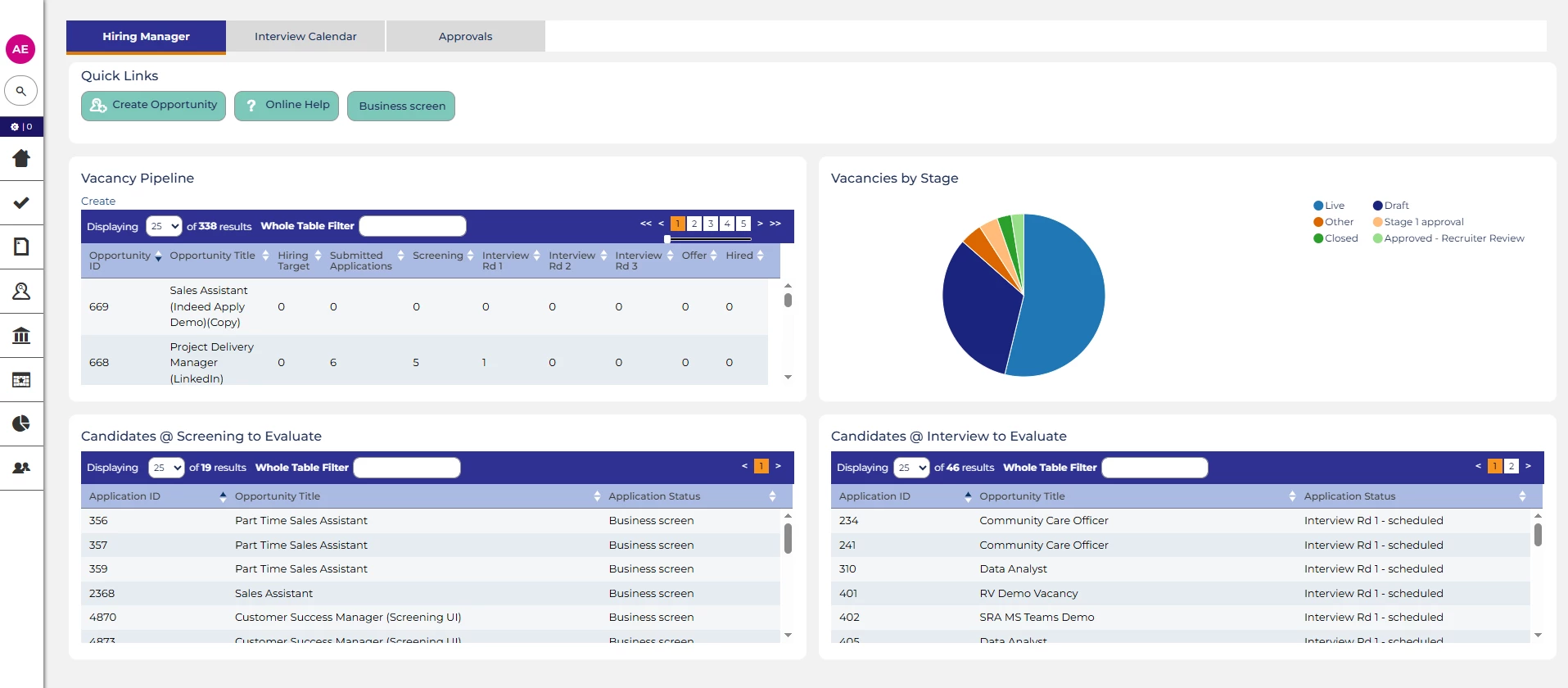 | 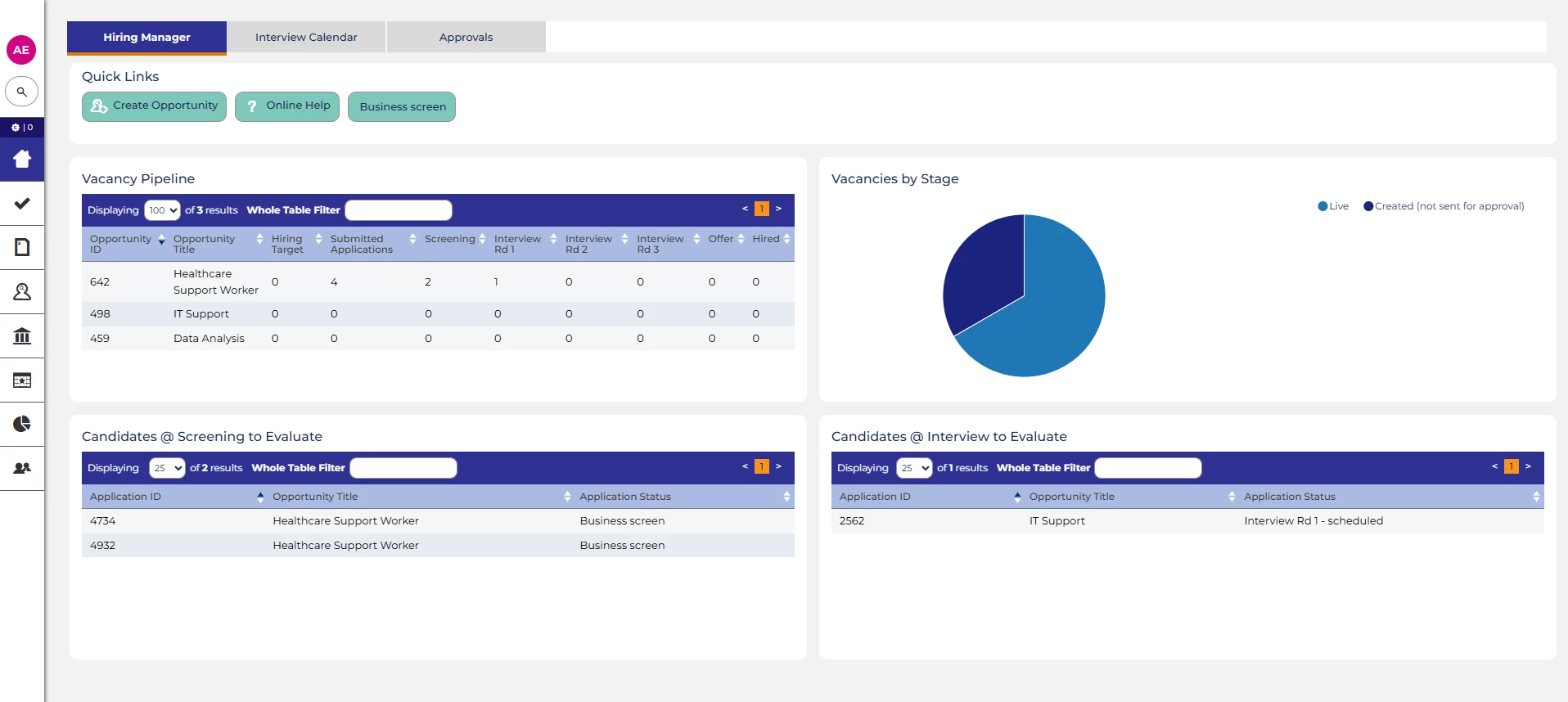 |
💡Participants Tab alternative: Use Database Object items in your forms to assign users. This will allow you to filter the list of opportunities or applications shown on a user profile and make it easier to manage access rights - eliminating the need to add users to the Participants tab separately. This could be people at any point in the process, line managers, approvers, interviewers, recruiters or pre-employment check/onboarding users.
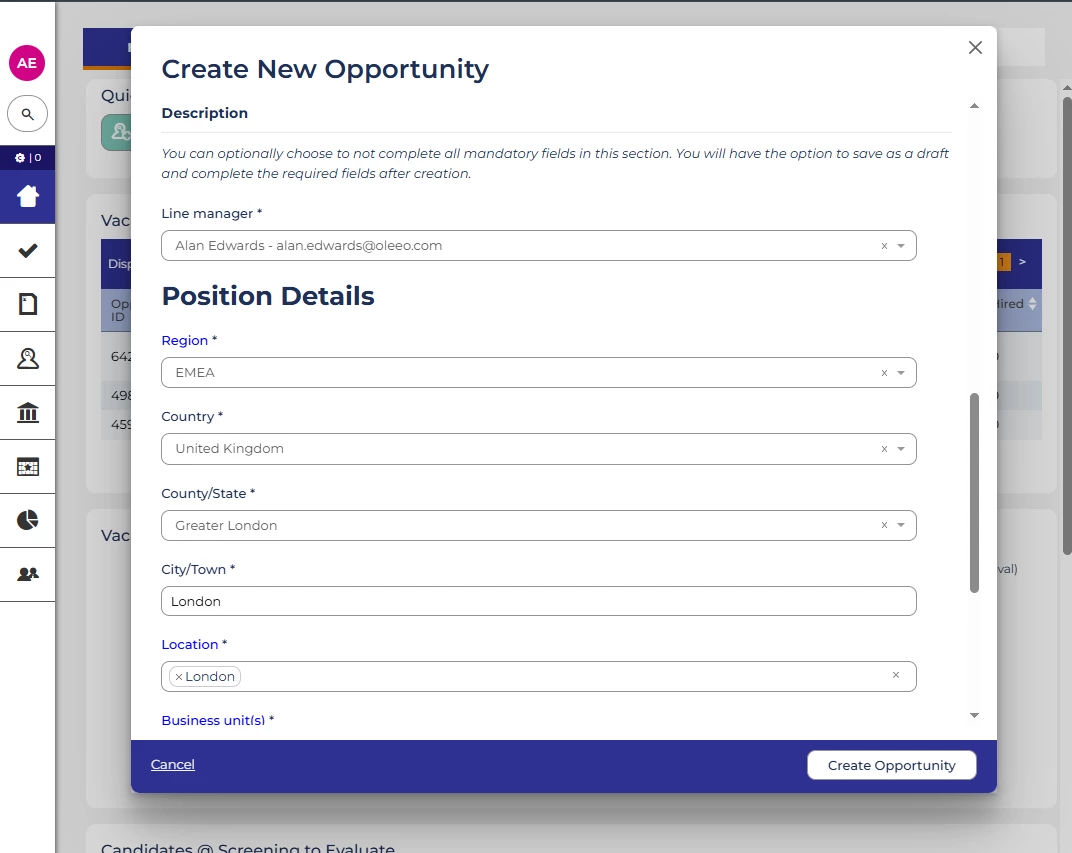
Setting up the Database Object item
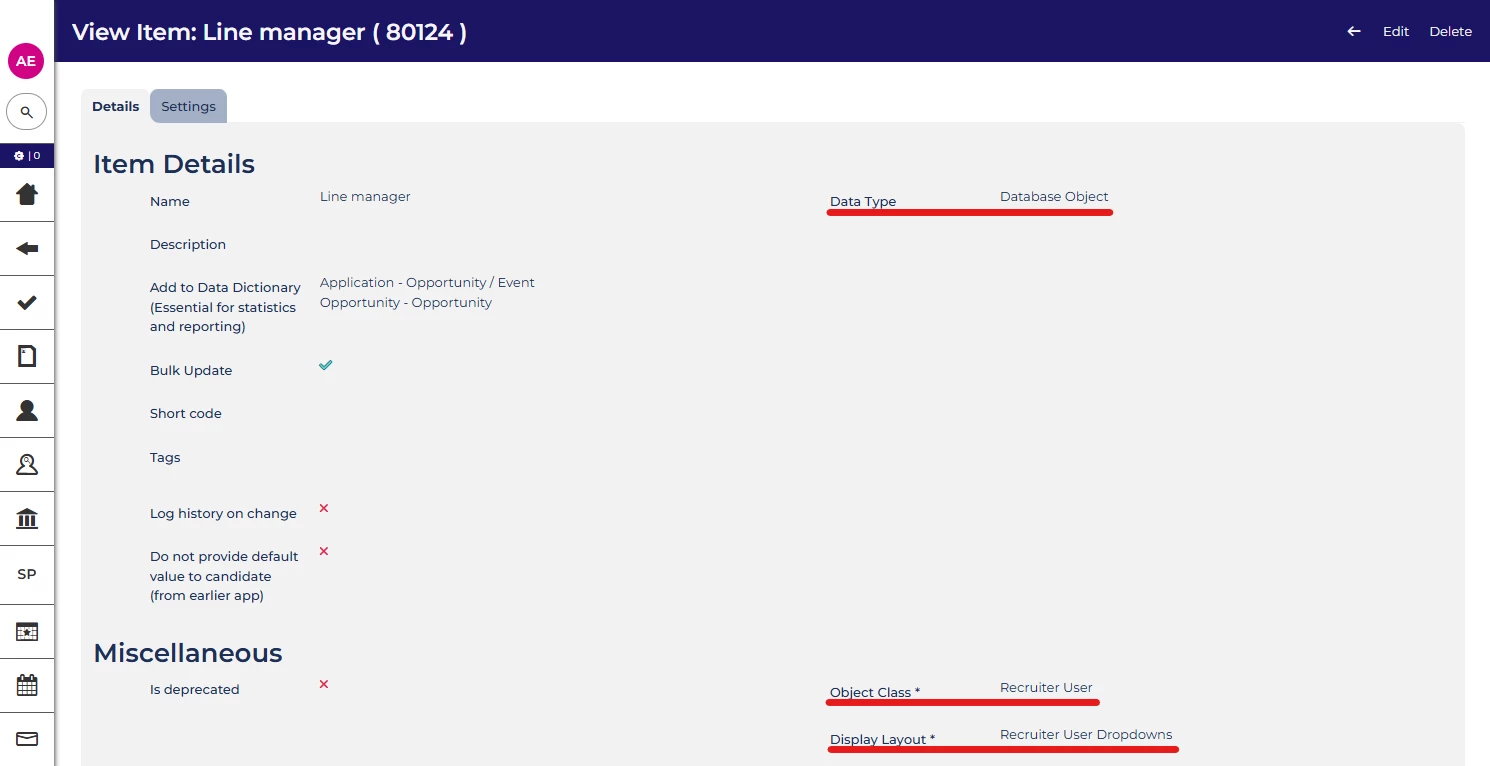
To enable this functionality, your Item must be configured as follows:
- Data Type: Database Object
- Object Class: Recruiter user
- Display Layout: Recruiter user dropdowns
Adding the current user datapath to the Data Dictionary
You will need to add a datapath to the Data Dictionary specifically for the purpose of finding records assigned to the current user. The datapath must include user_id.
Example:
For a vacancy form Item, the datapath might look like:
opportunity.formdata.XXX:1:1.value.user_idReplace XXX with the Item’s reference.
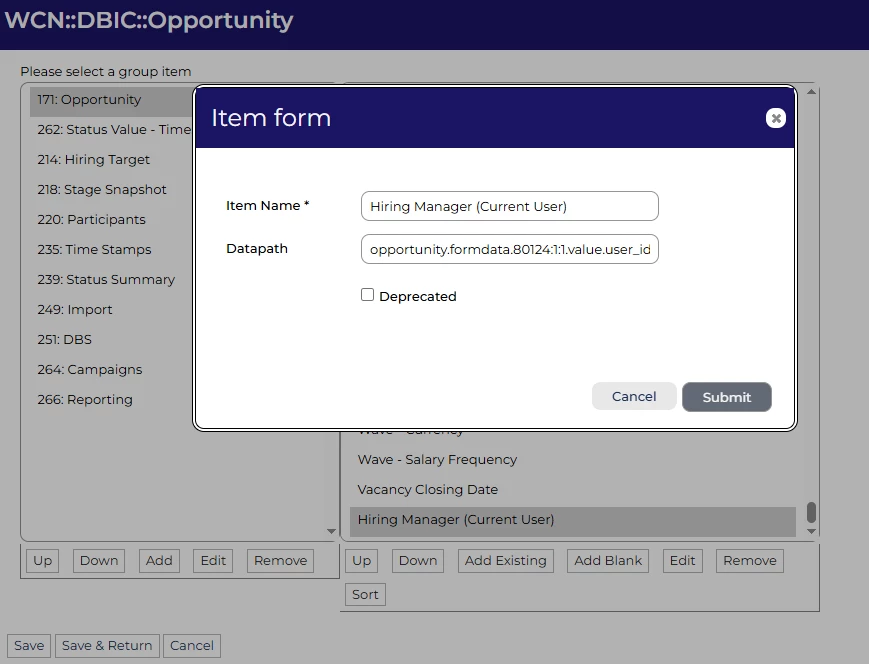
You can include multiple Database Object Items on forms (e.g. vacancy or offer forms) to ensure access is filtered to only those selected in those dropdowns.
📌Pro Tip: Add the datapath into both Opportunity and Application data dictionaries to ensure you can use it in both areas of the ATS for dashboard widgets and reporting.
BENEFITS
- Provides a personalised dashboard experience for each user
- Streamlines record management by showing only relevant data
- Reduces administrative overhead by simplifying user interactions with the ATS
- Enhances data security by ensuring users see only their assigned records
CONSIDERATIONS
- Ensure all relevant dropdowns are configured correctly to leverage this feature
- Datapaths must be accurate and include
user_idfor successful data filtering - Review and test thoroughly to ensure the desired records are visible to users
- Do not use the ‘Current User’ item within scheduled reports in Report Hub, this will display no data as it will look for records assigned to the report user
NEXT STEPS
- Consult with your Customer Success Manager to explore implementing 'Current User' Config Saved Searches
- Start setting up Database Object Items in forms to see the feature in action
- Review relevant documentation and guides on our Oleeo Community for additional help
💡 Have creative ways to leverage 'Current User' Config Saved Searches? Share your tips in the comments below - your insights might help streamline someone else’s workflow!

