




TIP TUESDAY! Filtering your Sugar Case Portal

WHAT IS THE TIP?
💡 Filter your Oleeo Case Portal to stay on top of your support and change requests without getting lost in old tickets.
Filter to only show open cases
💡 Instead of scrolling through years of history, you can narrow down your view to show exactly what's being worked on right now. Click the Build Filter button next to the search box, choose Status from the dropdown, select the operator is not any of, and pick your closed statuses like "Deployed to Live", "Resolved", "Training Delivered", and "Shelved". This keeps your view completely focused on what matters today.
🔧 Use case: You are an Oleeo supported user and you need a quick, clean overview of every pending query or active system change without old completed cases getting in the way.
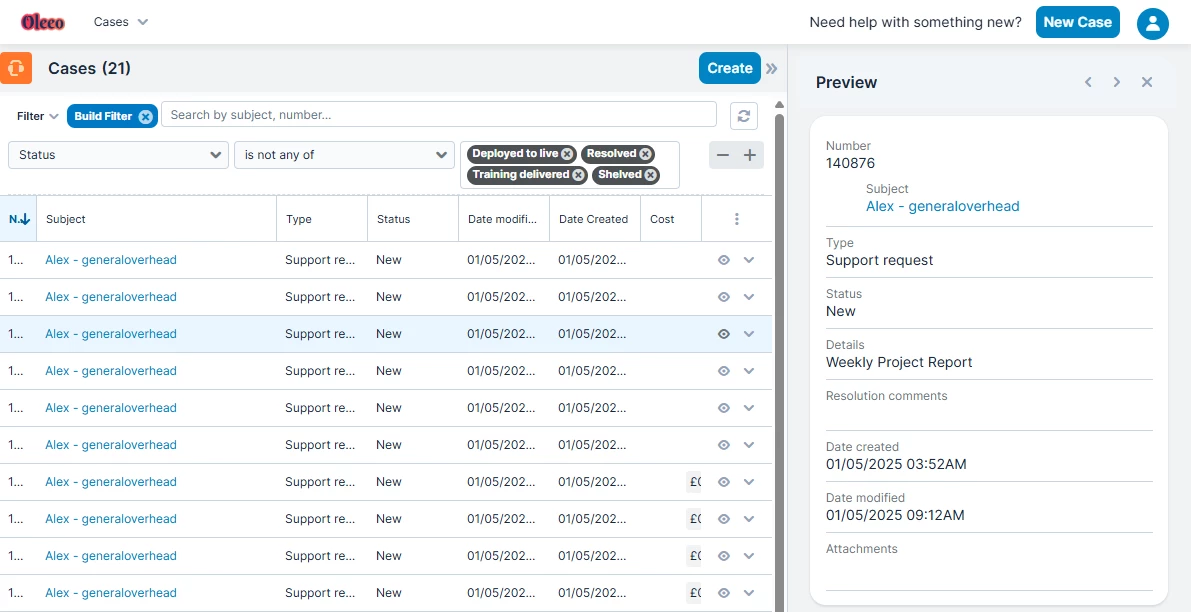
📌 Pro Tip: Want to see what just changed? Click on the Date Modified column header. This instantly resorts your list to place the most recently updated tickets right at the very top.
Use the "%" wildcard for flexible searching
💡 The search box at the top of your list view is great if your subject line starts with a specific word, but what if that word is buried in the middle of your title? Just type the ‘%’ character followed by your keyword. This acts as a wildcard, instructing the portal to search for that word anywhere inside the case's subject line.
🔧 Use case: You raised a ticket about "digital right to work checks" or "CRM campaigns" a few months ago, but can’t remember the exact ticket name or reference number.
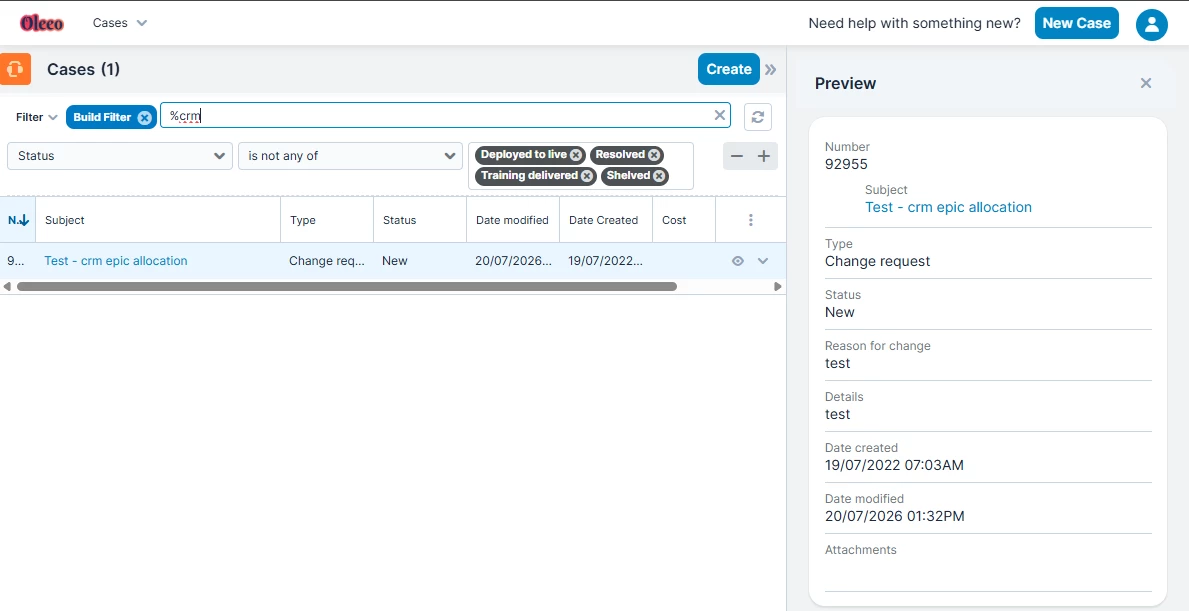
📌 Pro Tip: Remember that you can also search directly by your unique case reference number in this exact same box if you need to jump straight to a specific conversation.
😊 How do you prefer to track your project updates? Do you filter by status, or do you rely on the modification dates? Leave a comment below to share your favourite workspace setups, or ask any questions you have about managing your portal view!
BENEFITS
-
Save time: Stop manually combing through dozens of resolved issues just to find one active ticket.
-
Better visibility: Instantly track the status of your live system tweaks, self-configuration pushes, or training sessions.
-
Never miss an update: Easily keep tabs on recent responses from the Oleeo support and change teams.
CONSIDERATIONS
-
Your search keyword behaviour defaults to searching the start of a subject line unless you explicitly include the ‘%’ wildcard symbol.
-
To clear your active filter and return to the default master list view, simply click the cross icon on your active filter criteria bar.
COSTS
This feature is part of the standard product offering.
NEXT STEPS
-
Log into your Oleeo Case Portal and try building an "Open Cases Only" view today.
-
Save the portal URL to your browser bookmarks for easy access:
[https://oleeo.enablecloud.co.uk/portal/](https://oleeo.enablecloud.co.uk/portal/) -
Speak to your Customer Success Manager if you need to update which members of your team are registered as designated Supported Users.
ADDITIONAL INFORMATION: