




TIP TUESDAY! CUSTOMER TAKEOVER - Making a User Profile For Your Positive Action Team

WHAT IS THE TIP?
💡Hello Everyone I am Sally from Derbyshire Constabulary, I am taking over this Tip Tuesday to share our ideas on building a dedicated Oleeo profile for our Positive Action (PA) Team.

We have built everything the PA Team needs, from dashboards to a locked down profile that means they can see only the information relevant to them. This could be rolled out to a wide range of different teams using the same method, giving them a restricted access to view or progress an action, for example you may have a medical team or a vetting department.
Why Did We Do This?
💡Our PA Team relied on our Recruitment Team to send them spreadsheets weekly of all applicants that had indicated any form of support. This involved a process where the Recruitment Team were manually exporting spreadsheets out of Oleeo, and then emailing this to the PA Team. This had several limitations, 1, time taken to do it, 2, the information provided was often days out of date, 3, the PA team had no other information on the status of the applicant other than at the point of the email being sent to them. Therefore, often an applicant had changed status e.g. been booked into an interview and the PA Team were not aware.
🔧 Use case: Giving the PA Team Dedicated Access
- By giving the PA Team a dedicated, locked down access to Oleeo, they could firstly be aware of any applicants applicable to them as soon as they applied
- They could also see information in real time so could go back and check progress
- This removed the need for our Recruitment Team having to provide updates and send sensitive detail outside of Oleeo
🛠️ Build Along! Here are the steps we took to add the PA Team Profile to our Oleeo Instance
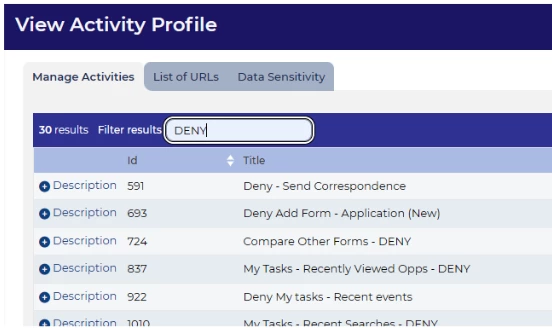
Activity Profile we started by creating a dedicated Activity Profile for the PA Team, once this was added we added and denied the areas of the system we wanted the team to see or not see.
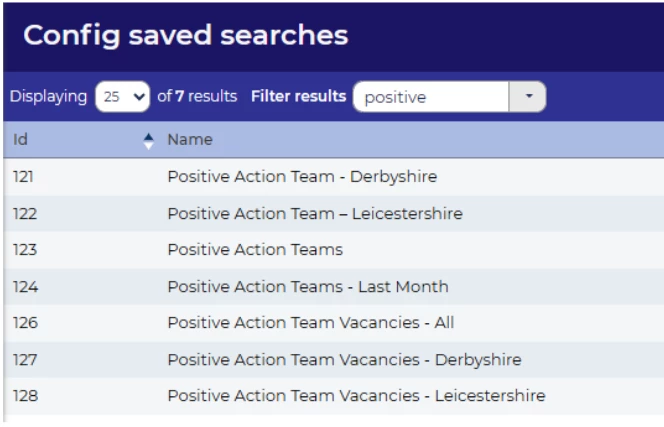
Config Saved Searches we created a number of Config Saved Searches for use on the dashboards we will add to their profile, these searches allow us to regulate what the PA profile can and cant see on each of their dashboard widgets.
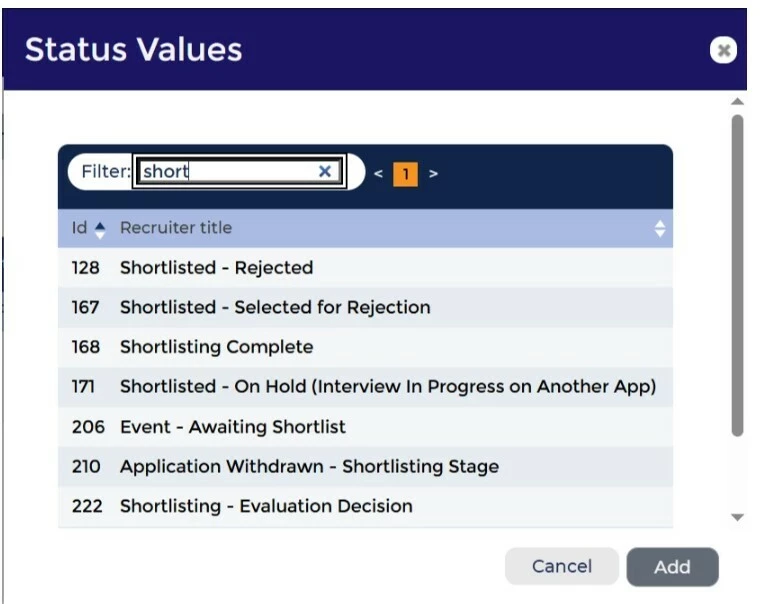
Status Groups adding a status group via a Status Group let us lock down the application statuses that the PA team could see an applicant at, we only allowed them to see applicants in an active status e.g. application submitted. This ensured we limited their overall view of any applicant.
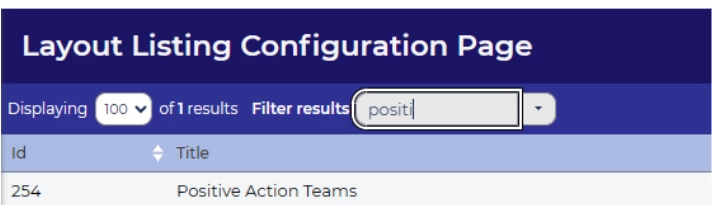
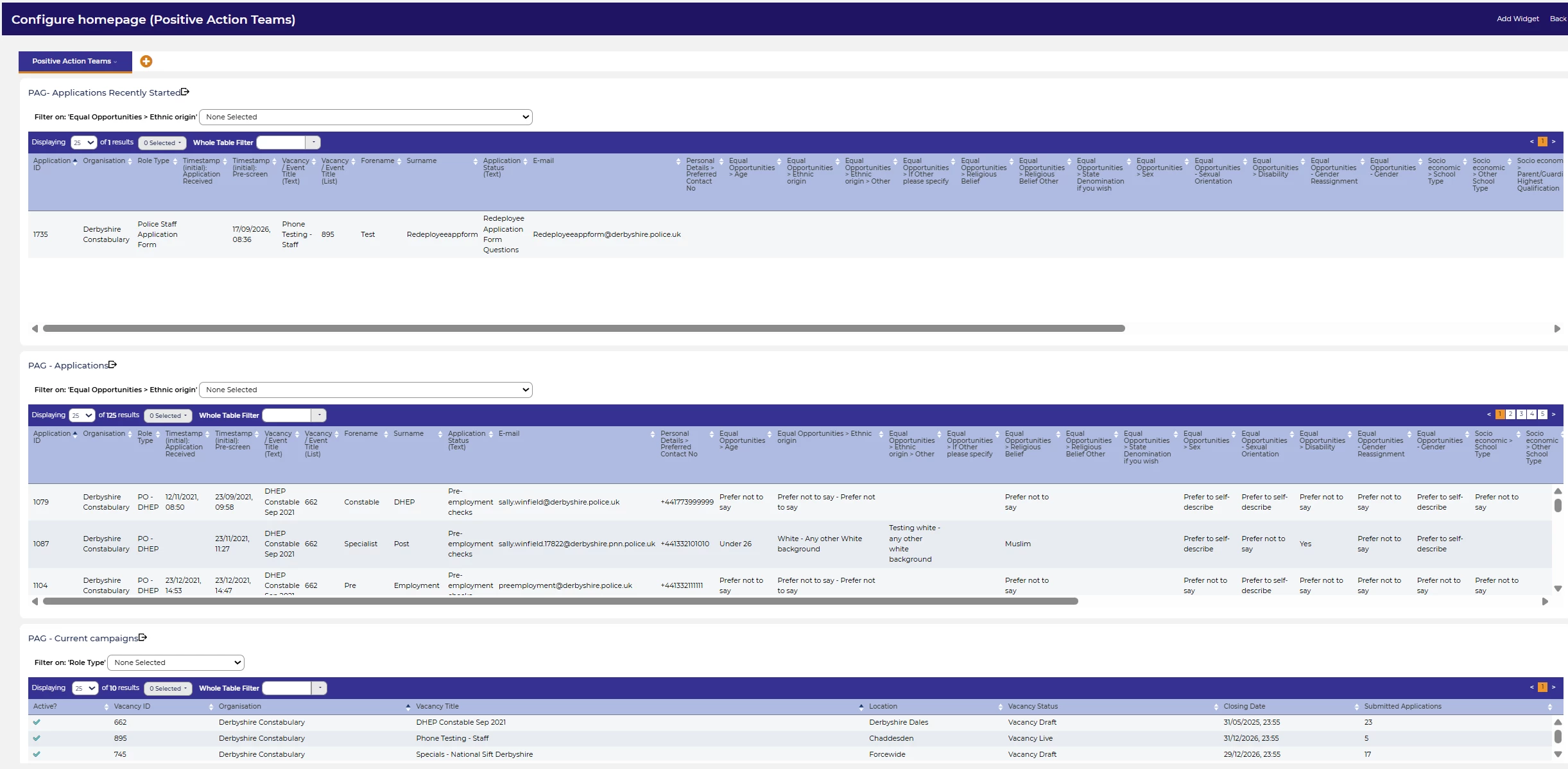
Config Table Layouts we created a series of dedicated Table Layouts, these allowed the PA team to see multiple items of detail across a single view on the dashboard including contact number, their request for PA support and the role detail they had applied for.
Amending Process flow adding PA Profile to the relevant Process Flows to give the team the ability to send dedicated templated emails by an action button only using role access as well as review a specific form.

Creating a dedicated dashboard we took all the elements of our saved searches and table layouts and bought this into a dedicated Dashboard with Widgets for the PA Profile. we added in filterable detail on some so the PA team could easily navigate their applications by characteristic.
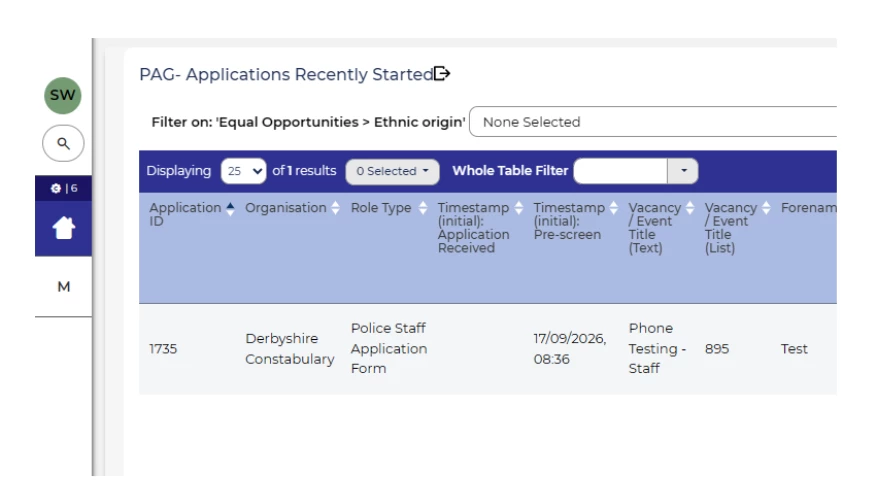
I have added an example below of the overall dashboard we have on the PA profile as you can see this gives them an overview of applicants in multiple statuses at a glance.
😊 Have you built a dedicated profile for any of your teams, what great features have you added that make their lives easier? Why not share your thoughts!
CONSIDERATIONS
Adding items to the process flow is level 3 configuration, if you do not have this access you can reach out to the delivery team via a Change Request to scope this as a costed build.
COSTS
This feature is part of the standard product offering.
This feature is free of charge.
NEXT STEPS
Please ask your System Admin to support with the configuration or submit a Change Request to our delivery team.
ADDITIONAL INFORMATION