




TIP TUESDAY - Automatically add/remove candidates from your CRM campaign

WHAT IS THE TIP?
💡 Automatically populate your CRM campaigns from your recruitment process flow! The exciting thing is that it will work in your talent pool and event flows too!
You can set up process actions within your process flow to automatically add and remove candidates as you progress them through their journey, all based on a config saved search! This will give you the confidence that all the right candidates get the right communication!
Automatically Add Candidates To Your CRM Campaigns
💡Automatically populating your CRM campaign contacts from your process flow removes the need for your Oleeo users to do this manually!
🔧 Use case: I am a recruiter working for an organisation with a long pre-employment checking process, I would like to automatically add candidates to a CRM campaign designed to keep them warm while they wait and reduce the risk of them accepting another offer elsewhere. Once they have been through the process I would like them to come out of the CRM campaign so they no longer receive emails.
There are 3 main steps to making this happen: Step 1 and 2 will need to be done in your configuration environment by your Oleeo Configurators (level 3 trained) and step 3 will take place in your live environment.
Step 1. Add the Process Actions to your process flow
Add your process actions into your process flow to tell the system at what stage of their journey you would like your candidates to be automatically added to your campaigns. This will be dictated by the status the candidate reaches. Click below for guidance on how to do that:
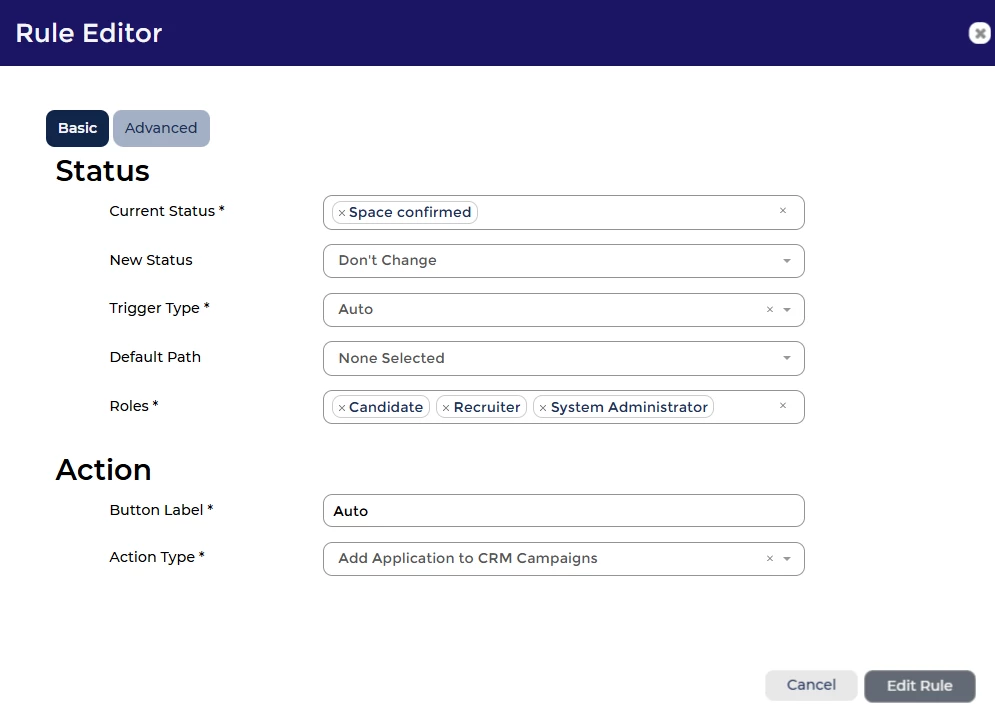
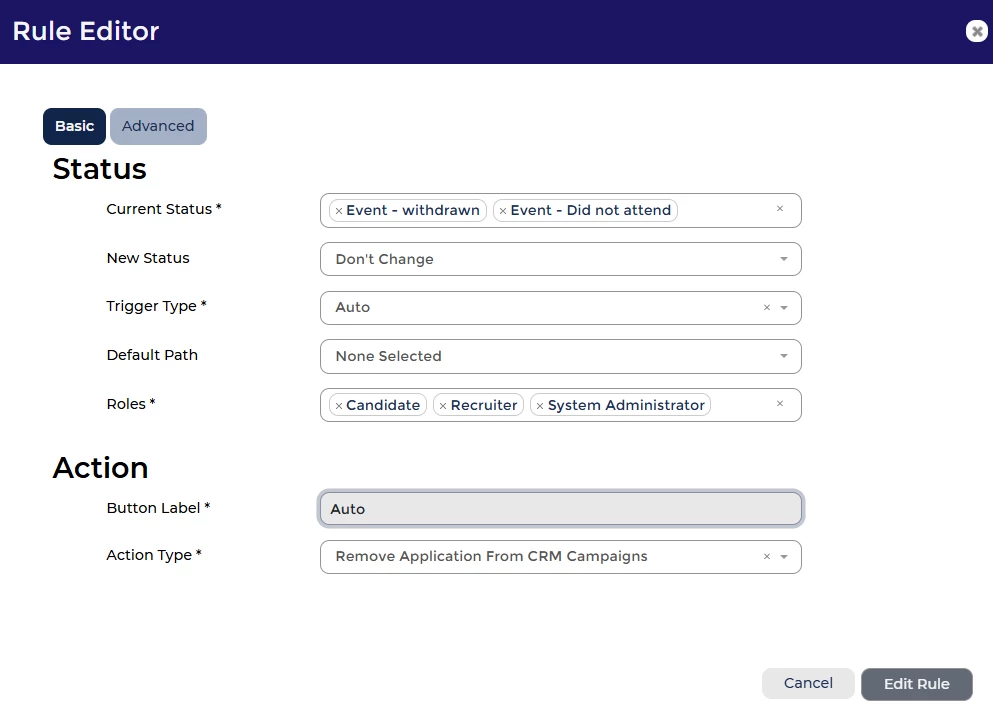
As with any process rules, create a new rule against the status(es) where you would like your candidates to be automatically added to a campaign. Use the below example to complete the settings, choosing ‘Add application to CRM campaign’ or ‘Remove application from CRM campaign’ as the action type.
It is an automatic action and so the rule will need to be the first rule against the status(es).
IMPORTANT: The process actions will manage at which statuses candidates are added and removed from the CRM campaign. Best practice therefore is NOT to use the saved search to remove candidates at the ‘withdrawn’ statuses, but to add the removal process action against all the relevant statuses in the process flow for where you would like the candidate to come out of their CRM campaign.


Step 2. Set up your Config Saved Search
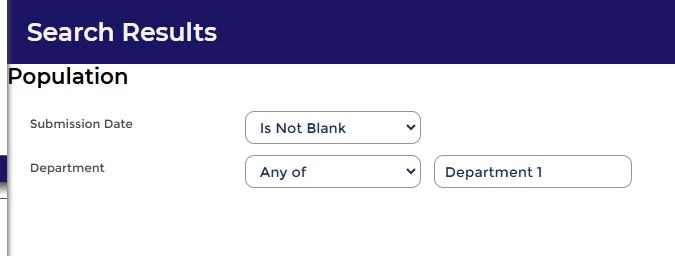
Set up a configuration saved search to dictate what criteria your candidates need to meet in order to be added to a campaign. You will want to carefully consider what criteria you put in here; we find that this works best if you keep it generic - using the same criteria for multiple similar vacancies. Click below for guidance on how to do that:
You can recap here on how to create a configuration saved search. The key here is to consider what criteria you want to add to the saved search and to use a good naming convention so that it is easily identifiable later on.
IMPORTANT: The process actions will manage at which statuses candidates are added and removed from the CRM campaign. Best practice therefore is NOT to use the saved search to remove candidates at the ‘withdrawn’ statuses, but to add the removal process action against all the relevant statuses in the process flow for where you would like the candidate to come out of their CRM campaign.
Step 3. Link your CRM campaign to your Saved Search
Once you have your process actions and your saved searches built, you will need to push your system to live. After which, you can then link your campaigns to those saved searches - which will instantly start to populate candidates who meet the criteria! Click below for guidance on how to do that:
Update existing campaigns by editing their settings using the pencil in a box icon next to the campaign name when you are in the campaign builder itself
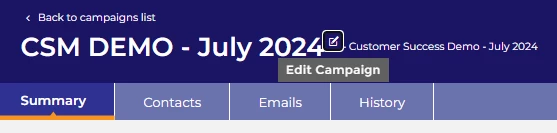
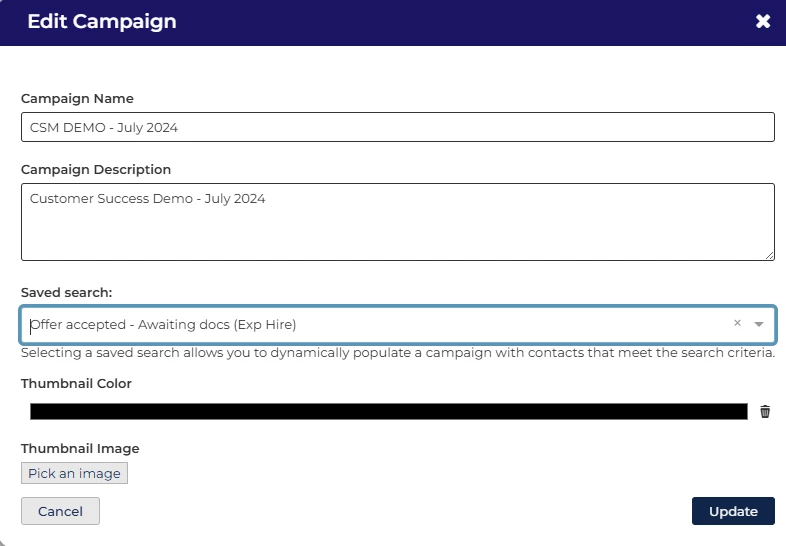
Both new and existing campaigns will provide the below edit campaign option, which will now allow you to select the relevant config saved search for your specific campaign. Without this step, the system will not know which candidates to add to your campaign and so nothing will automatically populate, nor will any candidates be removed automatically.
😊 Are you a CRM campaign user? Can you see the benefit of this automation? How much time will it save you? Do you have any other use cases to share with the community? We’d love to hear from you!
BENEFITS
- Remove the manual management of adding and removing candidates to/from your CRM campaigns
CONSIDERATIONS
- You will require level 3 configuration for the process level activities.
- All campaigns will be populated or removed from the process actions, meaning that all campaign automation(s) will be triggered at the same point in your process flow - a consideration if you are planning to run multiple campaigns.
- Carefully consider your config saved searches as you want to make sure only the right candidates are targeted.
COSTS
The CRM functionality is an additional Oleeo Engage module, however the automation within the tool is part of the standard CRM product offering.
NEXT STEPS
Reach out to your support champion via a support case and/or speak to your Customer Success Manager for advice. If you would like Oleeo to configure this for you, please raise a change request case to our delivery team
ADDITIONAL INFORMATION:
Check out these relevant articles:

