




FEATURE SHEET
File Library

WHAT IS THE FILE LIBRARY?
A central repository for storing files (images, documents, Excel templates, attachments) that can be used across emails, letters, reports and other templates.
WHY YOU’LL LOVE IT
- Brand Consistency: Ensure every recruiter uses the latest, high-res logos and headers.
- One-Click Attachments: Speed up your outreach by having your brochures and PDFs ready to go.
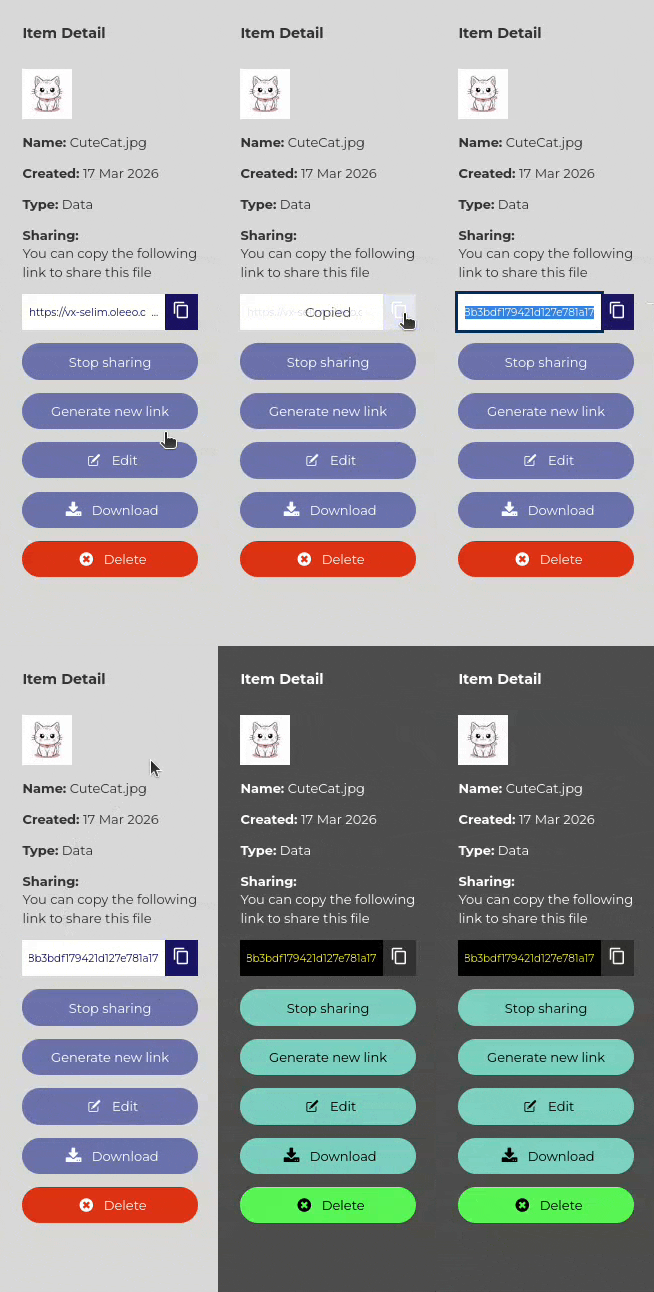
- Generate shareable links: Create quick, access controlled links to share from the File Library.
- Advanced Data Power: Host macro-enabled Excel templates to turn raw data into sophisticated reports instantly.
- Total Control: Manage permissions at a granular level so the right people have the right tools.
WHO NEEDS ACCESS / PERMISSION NOTES?
Self-Configuration Level 1 allows access to upload/edit email template attachments and to edit letter templates; access to the File Library itself may require Customer Success enablement for some features.
WHAT DOES IT DO?
Common uses of the File Library
- Seamless Email Integration
- Don't disrupt your flow. Within the email editor, simply hit Browse File Library to pull in your assets instantly. Once attached to a template, your recruiters can send polished, professional emails without the risk of deleting critical documents.
- Smart Reporting Power. Upload your custom-built Excel macros directly to the Excel Templates area. Connect them to your system configurations to generate deep-dive insights at the touch of a button.
HOW DOES IT WORK?
- In an email template editor go to the Attachments section and choose Add Local File or Browse File Library to select a stored file. Attaching documents to email templates
- For letter templates, upload graphic files via the letter template’s Graphic files field (then use the BBTag to insert into header/body/footer). Configuring Letter Templates
- For Smart Excel Reports: upload the prepared .xlsm report file to File Library → Excel Templates, then associate it with the Excel Report configuration. Smart excel reports
CONSIDERATIONS
Important considerations & known limitations
- Recruiters cannot remove template attachments when sending an email; attachments added to templates are fixed for recruiter sends.
- Letter generation uses uploaded graphic files and BBTag links; large bulk letter generation may time out for very large templates.
- To upload macro-enabled workbooks you must allow dangerous macros in the File Library via the configuration value that enables macros (allow_dangerous_macros_in_file_library).
- File Library features (e.g., Excel Templates, Email Attachments) may need enabling by Customer Success or appropriate system privileges.
PRO-TIPS FOR PEAK PERFORMANCE
- Look Sharp: For the crispest emails, pre-size your images before uploading to ensure your branding looks perfect on every device.
- Automate with BBTags: After uploading, use the generated BBTag link to instantly "drop" images into your letter templates.
- Set and Forget: Attachments added to email templates are fixed—meaning your recruiters stay compliant and on-brand every time they hit send.
NEXT STEPS
Speak to your Customer Success or Commercial Manager for any additional information.
COSTS
Please speak to your Commercial Manager for further information.
This feature is part of the standard product offering *(however, usage is subject to a fair use policy).

