




Interview Notes - How to setup video interviews to generate AI summaries
This new feature aims to revolutionise how you capture, share, and leverage interview feedback directly within the Oleeo platform. Imagine a solution that helps you:
- Effortlessly recall conversations from interviews with candidates, ensuring all key details and nuances are captured and readily available for post-interview discussions and decision-making.
- Support more natural flowing conversations between candidates and interviewers, allowing you to truly connect without the distraction of extensive manual note-taking.
- Speed Up Application Review by providing clear, concise, and easily searchable interview insights, enabling faster and more confident shortlisting.
Beyond these key benefits, Oleeo Interview Notes is designed to help you:
- Promote fairer, more objective candidate assessments.
- Streamline collaboration and feedback loops within your hiring teams.
- Maintain clear, defensible records for compliance.
This guide focuses on how you can utilise Interview Notes with video interviews.
CREATE YOUR INTERVIEW AND ADD AS MANY SLOTS AS YOU NEED.
Create your interview and interview slots in any of the standard ways. If you are unsure of how to do this, please use the relevant guide below (you can use any of these methods):
GENERATE AND ADD YOUR VIDEO MEETING LINK TO THE INTERVIEW SLOT IN THE SYSTEM.
You will now need to generate a unique video meeting link for each interview slot / candidate being interviewed using your preferred video meeting tool, then add this to the system, the process to do this is as follows:
- Whatever tool you are currently using to hold video interviews, generate your video meeting link in the usual way. Copy that URL.
- Access the Interviews tab for your vacancy/requisition, locate the specific interview then select the Go to Detail link.
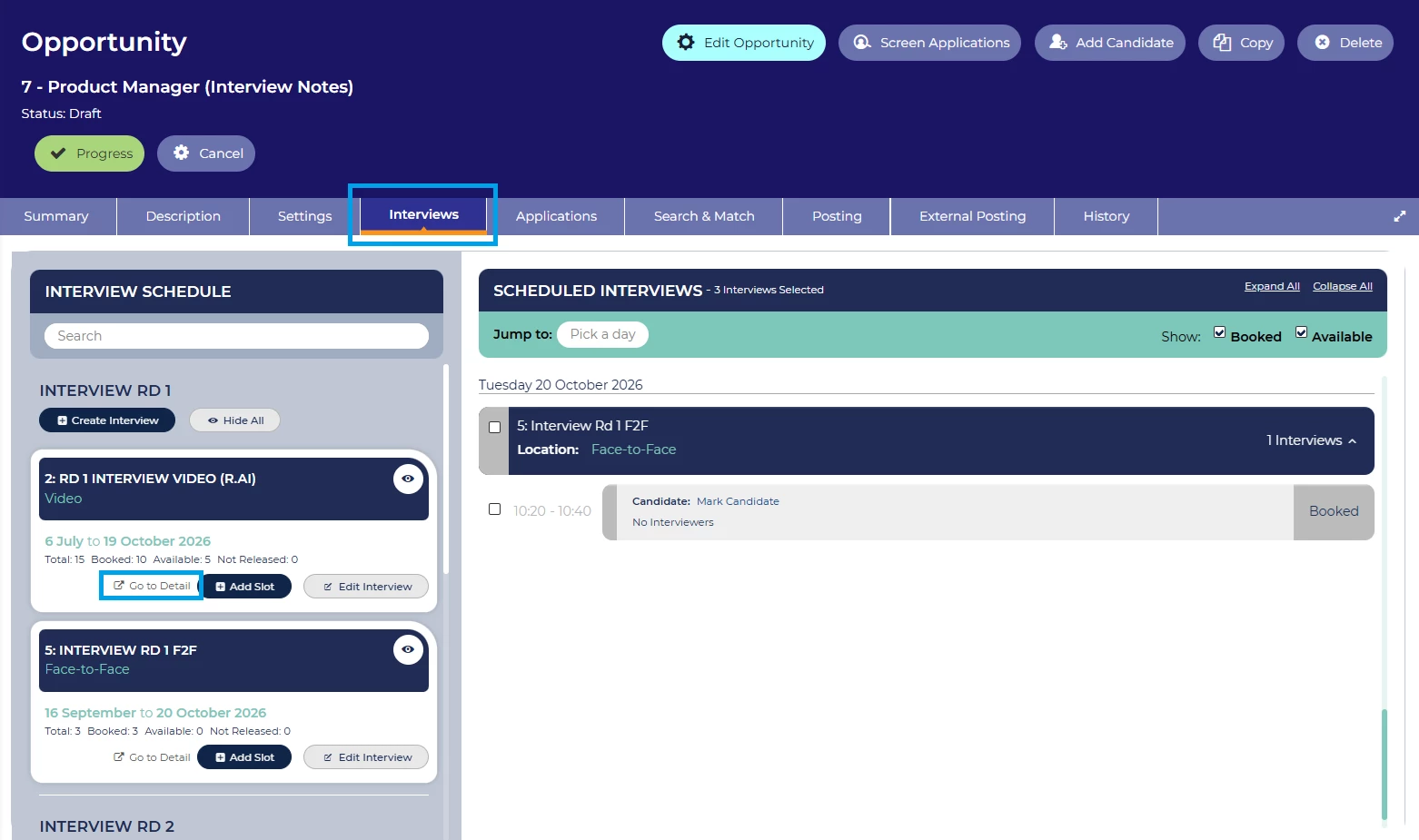
Go to Interviews tab then select Go to Detail on your interview - Go to the Interviews tab on the newly loaded page then select Add Virtual Meeting Link.
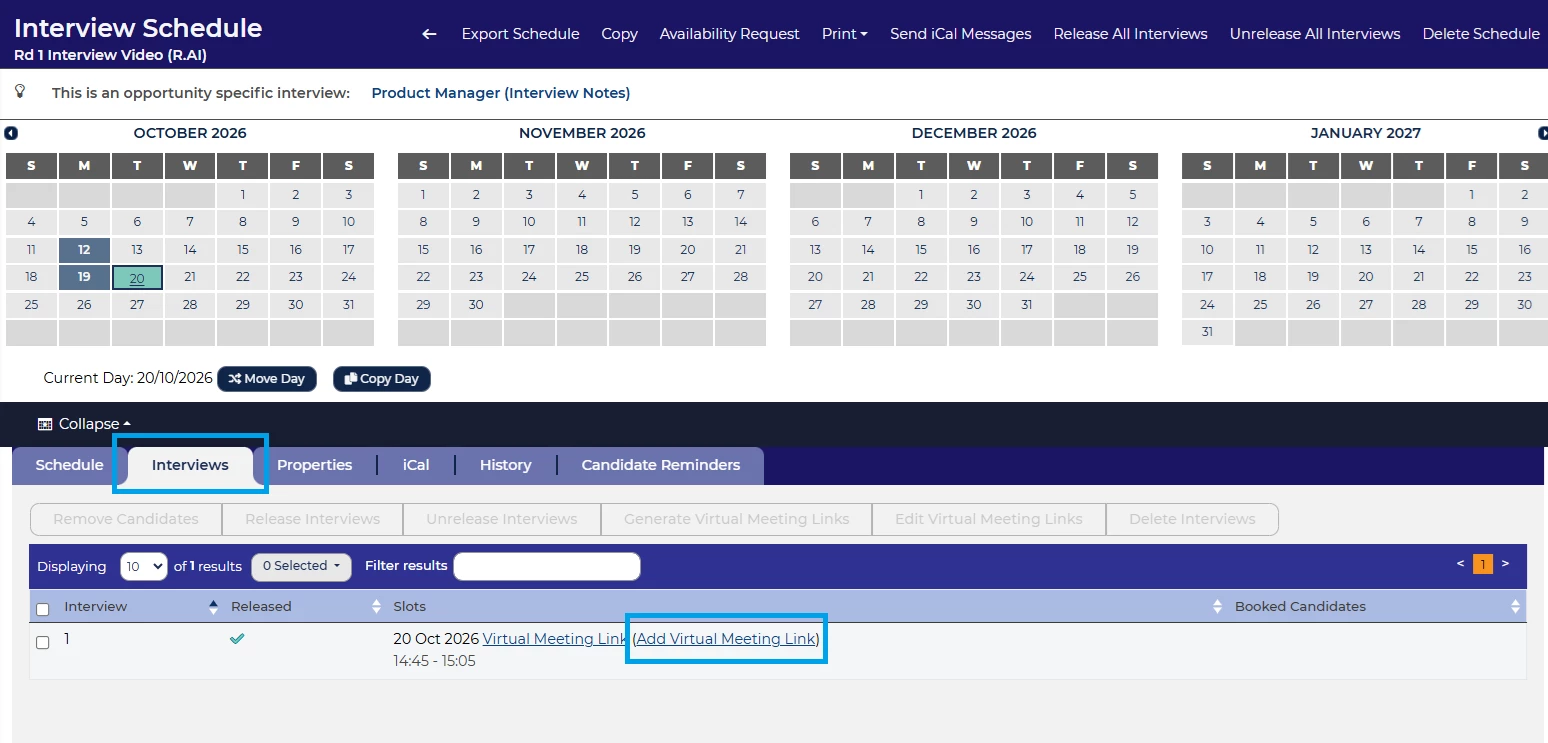
Now, go to Interviews tab then Add Virtual Meeting Link - A pop up modal will appear, paste your copied meeting link into the Virtual Meeting Link box, ensuring it is prefixed with https:// (it will not work without this), then tick the Transcribe Interview checkbox and press Confirm to save and continue.
- If you have more than 1 interview, you will need to replicate steps 1-4 ensuring you have generated a unique video meeting link for each candidate.
- Once you have done this you will need to invite all your candidates to the interview, then either allow them to either book into the interviews themselves online or be booked into slots manually by a recruiter.
ENSURE APPLICANTS ARE INVITED AND BOOKED INTO THE INTERVIEW SLOTS THAT YOUR HAVE CREATED.
IMPORTANT: It is essential that each applicant that you want to record a transcript and generate a summary for, are booked into an interview within Oleeo prior to their interview. Failure to do this step will mean the transcript will not be stored correctly for the summaries to be generated.
If you are unsure of how to invite and book applicants into interview slots you have generated please refer to the following guide:
PERFORM THE VIDEO INTERVIEW ENSURING YOU ALLOW THE OLEEO NOTETAKER TO JOIN AT THE START.
Once the day and time of the interview is here, launch the video interview via the normal way. Once the actual scheduled start time of the interview rolls around, the Oleeo Meeting Notetaker will ask to join the meeting. Please ensure you accept the invitation to join and Admit it (Here is an example of GoogleMeet, your tool may look different to this).
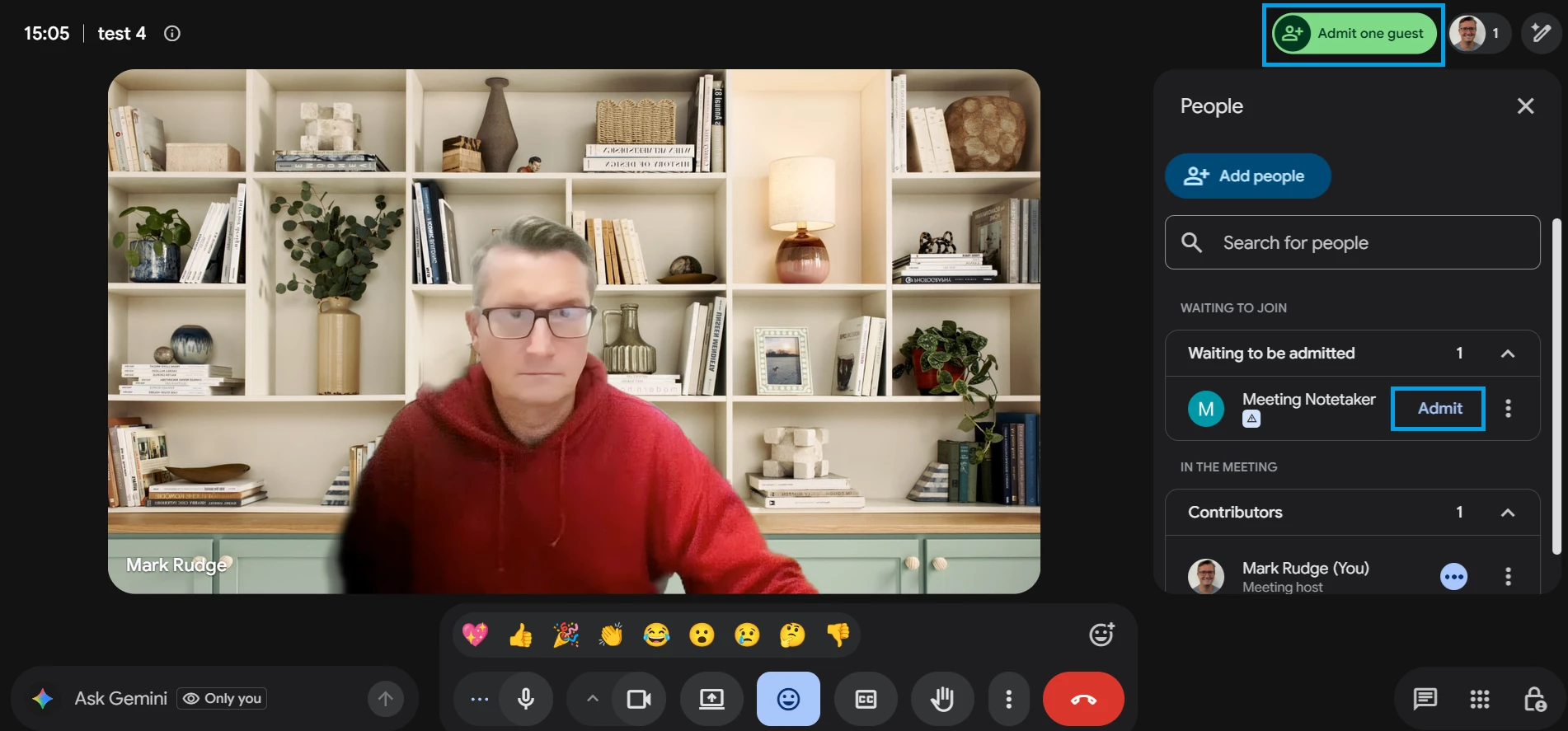
IMPORTANT: It is the Meeting Notetaker that transcribes the interview, if you add it before your candidate joins it will still record and transcribe and summarise everything it hears once added, so do not discuss any sensitive topics once the notetaker has joined. If you forget to admit the Meeting Notetaker, no recording, transcription or summaries will be generated for this interview.
GENERATING THE AI SUMMARIES
Once you have completed the Record Face-to-Face Interview Process you will need to request for the summaries to be generated. To do this:
- The transcript of the interview usually takes between 1-4 minutes to be returned into the system. Therefore please wait for 5 minutes before trying to request the AI summaries. Usually this is plenty of time to close down the meeting, check your emails etc. before locating their application in the system.
- Once the 5 minutes has elapsed, locate the application in the system and go to their Application Summary page, then press the Generate Interview Summaries button.
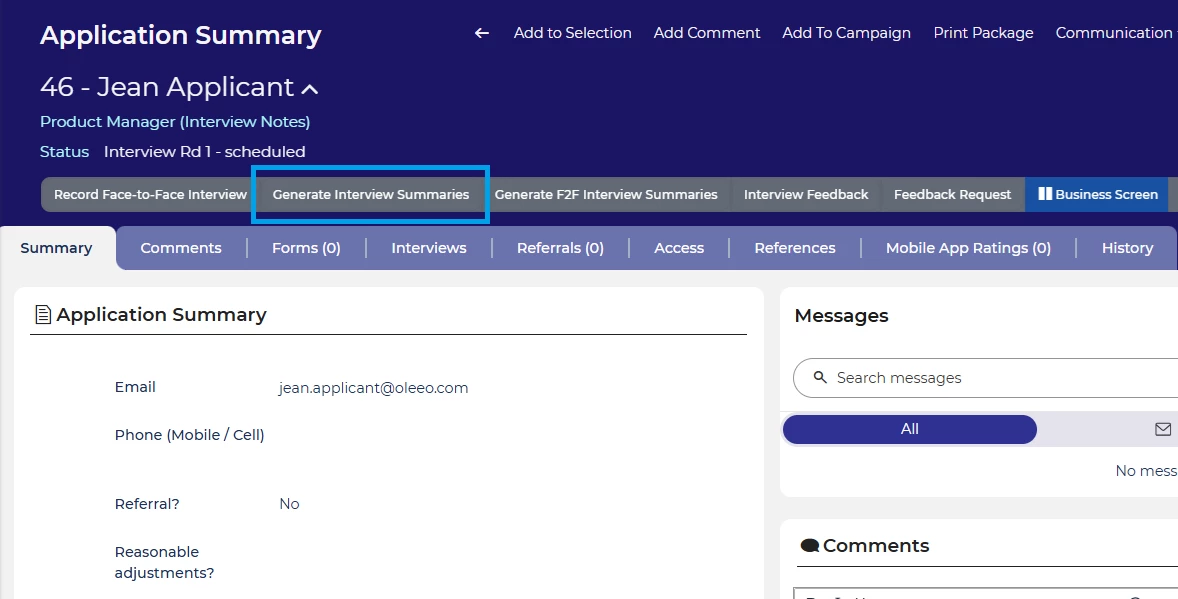
Locate the application and press the Generate Interview Summaries button - The AI summaries themselves will take a couple of minutes to be processed and returned from the LLM, so again please get on with other work while you are waiting for them to be returned.
- To view the AI Summaries, select the Interview Feedback button (or whatever your interview feedback form is called).
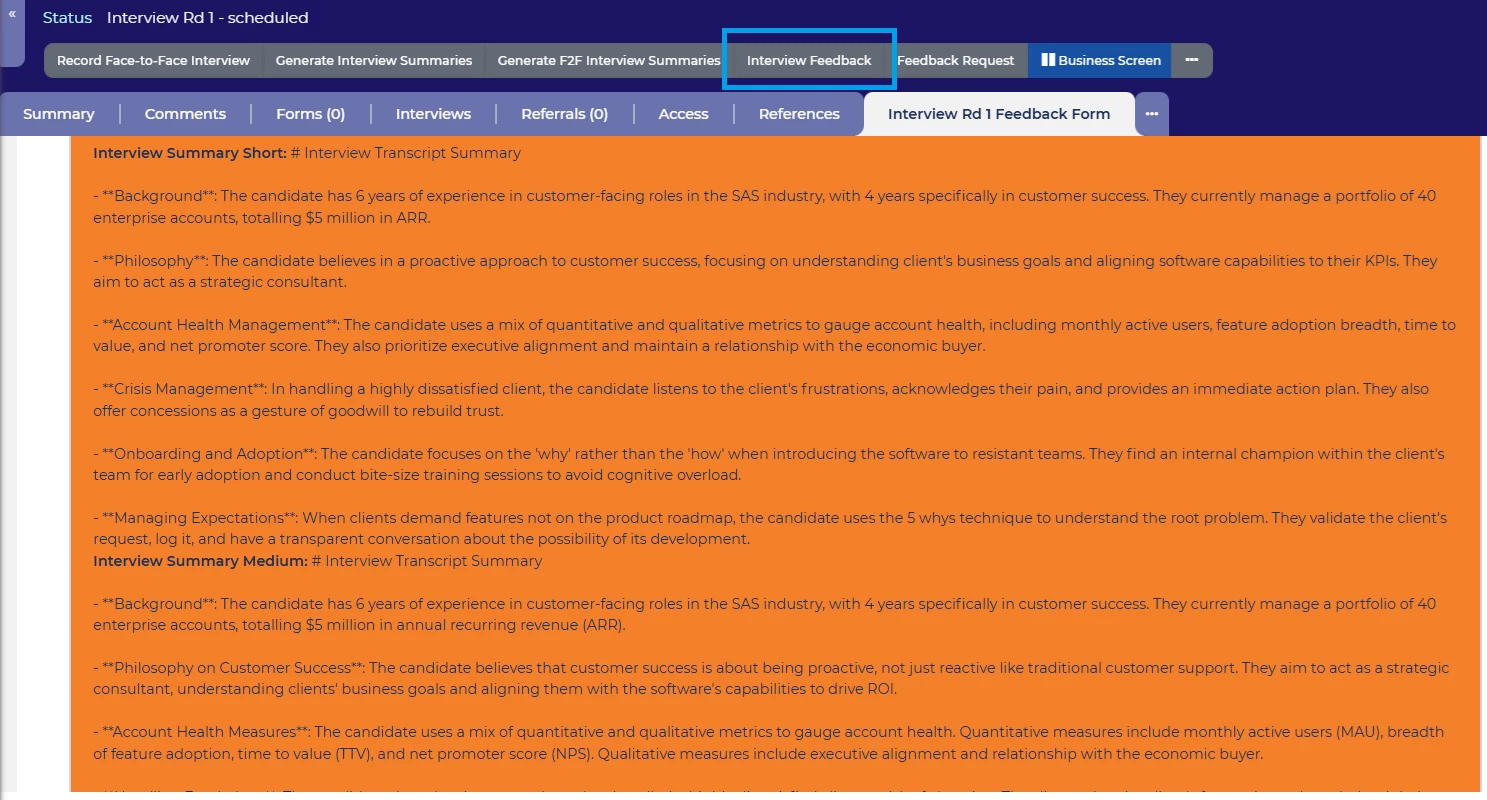
Select Interview Feedback your AI Summaries and transcript will be available to review here. - The summaries and transcripts will be shown at the relevant places in your feedback form and you will be likely able to suggest a recommendation for each application.
- You will also be able to view the summaries and transcripts from the Interviews tab.
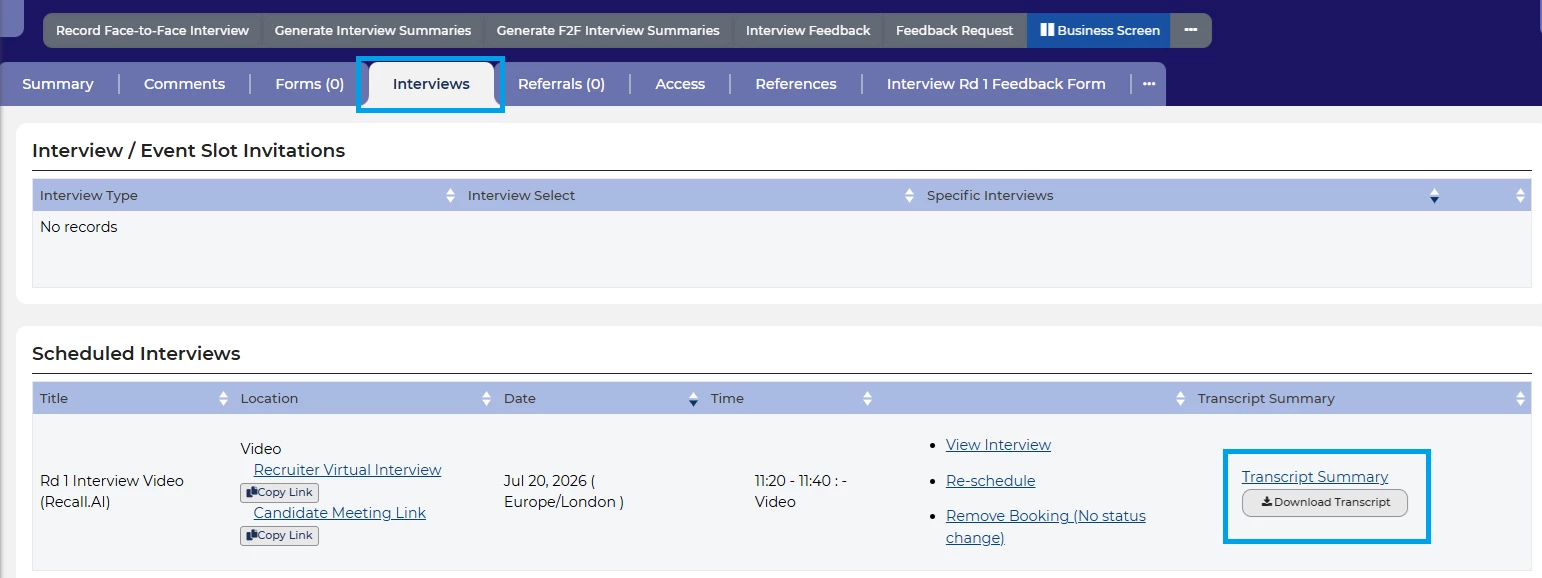
AI summaries and transcript available in the Interviews tab
LINKED FEATURES