




Interview Notes - How to setup face-to-face interviews to generate AI summaries
This new feature aims to revolutionise how you capture, share, and leverage interview feedback directly within the Oleeo platform. Imagine a solution that helps you:
- Effortlessly recall conversations from interviews with candidates, ensuring all key details and nuances are captured and readily available for post-interview discussions and decision-making.
- Support more natural flowing conversations between candidates and interviewers, allowing you to truly connect without the distraction of extensive manual note-taking.
- Speed Up Application Review by providing clear, concise, and easily searchable interview insights, enabling faster and more confident shortlisting.
Beyond these key benefits, Oleeo Interview Notes is designed to help you:
- Promote fairer, more objective candidate assessments.
- Streamline collaboration and feedback loops within your hiring teams.
- Maintain clear, defensible records for compliance.
This guide focuses on how you can utilise Interview Notes with face-to-face interviews.
CREATE YOUR INTERVIEW AND ADD AS MANY SLOTS AS YOU NEED.
Create your interview and interview slots in any of the standard ways. If you are unsure of how to do this, please use the relevant guide below (you can use any of these methods):
ENSURE APPLICANTS ARE INVITED AND BOOKED INTO THE INTERVIEW SLOTS THAT YOUR HAVE CREATED.
IMPORTANT: It is essential that each applicant that you want to record a transcript and generate a summary for, are booked into an interview within Oleeo prior to their interview. Failure to do this step will mean the transcript will not be stored correctly for the summaries to be generated.
If you are unsure of how to invite and book applicants into interview slots you have generated please refer to the following guide:
RECORDING THE FACE-TO-FACE INTERVIEW
Now that the time and day of the interview has arrived, you will need to have the following setup to successfully record the face-to-face interview:
- A good quality USB multi-directional microphone (this really is essential).
- A laptop computer connected to a stable internet connection.
- A suitable quiet interview room that contains only the people that are involved in the interview in some way.
- Access to the application in Oleeo.
Once these are all setup, invite the candidate into the interview room and notify them that the audio of the interview will be recorded for transcription and summarisation purposes (this should appear in any invite and confirmation emails you send to candidates, so you may need to update your email templates). Now follow this process:
- Go to the laptop and access the Application Summary page for the candidate’s application.
- Here you will see a button to allow you to access a form where you can record face-to-face interviews
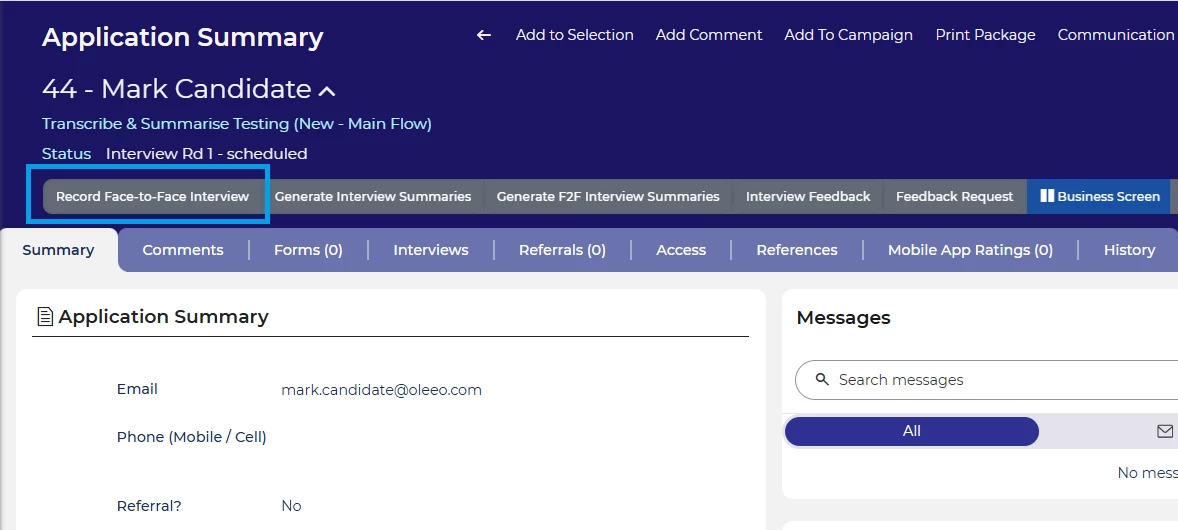
Select Record Face-to-Face Interview Button - IMPORTANT: Please ensure you press Start Recording prior to any questions being asked of the candidate, failure to do so will mean part (or all) of the interview will be missing from the transcript and the summaries.
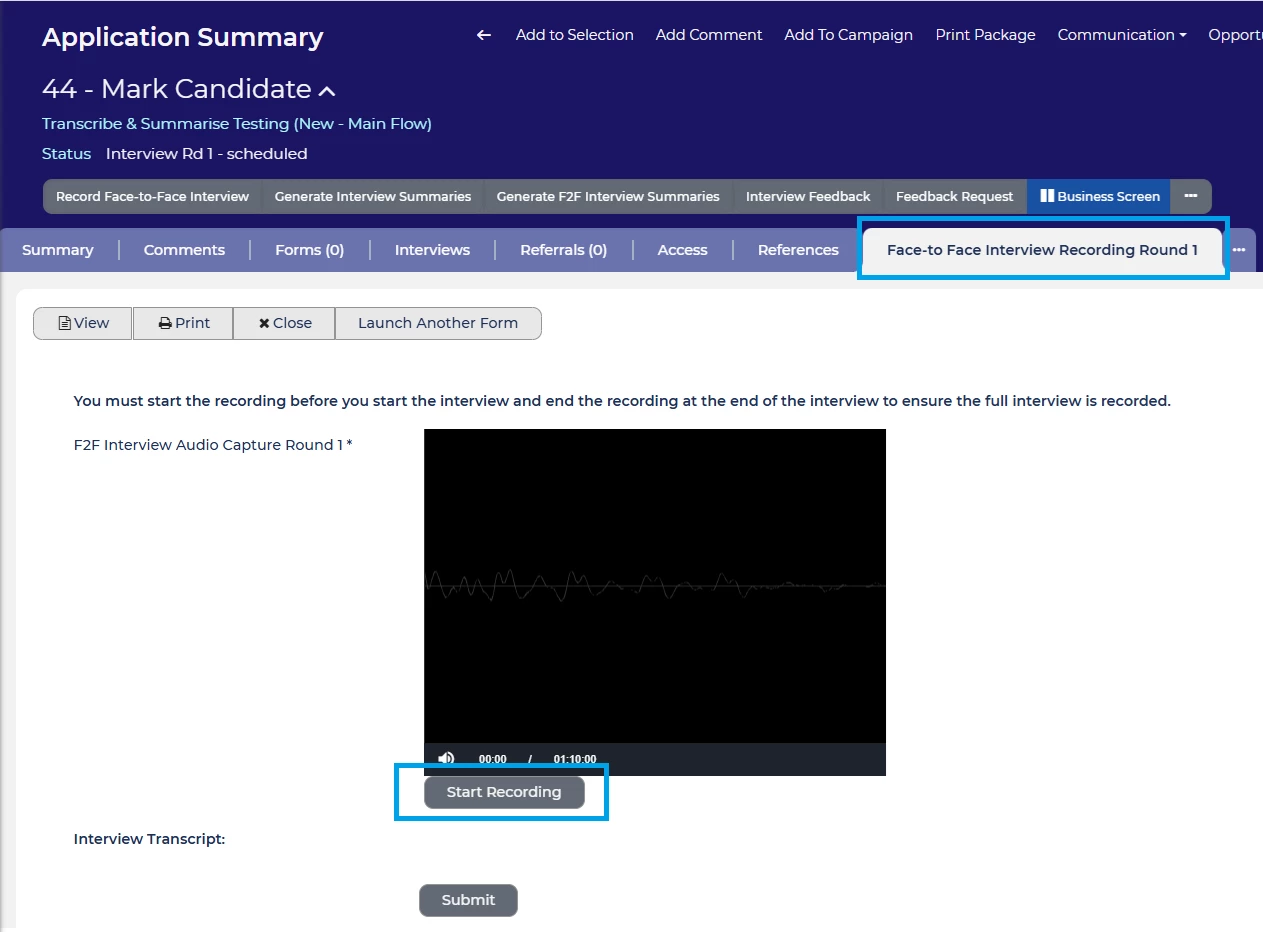
Press the Start Recording button - VERY IMPORTANT: It is of vital importance that you press Finish Recording at the end of the interview (failure to do so could mean the interview continues to record conversations between recruiters that you may not want recorded, transcribed and summarised)
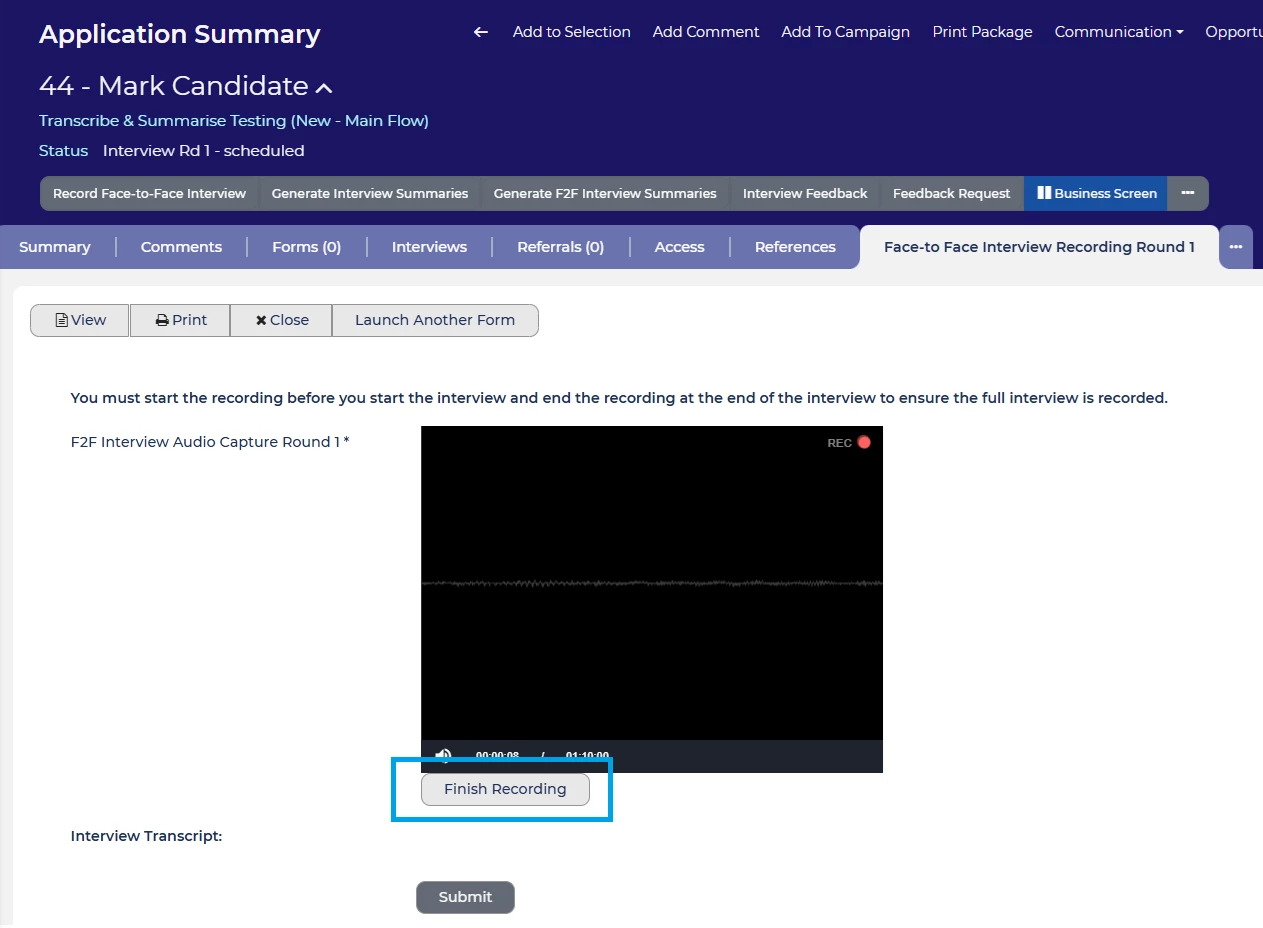
Press Finish Recording at the end of the interview - Once you have pressed Finish Recording, you now need to select Submit and wait a few moments for the data to save and send (this may take up to 10 seconds so please do not select any other options or leave the screen until it fully refreshes)
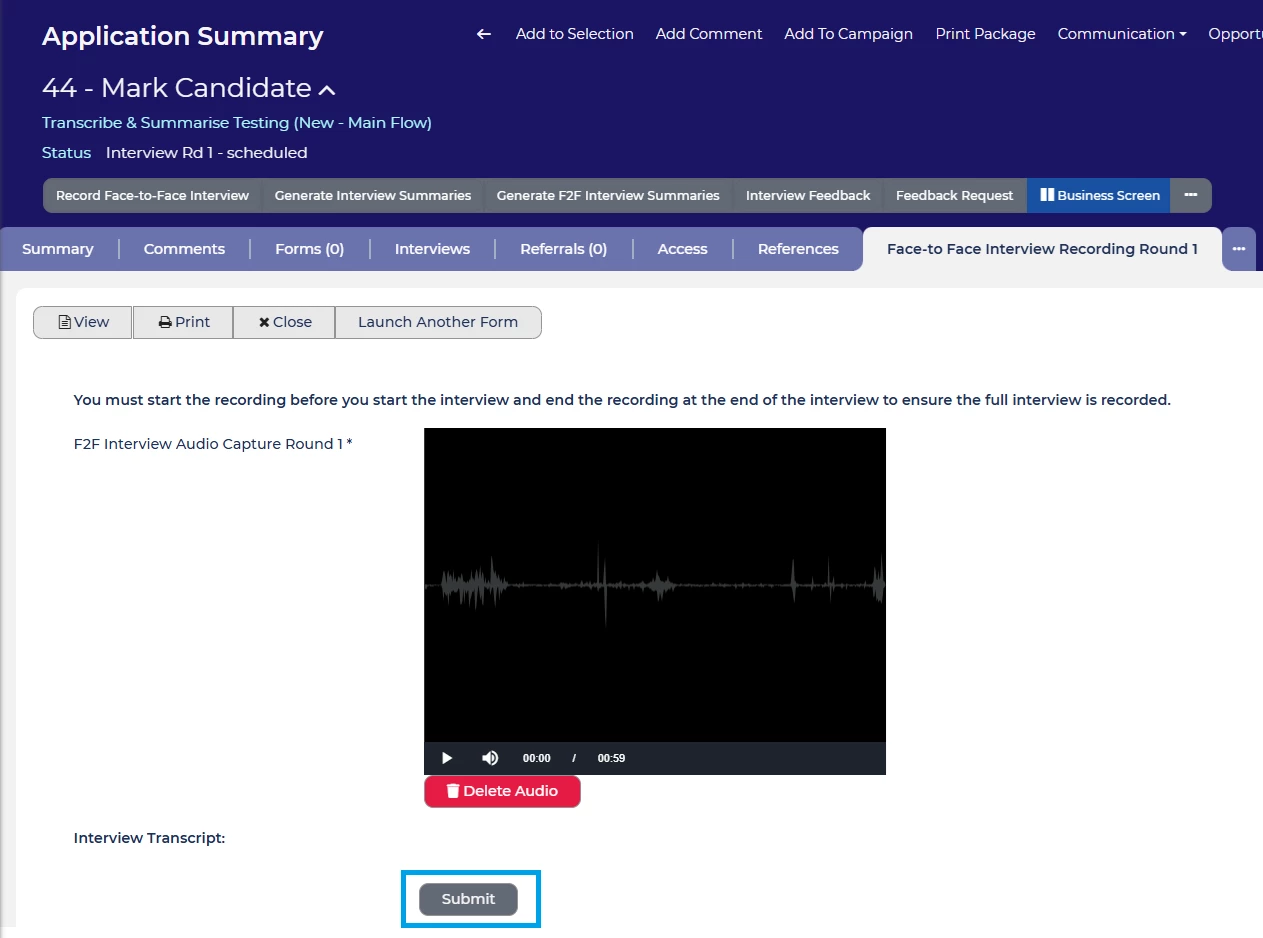
Press Submit and wait until all data is saved and processed.
GENERATING THE AI SUMMARIES
Once you have completed the Record Face-to-Face Interview Process you will need to request for the summaries to be generated. To do this:
- The transcript of the interview usually takes between 1-4 minutes to be returned into the system. Therefore please wait for 5 minutes before trying to request the AI summaries. Usually this is plenty of time to show the candidate out and check you emails etc.
- Once the 5 minutes has elapsed, please press the Generate F2F Interview Summaries button.
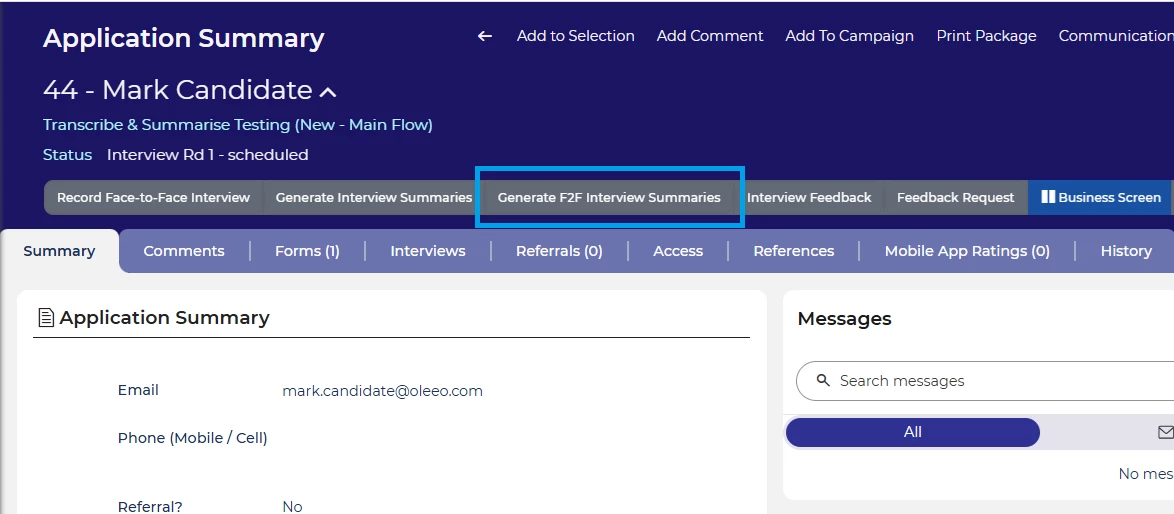
Press Generate F2F Interview Summaries button - The AI summaries themselves will take a couple of minutes to be processed and returned from the LLM, so again please get on with other work while you are waiting for them to be returned.
- To view the AI Summaries, select the Interview Feedback button (or whatever your interview feedback form is called).
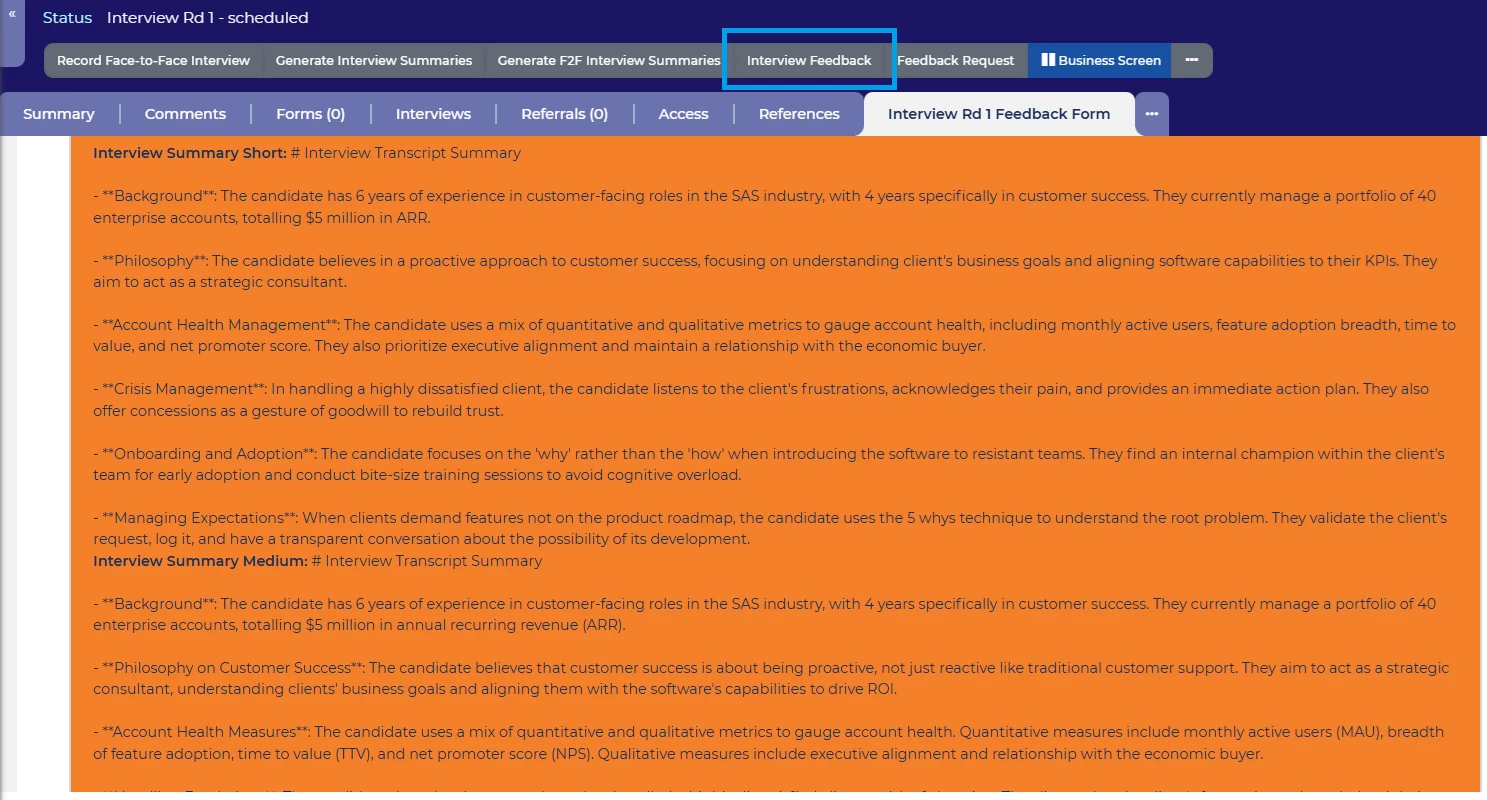
Select Interview Feedback your AI Summaries and transcript will be available to review here. - The summaries and transcripts will be shown at the relevant places in your feedback form and you will be likely able to suggest a recommendation for each application.
- You will also be able to view the summaries and transcripts from the Interviews tab.
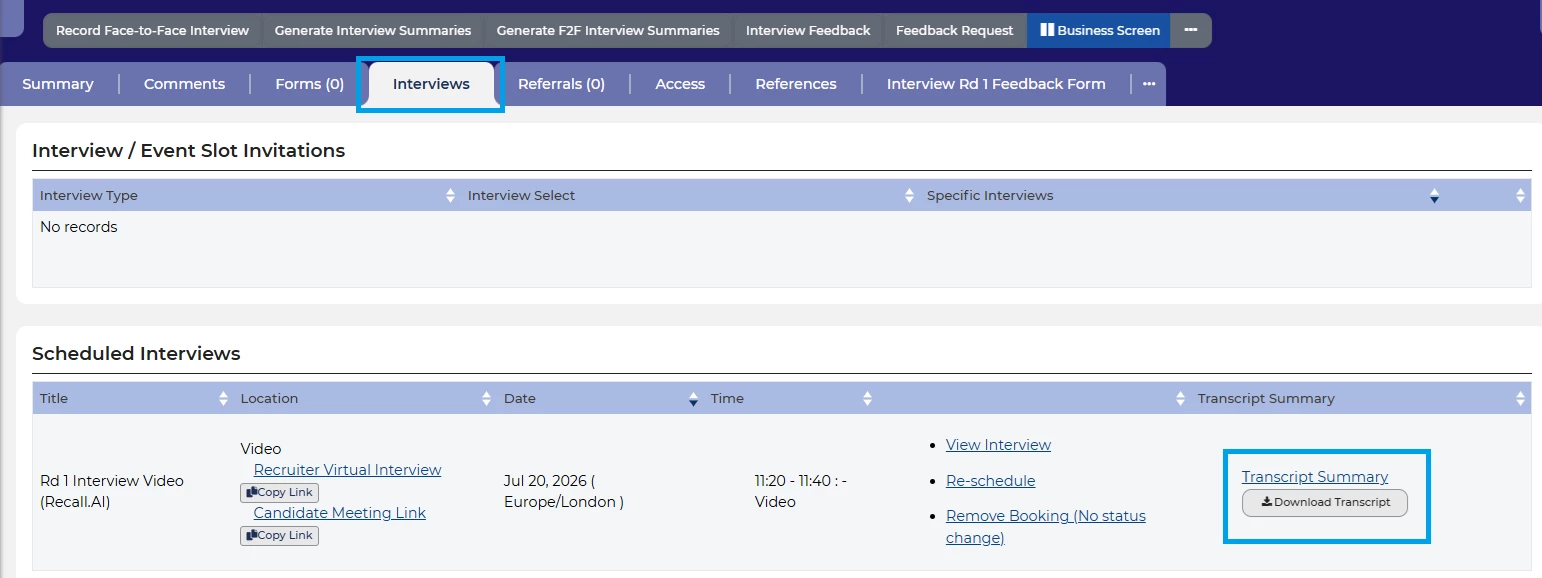
AI summaries and transcript available in the Interviews tab
LINKED FEATURES