




User Guide
Dashboard widget: Interview Calendar - Advanced
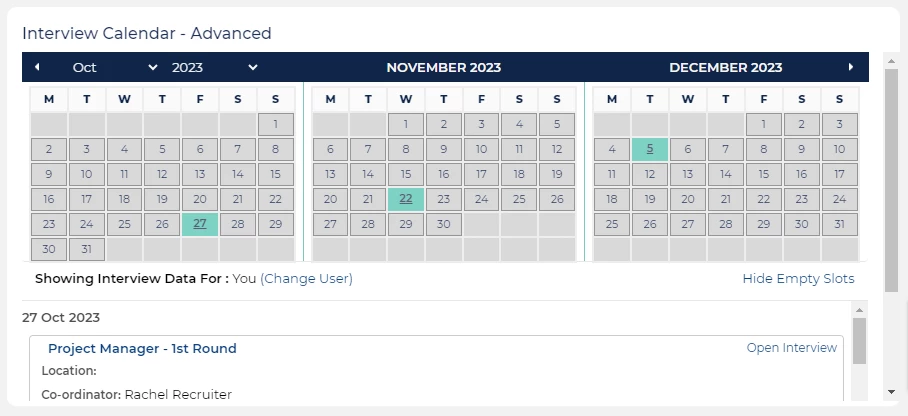
The 'Interview Calendar - Advanced' widget expands on the options available with the Interview Calendar - Simple widget. It provides a visual calendar highlighting interview dates in the current month, next month and the following month.
You can filter the calendar to only show schedules for a specific user, for specific opportunities or for specific access pools.
All upcoming slots are displayed below the schedule, organised under dates.
STEPS TO ADD
- Click on the tab where the widget will be placed.
- Open the tab's dropdown menu and select 'Add Widget'.
- In the Choose Homepage Widget field, select Interview Calendar - Advanced.
- Select the Filter type:
- User - By default, the calendar will display schedules where you are the coordinator. After adding the widget, you can click 'Change User' to view schedules for someone else.
- Opportunity - By default, the calendar will display schedules for all opportunities you have access to. You can click 'Change Opportunities' to select specific opportunities.
- Access Rule - By default, the calendar will show schedules for all access pools you have access to. If you click 'Change Access Rules', you can choose to display schedules for specific access pools.
- Click 'Save'.
- The widget is now displayed on your selected tab. Here, you can:
- Click 'Change User,' 'Change Opportunities,' or 'Change Access Rules' to filter the calendar.
- Dates with scheduled events are underlined and highlighted in cyan.
- All schedules and time slots are listed below, sorted by dates.
- Click on a date with time slots to navigate to that section of the list.

