




User Guide
Progressing and rejecting an application
OVERVIEW
Your system will be equipped with at least one application process flow, tailored to your organisation's recruitment workflow. Some customer's have multiple flows, aligning with different types of opportunities like Experienced Hire, Graduate, Events, or Talent Banks. When you create a job opportunity, the system picks the right application process based on the template you used.
KEY COMPONENTS OF A PROCESS FLOW
- Process flow design:
- The application process flow connects statuses and triggers actions such as prompting the user to complete a form or sending an email. It's set up to match how your organisation hires people.
- Move an application through the process using action buttons:
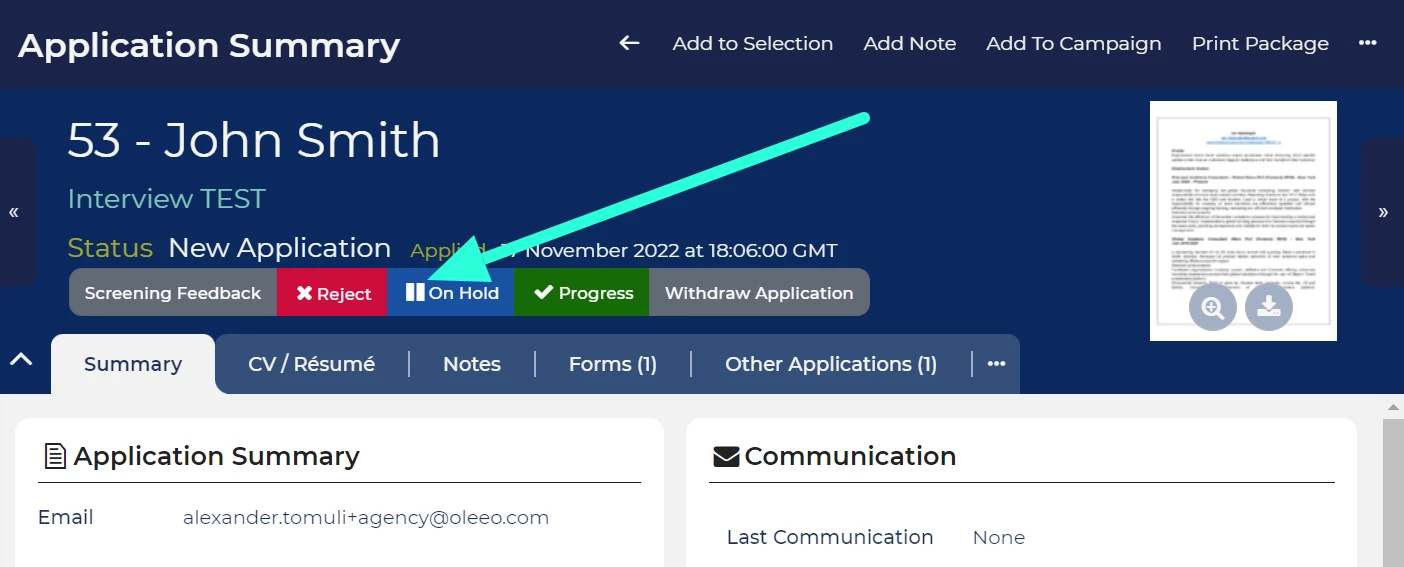
- In the candidate's Application Summary, you'll see buttons that match the application's current status. Green buttons progress applications, red buttons reject applications and blue buttons offer an alternative progress route.
- Use 'Other Status' tool to correct status change errors:
- If there's a mistake in moving an application through the process, a tool called 'Other Status' can help, but it's for special situations. It's usually used to bring back applications that were rejected or withdrawn.
- If there's a mistake in moving an application through the process, a tool called 'Other Status' can help, but it's for special situations. It's usually used to bring back applications that were rejected or withdrawn.
STEPS TO PROGRESS AND REJECT APPLICATIONS
Follow these steps to manage individual applications efficiently:
- Access to the application record:
- Go to the candidate's application record, known as the 'Application Summary' page.
- Identify the action buttons:
- Look below the application's current status. You'll see buttons with labels that show the available options. The buttons have different colours to help you understand their purposes:
- Green: Default progress route.
- Red: Default reject route.
- Blue: Alternative progress route.
- Grey: Non-default actions (e.g. 'Withdraw application').
- No action buttons will be available if:
- The application has reached the end of the process (e.g. "Shortlisting - Rejected")
- Your profile does not give you access to perform the next action.
- Look below the application's current status. You'll see buttons with labels that show the available options. The buttons have different colours to help you understand their purposes:
- Click appropriate action button:
- Pick the button that matches the action you want to take.
- What might happen next:
- Depending on whether the action sends an email update or needs you to fill in a form:
- Status changes: When the status changes, you'll see the updated application status and the new action buttons available for that status.
- Status changes + automatic email: The status update and an email is sent.
- Email prompt appears: An email will appear on the screen. Usually, it will be possible to edit the email before it is sent; when you send it, the status updates and the email gets recorded.
- Form opens: A feedback form opens in a new tab below ready for you to fill in.
- Depending on whether the action sends an email update or needs you to fill in a form:

